
Free Software Download Center
Software for industrial data collection,
monitoring, and analysis.
DYNAMIC CONTROL MANAGEMENT • PROCESS-AWARE INTERFACE • OPERATOR SAFETY
User controls within EOS SCADA can be dynamically enabled or disabled according to the values of the SCADA data to which they are associated.
This feature allows not only the visibility of user controls, but also whether they can be operated by the operator, to be automatically managed according to real-time process conditions.

In SCADA systems, it is important that operator interfaces not only display process information, but also manage the operations that the operator can perform according to current operating conditions.
For example, a command button may need to be enabled when a process variable exceeds a specific value, while the same button may need to be disabled when the required operating condition is not present.
EOS SCADA provides the ability to link the enabled or disabled state of user controls to the value of any SCADA data.
As a result, buttons, input fields, switches, or other user controls that send commands can automatically be made enabled or disabled according to real-time process conditions.
Basic operating principle: When the data being processed satisfies the specified condition, the user control becomes enabled. When the condition is not satisfied, the user control is disabled, preventing the operator from performing the corresponding operation.
Changing the enabled state of user controls according to process data helps SCADA operator interfaces adapt to actual operating conditions.
To link the enabled state of a user control to the value of SCADA data, first open the relevant project in the EDITOR software.
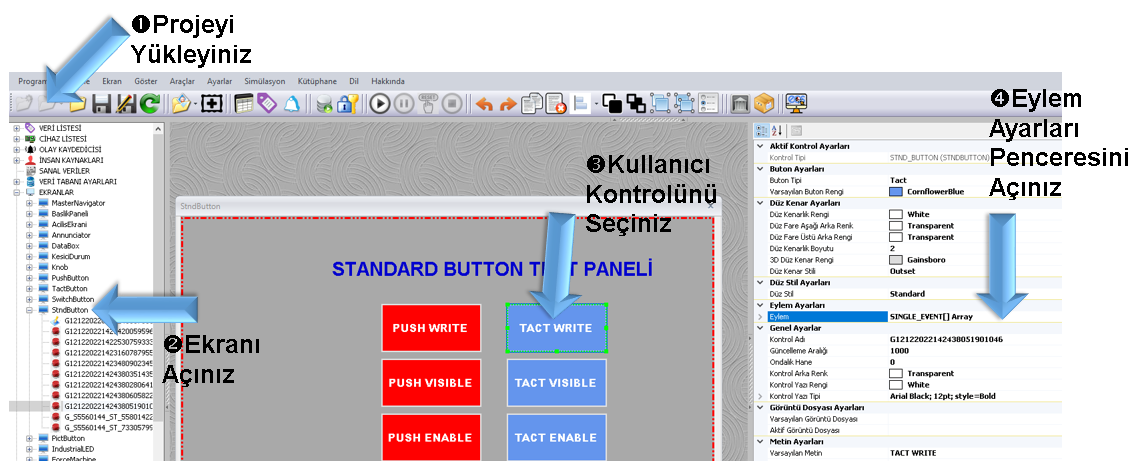
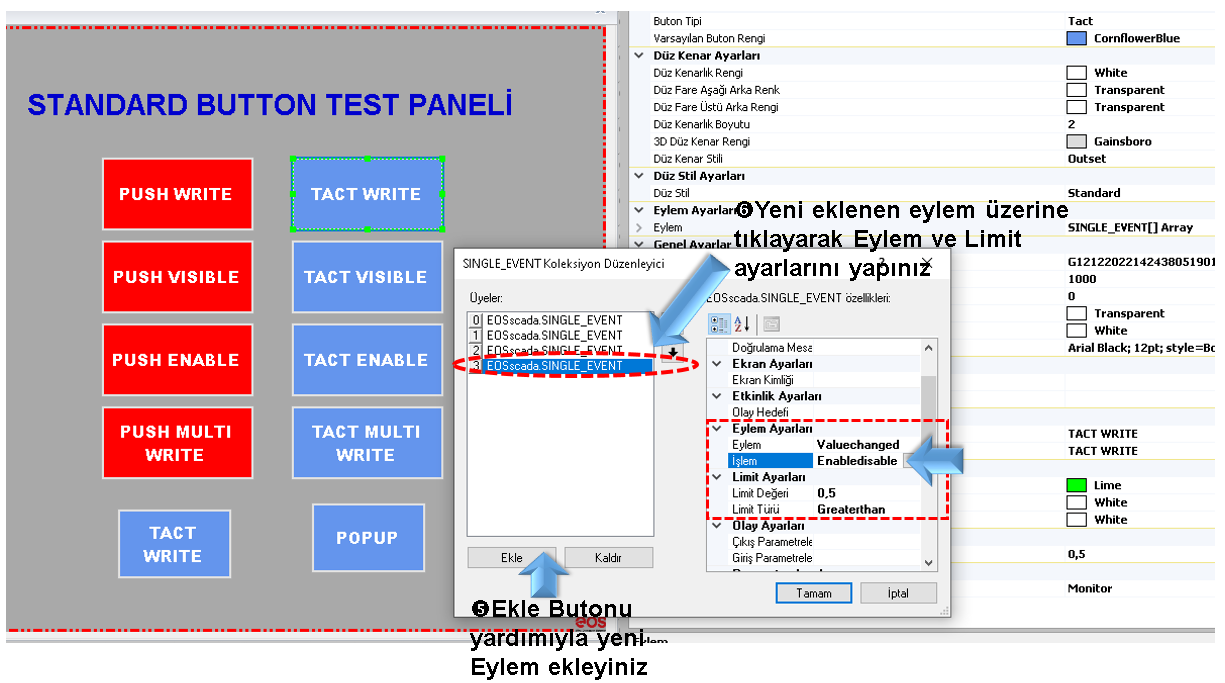
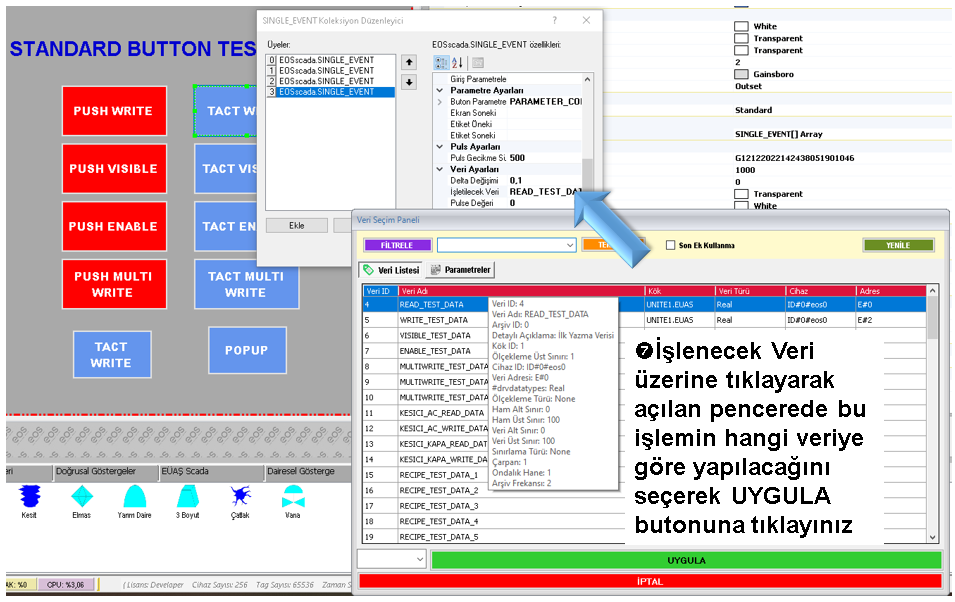
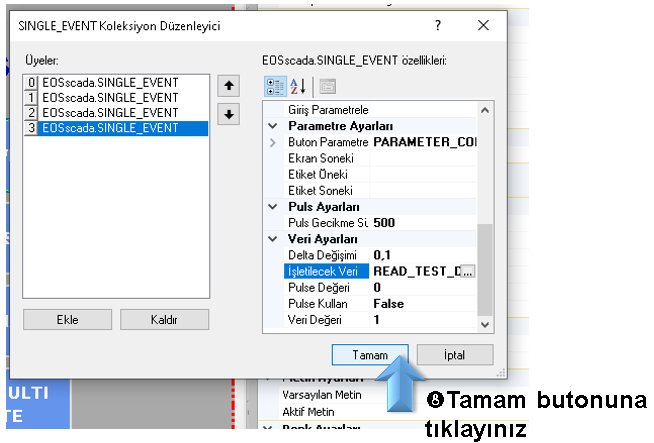
The Limit Value and Limit Type are used together to determine under which conditions the user control will be enabled or disabled.
Example settings:
In this case, when the processed data value is greater than 0.5, the user control becomes enabled.
When the data value is equal to or less than 0.5, the user control becomes disabled, and the user cannot perform an operation using the control.
Thus, instead of being manually changed by the operator, the availability of the user control is automatically managed according to the state of real-time data obtained directly from the SCADA system.
The Enabledisable action can be used not only to determine whether a user control is enabled or disabled, but can also be configured with additional parameters to determine how the control is displayed to the operator while it is disabled.
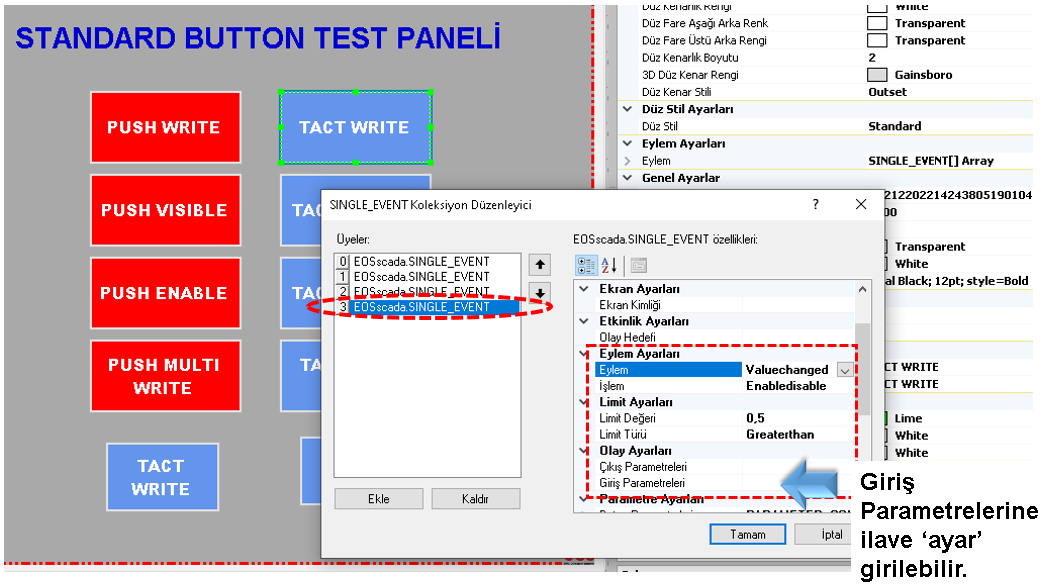
These parameters can be entered in the Input Parameters section of the Action Settings window.
| Input Expression | Operation |
|---|---|
| [empty] | When the user control is disabled, the control changes to gray. When the mouse pointer is moved over the control, a cursor indicating that the operation cannot be performed is displayed. |
| lock | When the user control is disabled, it retains its current color. A LOCK icon is displayed in the upper corner of the control. When the mouse pointer is moved over the control, a cursor indicating that the operation cannot be performed is displayed. |
| noopen | Applies to the BREAKER user control. Only the Send Open Command operation is disabled. |
| noclose | Applies to the BREAKER user control. Only the Send Close Command operation is disabled. |
| noboth | Applies to the BREAKER user control. Both the Send Open Command and Send Close Command operations are disabled. |
Note: When no input parameter is specified, the disabled state of the user control is displayed using the default appearance behavior. The lock parameter can be used to preserve the control's current appearance while also indicating its disabled state with a lock icon.
For BREAKER user controls, the noopen, noclose, and noboth parameters can be used to prevent specific commands from being sent instead of disabling the entire control.
This feature is particularly useful when a BREAKER must be controlled only in a specific direction depending on the current process conditions.
Enabling or disabling a user control based on a data value can provide an important additional layer of safety, especially for user controls that send commands to controllers.
For example, if operating a piece of equipment is not appropriate under a particular process condition, the corresponding command button can automatically be disabled for as long as that condition persists.
When the process condition becomes suitable again, the user control can automatically be enabled. This eliminates the need for the operator to manually change the control state continuously.
CAUTION: Disabling a user control should not, by itself, be considered an authorization or security mechanism.
A disabled user control should primarily be used to prevent the corresponding operation from being performed through the operator interface.
For actual access security and authorization, appropriate user permissions, access controls, and required control system security mechanisms should also be implemented.
In EOS SCADA, making a user control disabled / enabled is different from making it hidden / visible.
Therefore, depending on the process design, these two features can also be used together. For example, a control can be completely hidden under certain conditions, while under another condition it can remain visible but disabled.
Example approach: If it is important for the operator to see an operation but not be able to perform it, the user control can remain visible but disabled. If the operation should not be displayed to the operator at all, the control can instead be made hidden.
Enabling or disabling user controls in EOS SCADA based on data values allows operator interfaces to adapt to real-time process conditions.
The data to be monitored can be specified using the Valuechanged action, while the Enabledisable operation manages the enabled state of the user control. Limit Value and Limit Type determine the conditions under which this behavior occurs.
In addition, the appearance and behavior of disabled controls can be modified using Input Parameters. Parameters such as lock, noopen, noclose, and noboth provide more detailed control, particularly for command-sending user controls such as BREAKER controls.
This makes it possible to dynamically determine not only which controls are displayed on operator screens, but also which controls can be operated under specific process conditions.
Free Software Download Center
Software for industrial data collection,
monitoring, and analysis.

Technical Support
Software documentation, sample code,
and practical technical information.
You can contact us regarding EOS SCADA, software, or technical content.