
Free Software Download Center
Software for industrial data collection, monitoring, and analysis.
GROUP CREATION • LIBRARY STORAGE • REUSE • PROJECT MANAGEMENT
In EOS SCADA Editor, multiple user controls can be arranged as a group and saved to the library.
User control groups added to the library can later be reused on the same or different screens. This eliminates the need to recreate frequently used control groups and allows them to be added to the project quickly.

Some user control groups on SCADA screens may need to be reused on multiple screens or in different projects. Recreating, positioning, and configuring the same controls for each use can be time-consuming and can also make design standardization more difficult.
EOS SCADA Editor
The group added to the library allows user controls to be reused together while preserving their previously prepared design integrity.
This method provides significant convenience when creating standard control groups consisting of valves, pumps, breakers, measurement elements, or control elements that need to be used in a similar manner on different screens.
When a user control group is added to the library, its scope of use can be specified. Within EOS SCADA Editor, user control groups can be added to the Global or Project library.
| Library | Usage Scope |
|---|---|
| Project Library | A user control group added to the library can be used only within the library on the menu screen of the relevant project. |
| Global Library | A user control group added to the library can be used on the menu screens of all projects. |
Recommendation: For control groups that will be used only in a specific project, the Project Library should be preferred; for standard control groups that will be reused across different projects, the Global Library should be preferred.
To add the prepared user control group to the library, first select the user controls that are intended to be included in the group.

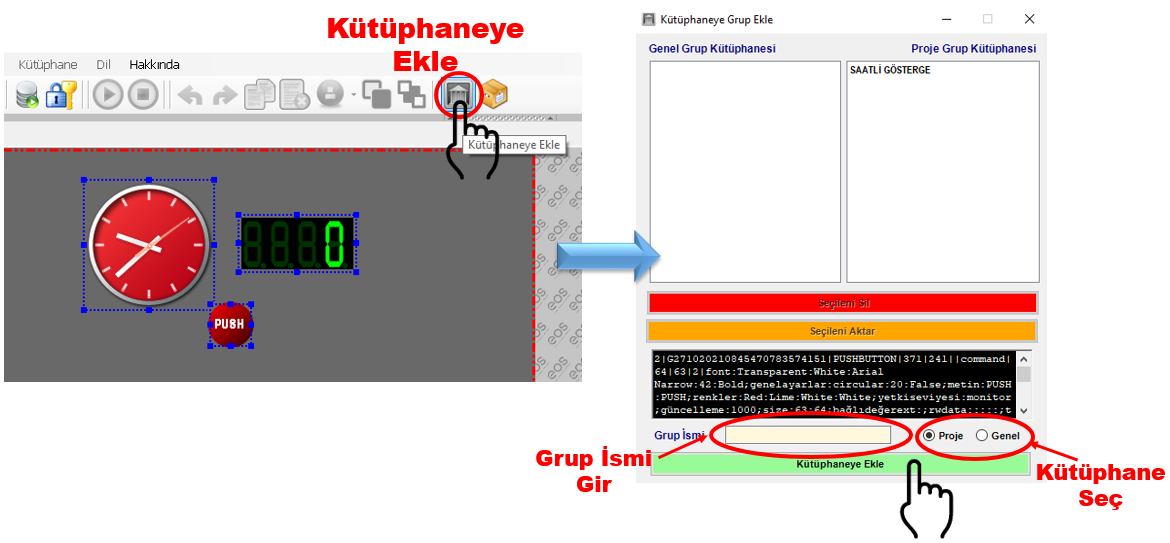
When the Add to Library window opens, the Project Library is selected by default.
If the user control group is intended to be used only in the current project, the operation can continue without changing the default selection.
If the created group is intended to be used in different projects as well, the library type must be changed to Global.
After the Add to Library window is closed, the created user control groups can be viewed under the LIBRARY menu on the Menu Bar.
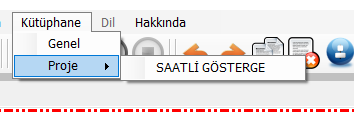
Within the library, groups are listed under two different categories according to their scope of use:
This allows the user to access control groups previously prepared and saved to the library directly through the LIBRARY menu and reuse them.
The Add to Library window is not used only to create new user control groups. Existing library groups can also be managed through the same tool window.
WARNING: A user control group added to the Global Library has a broader scope than one added to the Project Library. Therefore, before transferring a group to the Global Library, it should be evaluated whether the group is suitable for use in different projects.
For example, suppose a user control group has been prepared for pump control in a SCADA project. The group may contain a pump symbol, start/stop buttons, status indicators, and related measurement indicators.
Example workflow:
When the same control group is needed later, it can be used as a ready-made group from the library instead of recreating the user controls individually.
Adding user control groups prepared in EOS SCADA Editor to the library allows frequently used screen components to be reused without recreating them.
A user control group can be saved to the Global or Project library using the ADD TO LIBRARY function. Groups added to the Project Library can be used only in the relevant project, while groups added to the Global Library can be used in all projects.
In addition, because existing groups can be deleted and transferred between libraries using the same library management tool, EOS SCADA Editor provides an integrated structure for creating and managing user control libraries.
Free Software Download Center
Software for industrial data collection, monitoring, and analysis.

Technical Support
Software documentation, sample code, and practical technical information.
You can contact us regarding EOS software, technical documentation, or industrial data communication.