
Free Software Download Center
Software for industrial data collection, monitoring, and analysis.
VISUAL PRIORITY • OBJECT ORDERING • SCREEN DESIGN
Within EOS SCADA, user controls located on the same screen may overlap with one another. In such cases, the Bring to Front and Send to Back functions can be used to determine which control is displayed in front of or behind another.
This feature allows the visual priority of overlapping user controls to be adjusted on the screen and provides control over which object can be seen or selected by the user in complex screen designs.

When designing SCADA screens, multiple user controls may need to occupy the same area or overlap each other. Especially in designs where symbols, buttons, displays, and decorative screen objects are used together, the order of objects on the screen becomes important.
Which of the overlapping controls is displayed above the others is determined by the user's control visual priority.
The Bring to Front operation causes the selected user control to be displayed above the other controls, while the Send to Back operation causes the selected control to be displayed behind the other controls.
Important: The Bring to Front and Send to Back operations do not change the position or size of the user control on the screen. They only change its visual order relative to other screen objects.
This feature is particularly useful in designs where multiple screen objects overlap each other.
To bring a user control to the front or send it to the back, the user control on which the operation will be performed must first be selected.
After the user control has been selected, the operation can be performed using any of the following methods.
 Use the quick access button bar.
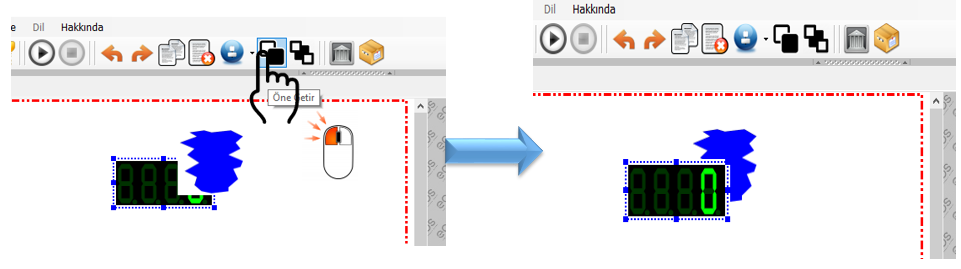
Select the user control to be brought to the front and click the BRING TO FRONT button
in the quick access button bar.
Use the quick access button bar.
Select the user control to be brought to the front and click the BRING TO FRONT button
in the quick access button bar.
 To send the user control behind the other controls, click the SEND TO BACK button.
 Open the settings window using the right mouse button.
Right-click on the selection rectangle of the user control on which the Bring to Front or Send to Back
operation will be performed.
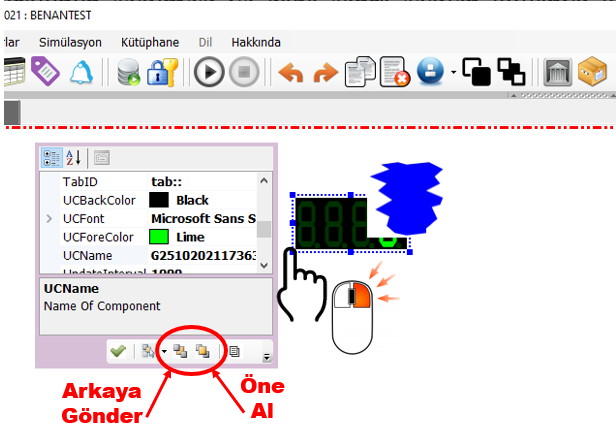
Open the settings window using the right mouse button.
Right-click on the selection rectangle of the user control on which the Bring to Front or Send to Back
operation will be performed.
 In the settings window that opens, select the required BRING TO FRONT or
SEND TO BACK button.
In the settings window that opens, select the required BRING TO FRONT or
SEND TO BACK button.
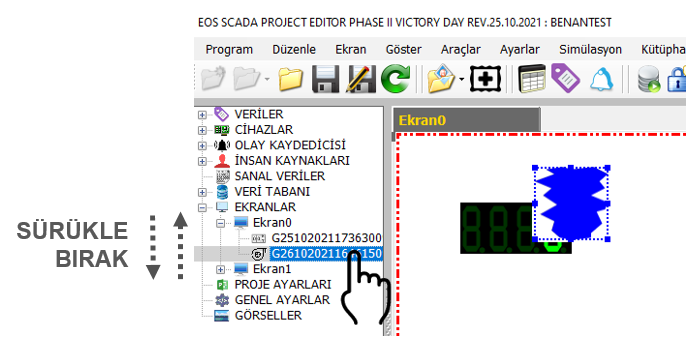
The visual priority of user controls is related to their order in the SCADA tree menu.
CAUTION: The user control at the top of the SCADA tree structure has the lowest visual priority on the screen.
To move a user control to the front, the control must be moved downward in the tree structure.
Therefore, if a user control is intended to appear above another control on the screen, attention must be paid not only to its physical position on the screen but also to its order in the SCADA tree menu.
Consider two user controls placed on top of each other on the same screen. In this case, different results can be achieved by changing only their visual order while their positions on the screen remain unchanged.
Example:
The first user control is then displayed above the other control.
Conversely, when the SEND TO BACK operation is applied to the selected control, the control can be displayed behind the other objects.
In this way, the screen design can be organized by changing only the visual layering order without having to rearrange the physical positions of the screen objects.
Bring to Front and Send to Back operations should be used carefully, especially on complex SCADA screens containing a large number of user controls.
Within EOS SCADA, bringing user controls to the front or sending them to the back allows the visual priority of overlapping screen objects to be managed.
The operation can be performed using the quick access buttons, the settings window opened by right-clicking on the user control, or the user control ordering in the SCADA tree menu.
Especially on complex operator screens, this feature makes it possible to organize the visual relationships between user controls, bring important controls to the foreground, and create screen designs in a more controlled manner.
Free Software Download Center
Software for industrial data collection, monitoring, and analysis.

Technical Support
Software documentation, sample code, and practical technical information.
You can contact us regarding EOS software, technical documentation, or industrial data communication.