
Free Software Download Center
Software for industrial data collection, monitoring, and analysis.
DESELECTING USER CONTROLS
During screen design in the EOS SCADA Editor, user control objects can be selected and then moved, resized, or have their properties edited.
After completing an editing operation, the selected user control object may need to be deselected. In this case, any empty area on the screen can be used to deselect the user control.
To deselect a user control, simply click once with the left mouse button on any empty area of the screen.

When a user control object is selected on the screen, selection markers indicating that the object is selected are displayed. These markers assist the user when moving, resizing, or editing the properties of the object.
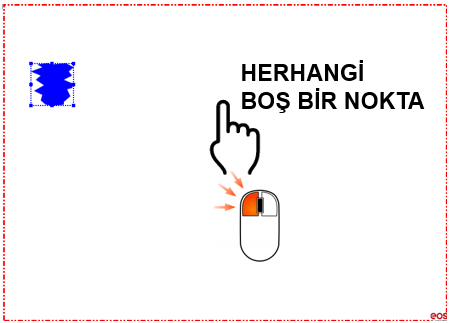
To deselect the user control object, left-click once on any empty area of the screen where no object is located.
Usage: To deselect the selected user control object, left-click once on any empty point on the screen.
The following steps can be followed to deselect a user control:
The area clicked to deselect the object must not contain another user control object. If another object is clicked, that object may become selected.
Therefore, to completely deselect the current user control, it is recommended to use an empty area of the screen where no user control object is located.
Tip: If it is difficult to find an empty area on the screen, you can click an appropriate unused area of the design during the design process to deselect the current object.
In the EOS SCADA Editor, to deselect a selected user control object, simply left-click once on any empty point on the screen.
As a result, the selection markers around the user control object are removed, and the screen design area is ready for a new editing operation.
Free Software Download Center
Software for industrial data collection, monitoring, and analysis.

Technical Support
Software documentation, sample code, and practical technical information.
You can contact us regarding EOS software, technical documentation, or industrial data communication.