
Free Software Download Center
Software for industrial data collection, monitoring, and analysis.
SELECTING USER CONTROLS
During screen design in the EOS SCADA Editor, selecting user control objects is a fundamental operation that allows editing operations to be performed on these objects.
The user can select one or more user controls on the screen to edit their position, size, and other visual properties. With the multiple selection feature, it is possible to work on multiple objects simultaneously and perform screen design tasks more efficiently.
The EOS SCADA Editor provides multiple selection methods for selecting user control objects according to different requirements. The user can choose the appropriate method depending on the location of the object to be edited and the operation to be performed.

The following methods can be used to select a user control on the screen or to select multiple user controls at the same time.
To select a single user control, click on the user control to be selected using SHIFT + left mouse button.
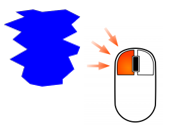
This method can be used when working with only a specific user control on the screen.
To select multiple user controls, click on the user controls to be selected using SHIFT + left mouse button.
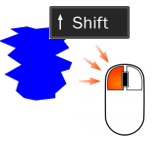
Using this method, multiple user controls can be collected into the same selection group. This allows editing and moving operations to be performed on the selected objects together.
To select all or part of the screen area containing user controls, press and hold the left mouse button at a point in the upper-left corner of the screen and drag the mouse toward the lower-right corner.
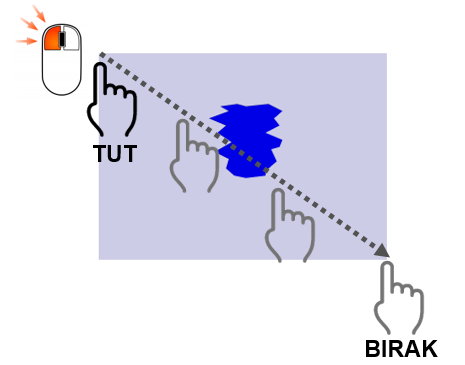
As a result, a rectangular selection area is created on the screen. User control objects located within the rectangular area are included in the selection.
This method is particularly useful on SCADA screens containing a large number of user controls, allowing multiple objects to be selected quickly instead of selecting them one by one.
A user control can also be selected from the SCADA tree menu instead of directly from the screen design area.
To do this, simply left-click the user control listed under the relevant SCREEN node in the tree menu.
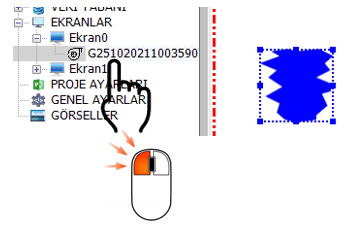
This method is particularly useful when a user control is behind other objects on the screen, is small, or is difficult to select directly with the mouse.
The user can select as many user controls as needed on the screen by using any of the selection methods described above.
When a single user control is selected, individual editing operations can be performed on the relevant object. When multiple user controls are selected, the selected objects can be moved together, their positions can be adjusted, or other common operations required during the design process can be performed.
This feature speeds up the organization of user control objects, especially when designing complex SCADA screens, and enables objects on the screen to be managed in a more controlled manner.
Tip: When a screen contains a large number of user controls, using selection by rectangular area or selection from the tree menu instead of selecting objects individually can significantly simplify the design process.
User control selection forms the basis for subsequent editing operations to be performed on an object. Therefore, make sure that the intended object or group of objects has been selected correctly.
Especially when performing multiple selection, the selected user control objects will be affected by the operation together. Therefore, it is recommended to check the selection area before performing an editing operation.
When a user control cannot be selected directly on the screen, using the tree menu can provide a more reliable way to locate and select the correct object.
Free Software Download Center
Software for industrial data collection, monitoring, and analysis.

Technical Support
Software documentation, sample code, and practical technical information.
You can contact us regarding EOS software, technical documentation, or industrial data communication.