
Free Software Download Center
Software for industrial data collection, monitoring, and analysis.
REMOVING SCREEN OBJECTS • MULTIPLE SELECTION • DIFFERENT DELETION METHODS
User controls on SCADA screens designed in the EOS SCADA Editor can be deleted from the screen when they are no longer needed or when the screen design is being reorganized.
Deleting user controls does not only remove the control visually from the screen; it also removes the corresponding screen object from the design structure of the project.
EOS SCADA provides multiple methods for deleting user controls to accommodate different working preferences. This allows users to quickly modify the screen design by using the method that best suits their workflow.

During the preparation of SCADA screens, user controls can be added, moved, resized, and, when necessary, completely removed according to process requirements.
To delete a user control, the control or controls to be removed must first be selected. After the selection has been made, the deletion can be performed using one of several methods.
Important: When multiple user controls are selected, the selected controls can be deleted as a group. This feature makes it possible to quickly remove unnecessary objects, especially when reorganizing the screen design.
Before starting the deletion operation, the user control to be removed from the screen must be selected.
A single user control can be selected, or multiple user controls can be selected and deleted together in the same operation.
After the user controls have been selected, the selected objects can be removed from the screen using any of the methods described below.
Four different methods can be used to delete selected user controls in the EOS SCADA Editor. The user can choose the appropriate method according to their workflow and the interface area they are working in.
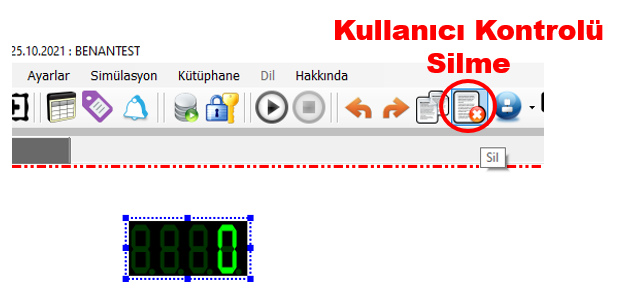
Select the user controls to be deleted on the screen. Then click the DELETE button in the Quick Access Button Bar.
 The selected user controls will be removed from the screen.
Right-click on the selection rectangle of any of the user controls to be deleted.
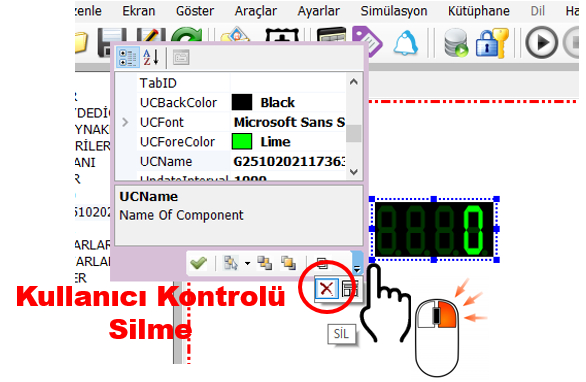
In the user control settings window that opens, click the DELETE button to delete the selected user control.
Click the SCREENS menu item in the SCADA tree menu.
Find the relevant SCADA screen in the screen list that opens and expand the screen name.
In the tree structure displayed below the screen, find the user control to be deleted. Right-click the user control.
From the menu that opens, click DELETE SCREEN OBJECT.
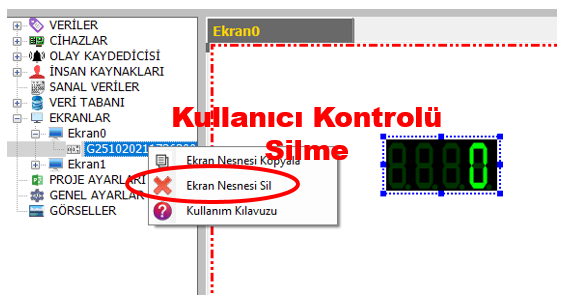
The selected user control will then be removed from the object structure of the relevant SCADA screen.
 Select the user controls to be deleted on the screen.
Then press the Delete key on the keyboard.
The selected user controls will be removed from the SCADA screen.
All four deletion methods perform the same basic operation: removing the selected user controls from the SCADA screen.
Practical use:
Multiple user controls can be selected at the same time in the EOS SCADA Editor, and the selected controls can be deleted as a group.
This feature provides significant convenience, especially when redesigning a SCADA screen, removing unused objects, or completely replacing a section of a screen.
After the user controls have been selected as a group, they can be removed in a single operation using the DELETE button or the Delete key on the keyboard.
CAUTION: During multiple selection, make sure that no user control that should not be deleted is also selected.
Checking the selection area and selected objects before deleting is important to prevent accidental deletion of a user control.
When it is difficult to locate a user control on the screen, the SCADA tree menu provides an important convenience.
When the relevant screen is selected through the SCREENS section, the user controls belonging to that screen are displayed in the tree structure.
This allows the user to locate the relevant user control within the project's object structure instead of searching for it directly on the screen, and delete it using the DELETE SCREEN OBJECT option.
This method is particularly useful for managing objects on complex SCADA screens containing a large number of user controls.
When a user control is deleted, the corresponding object is removed from the SCADA screen.
To make changes made to the screen design permanent within the project, the project must be saved after the work has been completed.
This ensures that the deleted user controls will also be absent from the screen when the project is opened again.
CAUTION: Make sure that the correct user control has been selected before performing the deletion operation.
Especially on screens containing a large number of objects, it is recommended to check the selected controls before performing a multiple deletion operation.
Deleting user controls in the EOS SCADA Editor allows SCADA screens to be updated according to current process requirements and unnecessary screen objects to be removed.
User controls can be deleted using the DELETE button in the Quick Access Button Bar, the DELETE button in the menu opened by right-clicking the user control, the DELETE SCREEN OBJECT option in the SCADA tree menu, or the Delete key on the keyboard.
The ability to select and delete multiple user controls in a single operation provides significant convenience, especially when organizing large and complex SCADA projects.
These methods enable screen objects to be managed more quickly, systematically, and flexibly within the EOS SCADA Editor.
Free Software Download Center
Software for industrial data collection, monitoring, and analysis.

Technical Support
Software documentation, sample code, and practical technical information.
You can contact us regarding EOS software, technical documentation, or industrial data communication.