
Free Software Download Center
Software for industrial data collection, monitoring, and analysis.
BINDING DATA TO USER CONTROLS
Associating user control objects added to screens in the EOS SCADA Editor with real-time SCADA data makes these controls dynamic and functional.
Binding data to user controls is an important design step, particularly for displaying measurement values, monitoring device statuses, sending commands, and using real-time data in action-function structures.
Within the EOS SCADA Editor, data can be assigned to user controls through the Action settings using the Data to Process or Data Value parameters.
The Data Selection Window available during data selection allows data defined in the SCADA system to be quickly found, filtered, and assigned to the relevant user control.

To assign data to actions defined for a user control, the relevant user control must first be selected. Then, click the Action option in the Settings Table on the right to open the Add Action Panel.
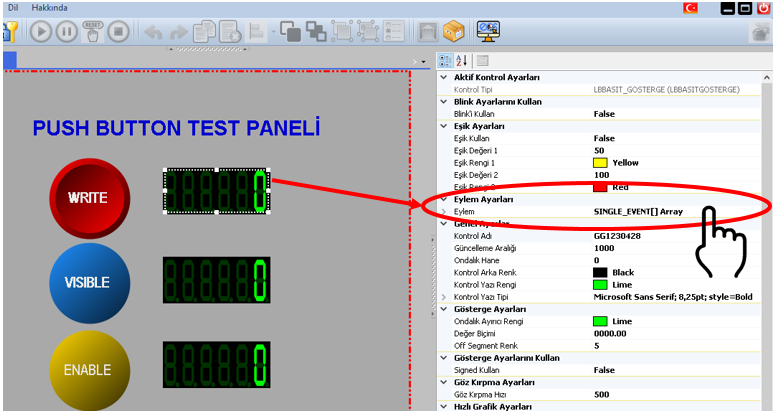
In the Add Action Panel, select the action to which the data will be bound. Then select the Data to Process row among the settings belonging to the action to start the data selection process.
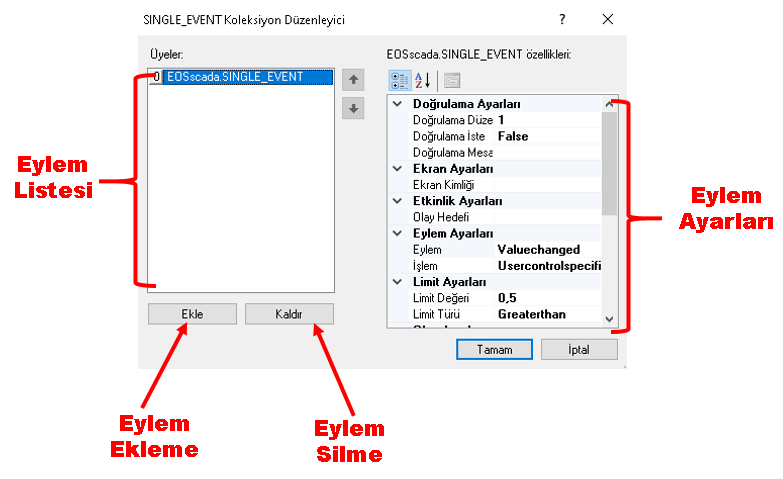
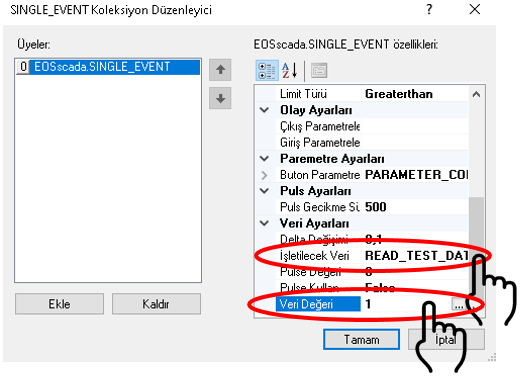
Similarly, SCADA data can also be assigned to the Data Value parameter. In this case, instead of using a fixed value for Data Value, the current runtime value of the selected data is used.
Important: Data to Process and Data Value can be used for different purposes. The data connection to be used should be determined according to the operating logic of the relevant action.
To bind data to a user control, click the Data to Process or Data Value parameter.
This opens the Data Selection Window. The window displays the data defined in the EOS SCADA system.
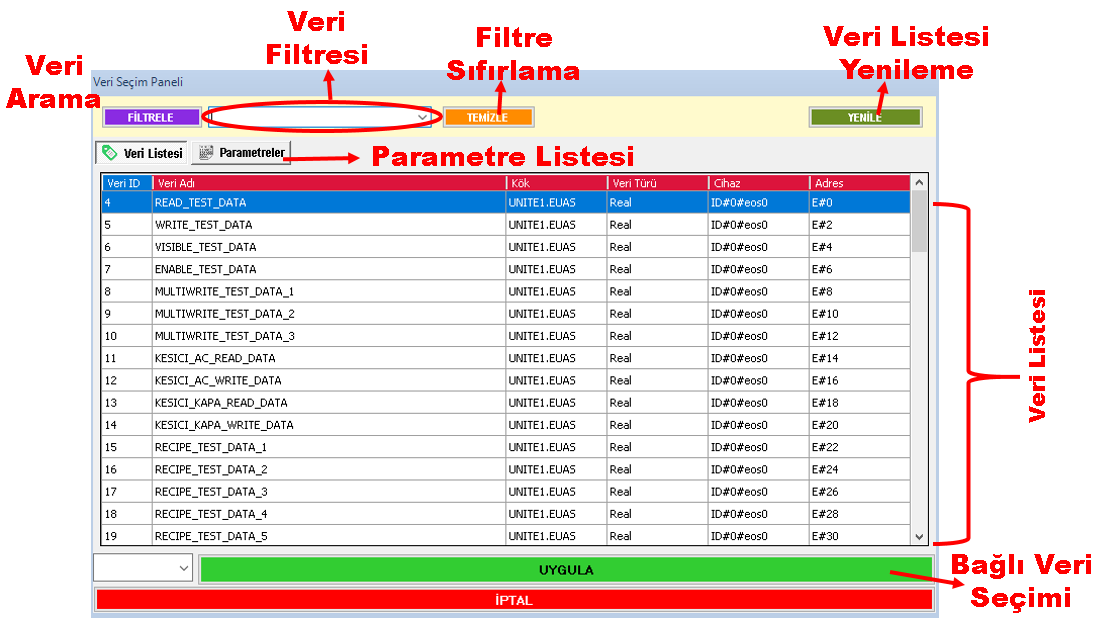
The Data Selection Window provides auxiliary features such as filtering and group selection to make it easier to find the required data in projects containing a large number of data points.
Usage: In the Settings Table, click the Data to Process or Data Value parameter. Select the required data from the Data Selection Window that opens.
The Data Filter in the Data Selection Window can be used to list data containing the desired keywords.
The data filter helps locate the required data quickly, especially in SCADA projects containing a large number of data points.
Group selection can also be used during filtering. The group names defined in the system are displayed in a drop-down box within the data filter.
The user can select a group to display only the data belonging to that group. This allows data to be selected more quickly and systematically using both keyword and group information.
The way filtering operates in the EOS SCADA system varies depending on the number of data points defined.
If the number of data points defined in SCADA is greater than 2000, the FILTER button must be clicked to perform filtering after changing the keyword.
If the number of defined data points is 2000 or fewer, filtering is performed automatically as the keyword is changed.
This approach is intended to reduce unnecessary filtering operations in very large data lists and improve the efficiency of the Data Selection Window.
When new data is added to the SCADA project, the data list in the existing Data Selection Window may need to be updated.
To display newly defined data in the list, the REFRESH button should be used.
CAUTION: If newly defined data or parameters do not appear in the Data Selection Window, it is recommended to first click the REFRESH button to update the data list.
When the mouse pointer is briefly held over any data listed in the Data Selection Window, an information window displaying the properties defined for that data in the system appears.
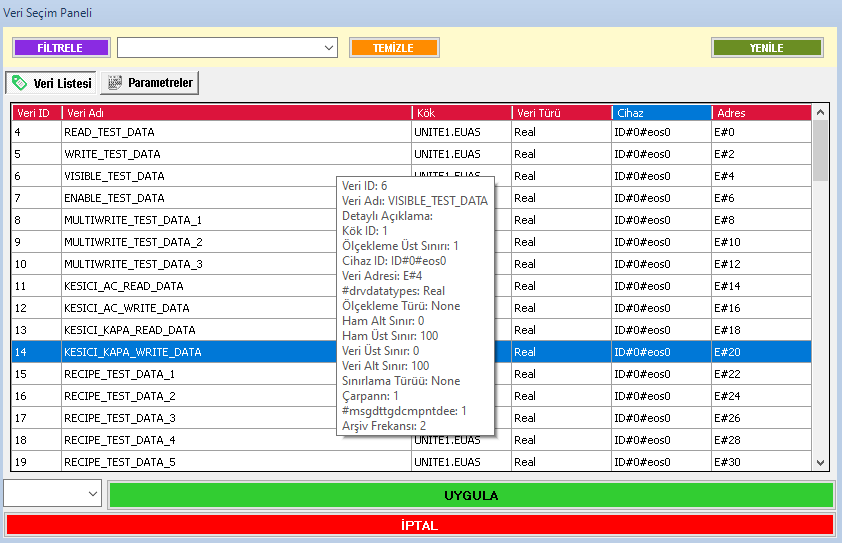
This feature is particularly useful for identifying the correct data among many data points with similar names or belonging to the same group.
Tip: Before selecting data, holding the mouse pointer over the relevant data and checking the displayed information can help prevent incorrect data bindings.
After determining the data to be used by the user control, click the relevant data in the list.
After selecting the data, click the APPLY button to complete the selection. The selected data is assigned to the action setting of the relevant user control.
This establishes a connection between the user control and the selected SCADA data. Depending on the defined action and function, the user control can use this data during runtime.
To complete the data selection:
In SCADA applications where parameterized screens are used, a parameter can be bound to user controls instead of directly binding an actual data point.
For this purpose, the Parameter List in the Data Selection Window can be used. Parameters allow the same screen design to operate with different data in different screen usage scenarios.
During navigation between screens, the actual data that will replace the data connections defined as parameters can be transferred to the relevant screen through Navigation Buttons.
This approach allows the same screen design to be used for different devices, equipment, or data points without creating the same screen repeatedly.
Example: If the same motor monitoring screen is to be used for different motors in a project, a parameter can be used instead of directly specifying a particular Tag. During navigation, the actual data of the relevant motor is passed to the parameter.
If no changes are to be made in the Data Selection Window, the selection process can be terminated using the CANCEL button.
When the CANCEL button is used, the Data Selection Window is closed and the selection operation is not applied.
Cancel: Use the CANCEL button to close the window without applying the data selection.
Performing the data binding operation for user controls in the following order can help ensure that data connections are configured in a more controlled manner.
In the EOS SCADA Editor, binding data to user controls allows user controls to be associated with real-time SCADA data through defined actions.
After selecting the relevant user control, the Action option in the Settings Table should be used, and appropriate data should be assigned to the Data to Process or Data Value parameter of the required action.
The filtering, group selection, data property display, and list refresh features available in the Data Selection Window help users quickly locate the correct data, especially in large SCADA projects containing a large number of data points.
In parameterized screens, the Parameter List makes it possible to operate the same screen design with different actual data. This approach increases screen reusability and helps create a more organized structure in large SCADA projects.
Free Software Download Center
Software for industrial data collection, monitoring, and analysis.

Technical Support
Software documentation, sample code, and practical technical information.
You can contact us regarding EOS software, technical documentation, or industrial data communication.