
Free Software Download Center
Software for industrial data collection, monitoring, and analysis.
CREATING VIRTUAL DATA
In SCADA systems, some data may not be read directly from any device. However, new and meaningful data can be obtained by performing calculations and operations on existing real-time data.
EOS SCADA allows this type of data, which is not read directly from any physical device but can be derived from other SCADA data, to be created as Virtual Data.
For example, two different real-time data values can be processed using a formula to generate a new data value. In this way, information that has no corresponding physical signal but can be calculated from existing data can be monitored within the SCADA system and used by other SCADA functions.
Virtual data makes it possible to monitor the values of independent data points and create new data that depends on these values but has no corresponding physical signal.

The VIRTUAL DATA menu item located in the SCADA tree menu bar is used to perform virtual data operations.
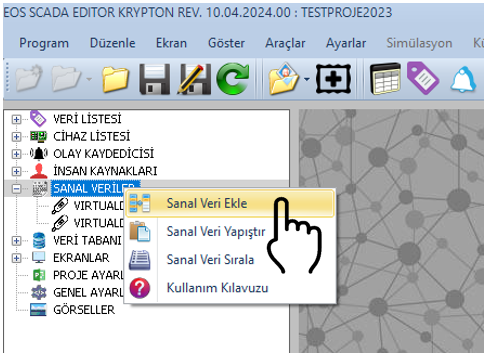
The user can open the Virtual Data Context Menu by right-clicking the VIRTUAL DATA menu item.
The context menu that opens can be used to add, copy, cut, paste, delete, and sort virtual data.
Usage: Right-click the VIRTUAL DATA menu item to open the Virtual Data Context Menu.
After a new virtual data item is created, its information can be modified using the Settings Table located on the right.
The configurable virtual data settings and their default values are provided in the table below.
| Property Name | Property Description | Default Value |
|---|---|---|
| VirtualDataId | Virtual Data ID | 0 |
| VirtualDataActive | Virtual Data Active | false |
| VirtualDataName | Virtual Data Name | VIRTUALDATA |
| VirtualDataDefinition | Virtual Data Definition | - |
When the user double-clicks the VIRTUAL DATA menu item, the software opens an editing window within a TAB in the center of the software layout to facilitate virtual data creation and editing.
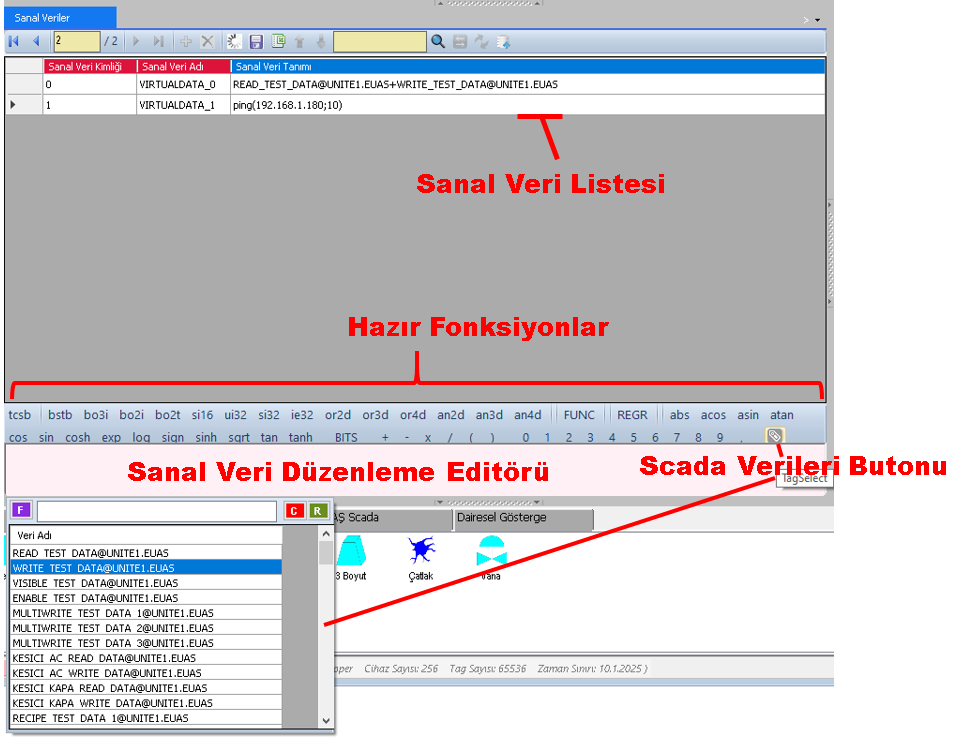
The upper section of this window contains a table with virtual data, the section immediately below the table contains predefined functions, and the lower section contains the Virtual Data Editing Editor.
The user can create complex virtual data expressions using the predefined functions and use the resulting virtual data in SCADA design.
EOS SCADA provides predefined functions to facilitate the preparation of virtual data expressions. The user can create more complex virtual data expressions by using these functions.
When one of the predefined functions is right-clicked, the corresponding function expression is copied to the system clipboard.
The function expression copied to the clipboard can then be pasted into the desired position within the Virtual Data Editing Editor.
Recommendation: When preparing complex virtual data expressions, using predefined functions helps ensure that the function syntax is created correctly and reduces typing errors.
Real data defined within EOS SCADA can also be used in virtual data expressions. The user can click the Data List button to open the list containing the available SCADA data.
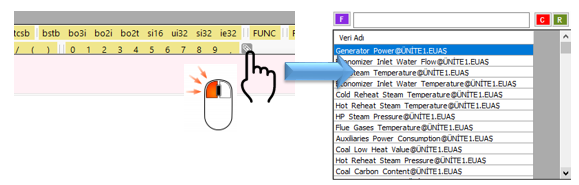
The real data to be used in the virtual expression can be selected from the data list table that opens. The selected data expression can be copied to the clipboard and transferred to the Virtual Data Editing Editor.
This method is particularly useful in SCADA projects containing a large number of data points, as it allows data addresses to be selected from the existing data list instead of being entered manually.
Usage: Open the Data List, select the real data you want to use in the virtual expression, and copy the relevant expression to the clipboard.
Expressions copied to the clipboard from predefined functions or the data list can be pasted into the desired position in the Virtual Data Editing Editor.
To do this, click the Virtual Data Editing Editor with the left mouse button to open the Editor Context Menu.
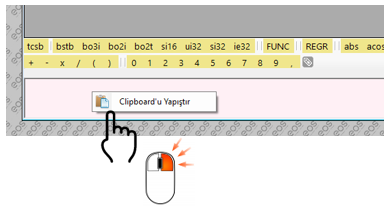
The expression in the clipboard can be transferred to the desired position in the editor by using the PASTE FROM CLIPBOARD option in the menu that opens.
Procedure: Select the expression → Copy it to the clipboard → Click the desired position in the editor → Use the PASTE FROM CLIPBOARD option.
When the user double-clicks any virtual data row in the virtual data list, the virtual data formula defined for that row is transferred to the Virtual Data Editing Editor.
The user can make the necessary changes to the formula transferred to the editor and finalize the expression.
After editing is completed, the prepared formula can be sent back to the virtual data table by double-clicking the editor.
Tip: To modify a previously created virtual data formula, instead of rewriting the formula, double-click the relevant virtual data row to transfer the formula to the editor.
EOS SCADA virtual data can be used not only for mathematical or logical calculations, but also to check the availability of devices on the network.
The ping() function can be used for this purpose. This function can be used to determine whether a device on the network is accessible by the SCADA system.
The general usage of the function is as follows:
ping(IP No;Scan Frequency)
For example, the following expression sends a ping request to the device with the IP address 192.168.1.180 once every 10 virtual data scan cycles:
ping(192.168.1.180;10)
Using this method, the status of devices on the network, whether a device is connected to the network, and whether it responds can be monitored through virtual data.
Example Usage: A virtual data value obtained from the ping result can be used to display communication status on a SCADA screen. This allows the communication status of a device to be presented to the operator through a graphical user control object.
The status of devices on the network can be checked using the ping(IP No;Scan Frequency) function.
For example:
ping(192.168.1.180;10)
This expression sends a ping request to the device at IP address 192.168.1.180 once every 10 virtual data scan cycles.
The Virtual Data Editing Panel operates on the principle that function expressions or data selected from the data list are first copied to the Clipboard and then transferred to the editing area using the PASTE FROM CLIPBOARD option from the Editor Context Menu, which is opened with the left mouse button inside the Virtual Data Editing Editor.
Therefore, when predefined functions or data selected from the data list are not transferred directly to the editor, they must first be copied to the clipboard.
The following procedure is recommended for creating and managing virtual data in an organized manner.
The Virtual Data feature in EOS SCADA allows new data to be created that is not read directly from a physical device but can be calculated or derived from existing SCADA data.
Virtual data can be created using mathematical operations, functions, and existing real data together. This allows information that has no corresponding physical signal but is required for operational purposes to be generated within the SCADA system.
The predefined functions and Data List available in the Virtual Data Editing Panel facilitate the preparation of complex expressions. Function and data expressions can be transferred to the editor using clipboard operations and the PASTE FROM CLIPBOARD function.
In addition, the ping() function can be used to monitor the accessibility status of devices on the network through virtual data.
Free Software Download Center
Software for industrial data collection, monitoring, and analysis.

Technical Support
Software documentation, sample code, and practical technical information.
You can contact us regarding EOS software, technical documentation, or industrial data communication.