EOS SCADA Editor
This is the development environment where the SCADA project is created, device and data information is defined, screens are designed, and project configuration is performed.
EOS SCADA EDITOR • HMI • GRAPHICAL INTERFACE DESIGN
One of the most important tasks performed with the EOS SCADA Editor is the creation of HMI (Human-Machine Interface) screens that allow operators to monitor and control the SCADA system.
SCADA screens provide operators with clear and interactive access to data obtained from field devices, equipment statuses, alarms, measurement values, and other process information.
The EOS SCADA Editor provides a comprehensive visual design environment for creating, editing, and developing these screens. The completed screens are then displayed in the operating environment by EOS SCADA Runtime and made available for operator use.

The EOS SCADA software architecture basically consists of two complementary working environments: Editor and Runtime.
This is the development environment where the SCADA project is created, device and data information is defined, screens are designed, and project configuration is performed.
This is the operating environment for the SCADA project prepared in the Editor environment. The designed screens and configured system functions are made available to the operator through Runtime.
Considering that SCADA design is generally performed in an engineering or central office environment, while the SCADA system is operated in the field, Editor and Runtime can be considered two fundamental components that complement each other.
EOS SCADA software uses a visual design approach based on User Control Objects for screen design.
In traditional .NET applications, screen design generally makes use of user controls such as Button, TextBox, Label, Panel, and similar controls provided by the standard .NET library. Although these standard controls are sufficient for many applications, industrial SCADA projects may require much more specialized visual elements specific to process equipment and the project.
For example, a pump, valve, motor, generator, circuit breaker, or other field equipment may need to be displayed not merely as a static image, but together with its operating status, alarm status, color changes, animation, measurement values, or user interaction.
For this reason, EOS SCADA Editor uses a User Control Object approach that allows project-specific visual components to be created and reused repeatedly.
Reusability: A user control object prepared once can be reused on multiple SCADA screens within the same project. This eliminates the need to recreate the same visual component for every screen and significantly accelerates the project development process.
This approach also ensures the standardization of visual components used throughout the project. As a result, the same type of equipment or process element can be displayed on different screens with the same visual behavior and usage characteristics.
Specialized user control object engines have been developed in EOS SCADA software to enable the creation of rich visual and audio effects.
These engines make it possible to use advanced visual components on SCADA screens that are not limited to static graphics, but can change according to process conditions, respond to data values, change color and appearance, and provide user interaction when required.
More than 70 different user control object engines have been developed within EOS SCADA software to provide the program with various visual capabilities.
Visual SCADA screens can generally be prepared using EOS SCADA Editor by following the steps below:
These operations are repeated for all user control objects required on the screen, resulting in the creation of the required visual SCADA screen.
The created screens can later be reopened in EOS SCADA Editor for editing and modification and can be expanded according to the evolving requirements of the project.
EOS SCADA Editor includes various design and screen manipulation tools to simplify the screen design process and make work on large SCADA projects more efficient.
During screen design, the detailed properties of each user control object can be configured using the User Control Settings Window and Settings Table.
In addition, the following basic operations can be performed on objects located on the screen:
These tools make it possible to prepare complex SCADA screens containing a large number of graphical objects more quickly and systematically.
To create a new SCADA screen, right-click the SCREENS menu item located in the SCADA Tree Menu Bar to open the Screen Context Menu.
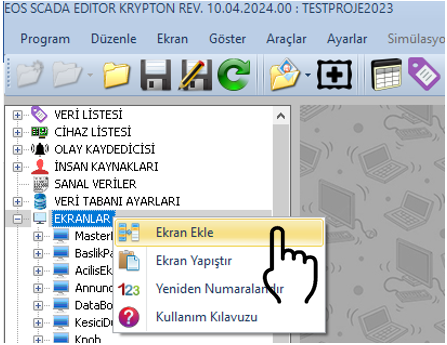
The Screen Context Menu provides the basic operations required to create and manage screens.
A new screen with default properties can be created using the ADD SCREEN option.
After creating the new screen, its properties can be modified through the Settings Table located on the right while the screen is selected.
Every SCADA screen that is created has various properties that determine its appearance, position, size, access authorization, and operating behavior.
These properties can be viewed through the Settings Table located on the right and modified according to project requirements.
| Property Name | Property Description | Default Value / Options |
|---|---|---|
| ScreenActive | Determines whether the screen is active. | False |
| ScreenName | Determines the name of the screen. | SCREEN |
| BackgroundFile | Determines the name of the background file to be used on the screen. | — |
| PanelSize | Determines the size of the screen panel. |
Fullscreen
(Full Screen) Picturesize (Picture Size) Custom (Custom) R2048x1536 R1920x1080 R1600x1200 R1280x1024 R1280x960 R1280x800 R1280x768 R1280x720 R1280x600 R1152x864 R1024x768 R800x600 R800x480 R768x576 R640x480 R480x320 R384x288 R352x288 R320x240 R320x200 |
| CustomPanelSize | Determines the custom panel size. | 1920, 1080 |
| PanelLocation | Determines how the panel is positioned on the screen. |
Mdi
(Multiple Document Interface) Free (Free) Specificlocation (Specific Location) Lowerright (Lower Right) Lowerleft (Lower Left) Upperright (Upper Right) Upperleft (Upper Left) Selected (Selected) Special (Special) |
| CustomPanelLocation | Determines the custom panel location. | 0, 0 |
| ConnectedScreen | Determines the connected screen information associated with the screen. | — |
| BackgroundImageLayout | Determines how the background image is positioned within the screen. |
Tile
(Tile) Stretch (Stretch to Fill) Zoom (Zoom) |
| BackColor | Determines the background color of the screen. | DimGray (Dim Gray) |
| TransparentPanel | Determines whether the panel is displayed as transparent. | True |
| Opacity | Determines the opacity value of the panel or relevant component. | 0 |
| TransparentColor | Determines the color that will be treated as transparent. | White (White) |
| TransparentComponents | Determines the transparency setting of components. | True |
| Alwaysontop | Determines whether the panel or screen remains above other windows. | False |
| ConnectedPanelLocation | Determines the position of the connected panel on the main panel. |
Top
(Top) Bottom (Bottom) Left (Left) Right (Right) |
| TemplateScreenID | Determines the ID number of the screen to be used as a template. | — |
| AuthorizationLevel | Determines the authorization level required to access the screen. |
None
(No Authorization) Monitor (Monitoring) Operation (Operation) Engineering (Engineering) Superuser (Superuser) |
After a new screen is created, its size, general properties, and appearance options can be configured through the Settings Table.
The Panel Size property can be used to select the resolution or size at which the screen will be used. If the screen is intended to be used at a standard resolution, one of the predefined options in the list can be selected.
If a custom screen size is required for the project, the Custom option can be used. In this case, the CustomPanelSize property becomes active, allowing the user to define the width and height values of the screen.
Similarly, if Specificlocation is selected for the Panel Location property, the CustomPanelLocation property can be used to specify the panel's position manually.
Example: If Custom is selected as the Panel Size, the CustomPanelSize property can be used. For example, the value 1920, 1080 can be used to create a panel with a width of 1920 pixels and a height of 1080 pixels.
A background image can be used on SCADA screens to provide a more visually understandable representation of the process or facility.
The BackgroundFile property can be used to specify the background file to be used. The positioning of the background image on the screen can be configured through the BackgroundImageLayout property.
When a background image is not used, an appropriate background color can be selected using the BackColor property of the screen.
For designs requiring transparency, properties such as TransparentPanel, Opacity, TransparentColor, and TransparentComponents can be used.
In SCADA projects, some screens may need to be viewed or used only by specific users.
For this purpose, the required authorization level for a screen can be specified using the AuthorizationLevel property.
This structure allows access to screens containing control functions, engineering settings, or critical system functions to be controlled, particularly in operational environments.
⚠️ CAUTION:
The Screen ID value must be assigned only by the software.
Do not change the Screen ID value manually. Changing identity
values generated by the system may cause relationships between screens within
the project or other configurations associated with the screens to become corrupted.
Creating a SCADA screen using EOS SCADA Editor can generally be performed in the following sequence:
After these operations are completed, the prepared SCADA screen becomes available for use in the EOS SCADA Runtime environment. During subsequent stages of project development, screens can be reopened and modified, enhanced, or expanded by adding new user control objects.

Free Software Download Center
Software for industrial data collection, monitoring, and analysis.

Technical Support
Software documentation, sample code, and practical technical information.
You can contact us regarding EOS software, technical documentation, or industrial data communication.