
Free Software Download Center
Software for industrial data collection, monitoring, and analysis.
INDUSTRIAL_LED • SHAPE LIBRARY • FILTERING • VISUAL SELECTION
The INDUSTRIAL_LED user control in EOS SCADA allows images selected from a library containing thousands of industrial shapes to be used on SCADA screens.
With the shape library, visual representations of many types of industrial equipment, such as pumps, valves, motors, generators, circuit breakers, and similar equipment, can be easily added to screens. The selected shapes can be used in different states depending on data values.

Clearly displaying process equipment on SCADA screens is important for enabling operators to quickly and accurately assess the system.
The INDUSTRIAL_LED user control is a dedicated user control that enables industrial shapes to be used on SCADA screens for this purpose.
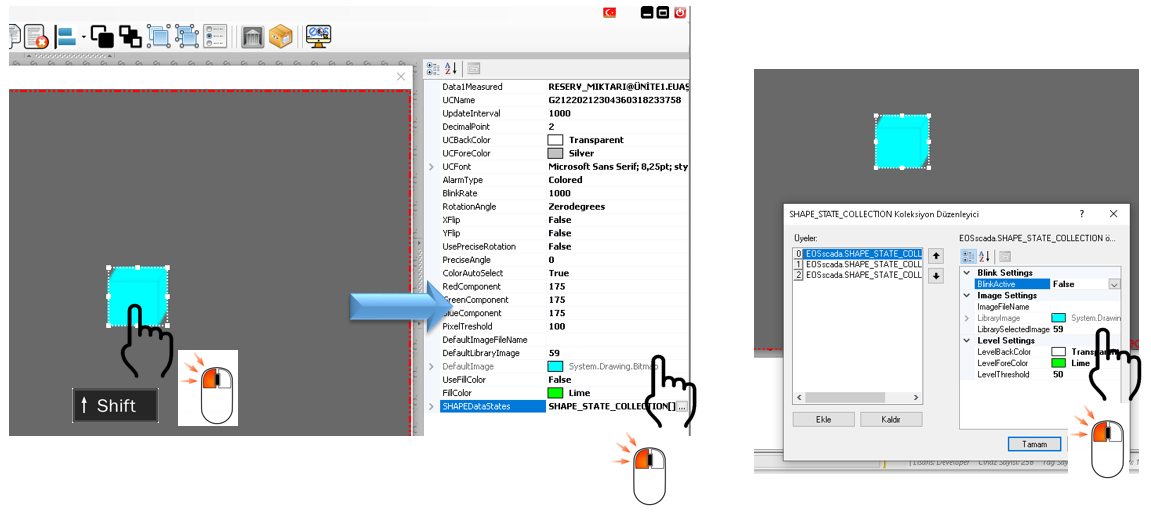
Users can select images from the shape library through the LibrarySelectedImage and DefaultLibraryImage properties available within the control.
Primary purpose of the shape library: To enable industrial equipment images to be quickly and easily selected from a predefined library for use on SCADA screens.
The selected shapes do not have to be used only as static images. By associating them with the data levels defined in INDUSTRIAL_LED, different shapes can be displayed for different process states.
The relevant properties of the INDUSTRIAL_LED user control must be used to select shapes from the shape library.
DefaultLibraryImage
Used to define the default shape of the INDUSTRIAL_LED user control.
LibrarySelectedImage
Enables the shape to be selected from the library for use according to the data levels.
This allows the user to define a default shape for the overall appearance of the control, while also defining independently the shapes to be displayed at different data levels.
The following steps should be followed to assign one of the shapes available in the library to an INDUSTRIAL_LED user control.
When the shape selection window is opened, the user can search among the shapes available in the library.
Shapes belonging to a specific category can be displayed using the filter options available in the library. In addition, the user can enter a search term to search within shape names.
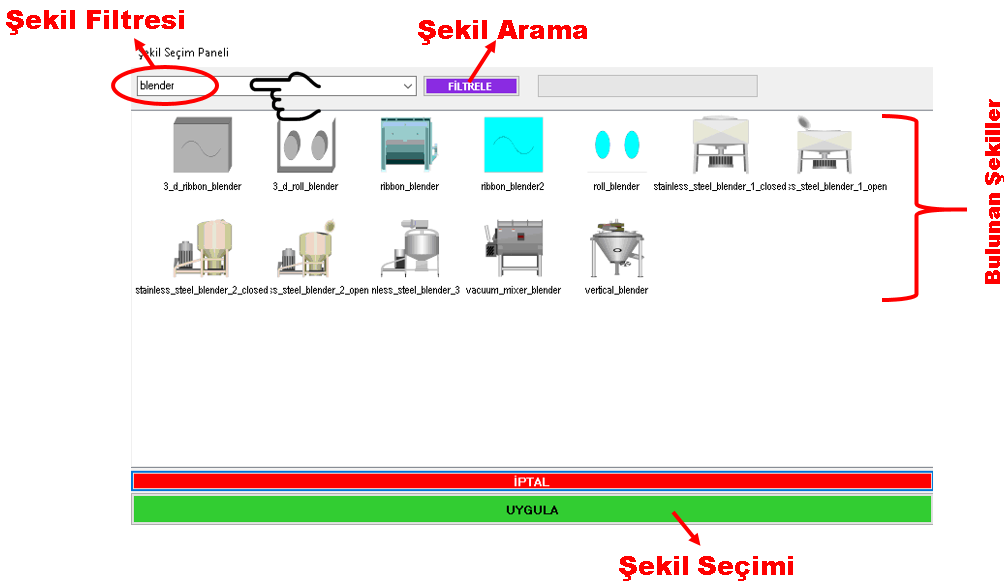
Example:
If the user is looking for a motor shape, they can enter MOTOR in the search field and click the FILTER button. Shapes whose names or descriptions match the search criteria will then be listed, making it easier to find the appropriate image.
Once a suitable shape has been found in the search results, it must be selected and applied to assign it to the INDUSTRIAL_LED user control.
Note: The same shape selection window can be used both to define the default appearance of the control and to assign shapes specific to individual data levels.
If the user does not want to make any shape changes or wants to cancel the operation in the opened selection window, the CANCEL button can be used.
Clicking the CANCEL button closes the shape selection window and ends the operation without applying the selection.
CAUTION: If a shape is being selected for different data levels, verify which LibrarySelectedImage property the selection is being applied to.
The default shape and data-level-specific shapes are managed through different properties.
One of the important features of the INDUSTRIAL_LED user control is the ability to use different shapes for different process states.
For example, to indicate the operating state of equipment, one shape can be defined for the normal state, another shape while the equipment is running, and a different shape for a fault condition.
Within this structure, the shape to be displayed at each data level can be selected from the shape library using the LibrarySelectedImage property associated with that level.
Usage Example:
This enables the operator to understand the operating state of the equipment not only from the color of the shape, but also directly from the shape itself.
INDUSTRIAL_LED is not limited to images in the built-in shape library. When necessary, the user can also use an image prepared by the user or obtained from another source in the user control.
If a shape from the library is to be selected, LibrarySelectedImage or DefaultLibraryImage can be used for the default shape.
Alternatively, if an external image file is to be used, the ImageFileName property can be used.
This allows the INDUSTRIAL_LED user control to support both the rapid use of predefined industrial shapes and the integration of project-specific images into the SCADA screen.
The EOS SCADA INDUSTRIAL_LED user control enables a large number of industrial shapes that can be used on SCADA screens to be selected quickly and conveniently.
The filtering features in the shape selection window make it possible to search through the extensive shape library and quickly locate the required image.
The DefaultLibraryImage property can be used to define the default shape of the control, while the LibrarySelectedImage property allows shapes to be selected independently for different data levels.
This structure enables the INDUSTRIAL_LED user control to function not merely as an image display tool, but as a dynamic industrial indicator that visually represents the status of real-time SCADA data.
Free Software Download Center
Software for industrial data collection, monitoring, and analysis.

Technical Support
Software documentation, sample code, and practical technical information.
You can contact us regarding EOS software, technical documentation, or industrial data communication.