
Free Software Download Center
Software for industrial data collection, monitoring, and analysis.
TAG LIST AND DATA SETTINGS
The next step in SCADA design is to enter information related to the SCADA data to be used in the application. In EOS SCADA, this information is organized within a data tree structure called the TAG List.
EOS SCADA software allows two different types of data elements to be created: Data Group and Data. Data groups allow SCADA data to be organized within a logical structure according to the requirements of the application.
This structure makes it possible to divide the large number of data points collected from devices into smaller and more understandable data lists. This makes it easier to locate a specific data point both during SCADA screen design and during operation.

Two basic data elements are used within EOS SCADA to organize SCADA data:
Data groups can be used to create a hierarchical data tree according to the requirements of the application. For example, in a power generation facility, data can be organized as: EÜAŞ → Kepez → Unit 1 → Turbine → Temperature.
Data groups also allow multiple identical tag sets to be created under the same device. Multiple data groups can be nested to create a detailed data tree appropriate for the application.
To add a Data Group or Data, right-click the DATA menu item in the SCADA tree menu bar located on the left side.
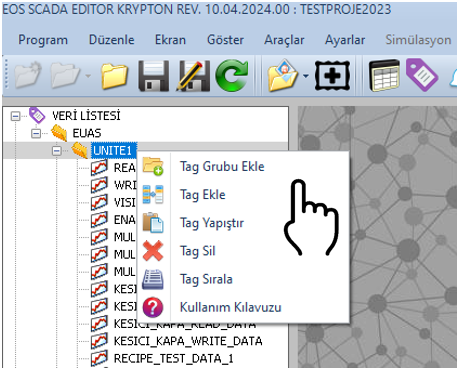
The Data Context Menu opens when the right mouse button is clicked. This menu allows the user to perform various editing operations on items in the data tree.
The user can select ADD DATA GROUP or ADD DATA to create a new data group or data item with the default properties.
The properties of the newly created item can then be modified using the Settings Table located on the right side of the screen.
SCADA data can be organized in a hierarchical tree structure using data groups. This structure provides significant convenience, especially in large SCADA projects containing a large number of devices and data points.
For example, the data structure of a power generation facility can be created as follows:
This structure enables the operator or project designer to reach the required data point more quickly.
By nesting data groups, detailed data organization can be created at the plant, section, unit, system, equipment, and measurement levels.
The properties of a created data group or data item can be modified through the Settings Table on the right side.
The following table shows the basic properties available for EOS SCADA data elements, together with their descriptions and default values.
| Property Name | Property Description | Default Value |
|---|---|---|
| NodeType | Data Type |
Group (Group) Data (Data) |
| TagName | Tag Name | TAGNAME |
| TagDescription | Tag Description | - |
| TagId | Tag ID | 0 |
| ParentId | Parent ID in Tree Structure | - |
| TableId | Table ID for Main Archive Database | - |
| ColumnId | Column ID for Main Archive Database | - |
| MaxValue | Maximum Value | 1000000 |
| IconId | Visual Icon ID | - |
| DataType | Data Type | Bool |
| DeviceName | Device Name | - |
| DataAddress | Data Address | - |
| ScalingType | Scaling Type | None (None) |
| RawHighValue | Raw High Value for Scaling | 100 |
| RawLowValue | Raw Low Value for Scaling | 0 |
| ScaledHighValue | Scaled High Value | 100 |
| ScaledLowValue | Scaled Low Value | 0 |
| ClampingType | Clamping Type | None (None) |
| DataMultiplier | Data Multiplier | 1 |
| DecimalPoint | Decimal Point | 2 |
| Frequency | Frequency | 2 |
The TagName parameter defines the name of the data point within EOS SCADA. The default value for newly created data is TAGNAME.
To improve project readability, it is recommended that TagName values be defined using names that clearly identify the corresponding data point.
The TagDescription parameter allows a description or comment to be added to the data point. A text of up to 256 characters can be entered in the description field.
Example:
TagName:
UNIT1_TURBINE_SPEED
TagDescription:
Unit 1 turbine speed
To read a data point from a physical or virtual device, the relevant device must be selected using the DeviceName parameter, and the data address on the device must be specified using the DataAddress parameter.
The DeviceName parameter specifies the device from which the data will be read.
The DataAddress parameter specifies the driver address used for the corresponding data point.
The format of the address entered in the DataAddress field depends entirely on the communication driver being used. For example, MODBUS, IEC 60870, DNP3, OPC, MQTT, and other drivers may use different addressing methods.
Important: The formats of data addresses are explained separately in the technical documentation section describing the relevant communication driver.
The DataType selection specifies the format in which the data exists on the physical device. In most cases, this selection also determines the format of the data returned to the client.
The data type setting is an important parameter in terms of how the communication driver reads data from and writes data to the device.
In many communication drivers, the data type of a specific piece of data is determined definitively by the device. However, for some devices, the user can determine how the raw data received should be interpreted.
| Data Type | Description | Range / Feature |
|---|---|---|
| Bool | Single-bit data | 0 or 1 |
| Sint | Short 8-bit integer | -128 ... 127 |
| Usint | Unsigned 8-bit short integer | 0 ... 255 [BYTE] |
| Int | 16-bit integer | -32768 ... 32767 |
| Uint | 16-bit unsigned integer | 0 ... 65535 [WORD] |
| Dint | 32-bit long integer | -2147483648 ... 2147483647 |
| Udint | 32-bit unsigned long integer | 0 ... 4294967295 [DWORD] |
| Real | 32-bit real number | IEEE format |
| Coil | One-bit value | Bit-based data |
| None | Undefined data type | Unspecified |
EOS SCADA also supports special data types supported by the communication driver being used. Therefore, the available data types and addressing formats may vary depending on the driver.
EOS SCADA software supports data scaling to convert raw data read from devices into a different range that can be used by the application.
Through scaling, a raw value received from a device can be converted into a different value corresponding to the physical or engineering unit required by the application.
Two different scaling methods can be used in EOS SCADA:
To enable the scaling feature, select Linear or Squareroot from the ScalingType parameter.
When None is selected, no scaling is applied and the value read from the device is used directly.
Linear scaling converts the raw value read from a device from a specified raw value range into a different scaled value range.
The raw value range is specified using the RawLowValue and RawHighValue parameters.

The desired scaled value range is specified using the ScaledLowValue and ScaledHighValue parameters.
Important: In the raw value range, the RawHighValue must be greater than the RawLowValue.
This method can be used particularly when a device provides analog values within a specific raw numerical range and these values need to be converted into engineering units in the application.
Square root scaling applies a square-root-based transformation to the raw data. This method can be used particularly for evaluating data with a nonlinear characteristic in some physical measurements.
When square root scaling is to be used, Squareroot must be selected from the ScalingType parameter.

In this case, the raw value range is again specified using the RawLowValue and RawHighValue parameters, while the scaled value range is specified using the ScaledLowValue and ScaledHighValue parameters.
The ClampingType parameter ensures that the raw data received from the device and/or the resulting scaled value remains within specified limits.
The following options can be used for clamping:
Clamping is applied when the value read from the device or obtained as a result of scaling is higher than the ScaledHighValue or lower than the ScaledLowValue, according to the selected clamping type.
As a result of clamping, the value is updated to the corresponding limit value. This prevents the data used by the application from exceeding the defined range.
The DataMultiplier parameter applies a multiplier to the data. Its default value is 1.
The DecimalPoint parameter determines the number of decimal places to be used when displaying numerical data. The default value is 2.
Example: If two decimal places are required when displaying a data point, DecimalPoint = 2 can be configured.
The Frequency parameter determines the frequency value associated with the data item. Its default value is 2.
The use of this parameter should be evaluated according to the data processing and operating structure of the relevant EOS SCADA application.
The following approach can be followed to create data points in an organized manner within a SCADA project:
Since large SCADA projects may contain hundreds or thousands of data points, it is recommended that an organized and understandable structure be used when creating the TAG List.
Creating data groups based on plant, unit, system, equipment, or function can simplify subsequent maintenance and development activities.
Creating TagName values using meaningful names and, where possible, a standardized naming method makes it easier to locate and use data points, particularly in large projects.
Plant → Unit → System → Equipment → Data
This approach can help make the SCADA data tree easier to understand both during design and during operation.
In EOS SCADA design, the TAG List is one of the fundamental structures in which SCADA data collected from devices is defined and organized. A hierarchical data tree can be created using Data Groups and Data within the TAG List.
For data points to operate correctly, fundamental parameters such as TagName, DeviceName, DataAddress, and DataType must be configured correctly.
EOS SCADA also provides Linear and Square Root Scaling features for converting raw data read from devices into values appropriate for the application's requirements.
ClampingType can be used to keep data within defined limits. In addition, parameters such as DataMultiplier and DecimalPoint provide control over data processing and display.
Creating an organized TAG List structure makes data points easier to locate, manage, and use, particularly in SCADA projects containing a large number of devices and data points.
Free Software Download Center
Software for industrial data collection, monitoring, and analysis.

Technical Support
Software documentation, sample code, and practical technical information.
You can contact us regarding EOS software, technical documentation, or industrial data communication.