
Free Software Download Center
Software for industrial data collection, monitoring, and analysis.
CREATING A NEW PROJECT
To begin developing a SCADA application in the EOS SCADA Editor, a project must first be created.
During the new project creation process, a name can be assigned to the project and, optionally, a project password can be defined to protect the project against unauthorized access.

To create a new SCADA project in the EOS SCADA Editor, the CREATE NEW PROJECT button located on the main menu bar can be used.
This button is a quick-access tool used to start the new project creation process and provides the user with direct access to the project creation window.
Alternative access: The new project creation process can also be accessed through the Program menu in the program's main menu; it is not limited to the quick-access button.
There are two different methods for starting the new project creation process.
 By clicking the CREATE NEW PROJECT button located on the
Main Menu Bar, the new project creation window can be opened.
By clicking the CREATE NEW PROJECT button located on the
Main Menu Bar, the new project creation window can be opened.
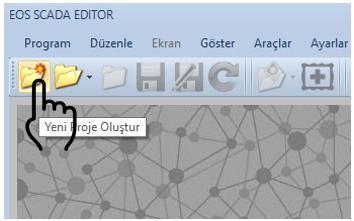
Alternatively, the Program menu in the main menu can be opened to access the Create New Project command.
Both methods open the same Create New Project window.
When the Create New Project window is opened, the basic information about the project to be created is defined through this window.
To complete the project creation process, the project name must first be specified. The project name is used to distinguish the project from other projects and to facilitate project management.
The name of the project to be created must be entered in the corresponding field in the Create New Project window.
After the project name has been specified, password protection can optionally be enabled for the project.
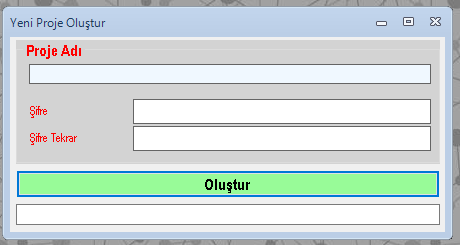
If unauthorized access to the project is to be restricted, a project protection password can be defined using the project password fields in the same window.
If password protection is not required for the project, the project creation process can be continued without entering a password.
Important: If project password protection is enabled, the password must be entered a second time for security purposes. The password entered the second time must be exactly the same as the password entered initially.
After entering the project name and, if required, defining the project protection password, the project creation process can be started.
To do this, click the CREATE button in the Create New Project window.
Project creation steps:
When the CREATE button is clicked, the EOS SCADA Editor creates the new SCADA project according to the entered information.
After the project creation process is completed, the user does not need to manually open the project. The EOS SCADA Editor automatically enters the newly created project.
This allows SCADA development work to begin immediately after the project creation process is completed.
Result: When the new project is successfully created, it becomes active in the EOS SCADA Editor, allowing the user to continue developing SCADA screens and other project components.
The EOS SCADA Editor allows optional password protection to be defined for a project during project creation.
When password protection is enabled, it is important to define the password correctly, as it will be used when accessing the created project.
If the password entered initially does not match the value entered in the password confirmation field, the project creation process cannot be completed.
Security recommendation: If a project protection password is used, it is recommended that the password not be shared with unauthorized persons and be stored in a secure location.
To create a new project in the EOS SCADA Editor, the CREATE NEW PROJECT button or the Program menu can be used.
In the Create New Project window, the project name is specified. If desired, password protection can also be defined for the project. When password protection is used, the repeated password must be identical to the initial password.
After entering the required information, click the CREATE button. The EOS SCADA Editor creates the project and automatically directs the user to the newly created project.
Free Software Download Center
Software for industrial data collection, monitoring, and analysis.

Technical Support
Software documentation, sample code, and practical technical information.
You can contact us regarding EOS software, technical documentation, or industrial data communication.