
Free Software Download Center
Software for industrial data collection, monitoring, and analysis.
EOS SCADA EDITOR • PROJECT • NETWORK • DESIGN • GUIDE LINES • AUTO-SAVE
During the second stage of SCADA design, the general settings related to EOS SCADA Editor can be configured according to project and user requirements.
General settings include the folder containing project files, the active project, network and proxy settings, guide and alignment lines that facilitate screen design, image usage, auto-save, and various application appearance and behavior options.

To edit the general settings, the user must click the GENERAL SETTINGS menu item in the SCADA Tree Menu.
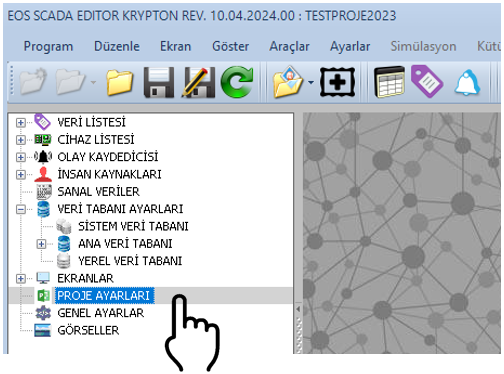
When GENERAL SETTINGS is selected, the relevant properties are displayed in the settings table on the right. The user can configure project and operating environment properties through this table.
Navigation path:
SCADA Tree Menu → GENERAL SETTINGS → Settings Table
The general settings available in the 2026 version of EOS SCADA software and their default values are provided in the table below.
Some settings can be configured directly by the user, while the visibility or availability of certain features may depend on the configuration within the software.
Information: The setting list and default values on this page are based on the current software definitions for the 2026 version.
| Property Name | Description | Default Value |
|---|---|---|
| CoordinateTransformation | Determines whether coordinate transformation is used when the resolution changes. | False |
| FontTransformation | Determines whether font transformation is used when the resolution changes. | False |
| ScreenLockCheck | Determines the screen lock check for teamwork during screen design. | False |
| MainFolder | Determines the main folder containing project files. | Same folder as the program |
| ActiveProject | Specifies the project currently in use. | Last selected project |
| IPAddress | Specifies the IP address. | 127.0.0.1 |
| NetMask | Specifies the network mask. | 255.255.255.0 |
| DefaultGateway | Specifies the default network gateway. | 127.0.0.1 |
| ProxyActive | Determines whether proxy usage is enabled. | False |
| ProxyAddress | Specifies the proxy server address. | 127.0.0.1 |
| ProxyUserName | Specifies the username used for the proxy connection. | " " |
| ProxyPassword | Specifies the password used for the proxy connection. | " " |
| ToolStripLocation | Determines the location of the menu and button strip within the application. | Top |
| DisplayGuideLines | Determines whether guide lines are displayed in the screen design panel. | False |
| GuideLinesType | Determines the drawing type of guide lines. | Dash |
| GuideLinesColor | Determines the color of guide lines. | Wheat |
| GuideLinesFrequency | Determines the frequency of guide lines. | 10 |
| ImageUsage | Determines how images are used on SCADA screens. | Uploadwhenneeded (Upload when needed) |
| StaticBackground | Determines the use of a static background. | False |
| AutoSaveSettings | Determines whether automatic project saving is enabled. | False |
| AutoSaveInterval | Determines the interval between automatic save operations. | 600000 |
| DisplayAlignmentLines | Determines whether alignment lines are displayed in the screen design panel. | False |
| ApplicationFont | Determines the default font of the application. | Arial Narrow, 8.25f, Bold |
| DataTableRowHeight | Determines the row height in data tables. | 14 |
| NewVersionCheck | Determines whether version checking is enabled. | False |
| AlarmOn | Determines whether the alarm feature is enabled. | False |
The ToolStripLocation property determines the location of the menu and button strip within the application.
| Value | User Interface Equivalent |
|---|---|
| Top | Top |
| Bottom | Bottom |
| Left | Left |
| Right | Right |
Default value: Top
During SCADA screen design, guide lines help organize the positions of objects on the screen.
DisplayGuideLines determines whether guide lines are displayed, GuideLinesType determines the line type, GuideLinesColor determines the color, and GuideLinesFrequency determines their frequency.
| Software Value | User Interface |
|---|---|
| Solid | Solid Line |
| Dash | Dashed |
| Dot | Dotted Line |
| Dashdot | Dash-Dot |
| Dashdotdot | Dash-Dot-Dot |
| Custom | Custom |
2026 defaults:
GuideLinesType = Dash
GuideLinesColor = Wheat
GuideLinesFrequency = 10
DisplayGuideLines = False
Users who want to make screen design easier can enable guide lines by setting DisplayGuideLines to True.
The ImageUsage property determines how images used on SCADA screens are managed.
| Software Value | User Interface |
|---|---|
| Keepindatabase | Keep in Database |
| Bulkuploadfromfolder | Bulk Upload from Folder |
| Uploadwhenneeded | Upload When Needed |
2026 default: ImageUsage = Uploadwhenneeded (Upload When Needed)
Automatic saving of changes made during project design at a defined time interval can be configured through the AutoSaveSettings and AutoSaveInterval properties.
| Property | Description | Default |
|---|---|---|
| AutoSaveSettings | Enables automatic project saving. | False |
| AutoSaveInterval | Determines the automatic save interval. | 600000 |
CAUTION: Unless otherwise specified, time values in this manual should be interpreted in milliseconds.
600000 milliseconds = 10 minutes
The DisplayAlignmentLines property displays alignment lines that help align objects in the screen design panel.
The property is False by default. Users can enable it to make screen design easier.
| Property | Description | Default |
|---|---|---|
| ApplicationFont | Default application font. | Arial Narrow, 8.25f, Bold |
| DataTableRowHeight | Row height in data tables. | 14 |
| NewVersionCheck | Whether version checking is enabled. | False |
| AlarmOn | Whether the alarm feature is enabled. | False |
The StaticBackground property determines whether a static background is used.
Default: StaticBackground = False
CAUTION: Correct configuration of MainFolder is important to ensure that the program can access project files correctly.
CAUTION: Unless otherwise specified, time values should be interpreted in milliseconds. For example, AutoSaveInterval = 600000 corresponds to 10 minutes.
CAUTION: In different software versions, some setting parameters may have been removed, hidden, or become inactive. Therefore, the current setting list for the software version in use should be taken as the reference.
General Settings are the fundamental group of settings that allows the EOS SCADA Editor project design environment to be configured according to user and project requirements.
Through this section, the project folder, active project, network and proxy settings, guide and alignment lines used in screen design, image usage, automatic saving, and various application appearance and behavior properties can be configured.
Especially during screen design, enabling guide and alignment lines can help place objects in a more organized manner.
The settings and default values on this page are based on the current software definitions in EOS SCADA 2026. In future versions, property names, values, visibility, or functions may change.
Free Software Download Center
Software for industrial data collection, monitoring, and analysis.

Technical Support
Software documentation, sample code, and practical technical information.
You can contact us regarding EOS software, technical documentation, or industrial data communication.