
Free Software Download Center
Software for industrial data collection, monitoring, and analysis.
PROJECT • EXPORT • ZIP • TRANSFER • ARCHIVING
An existing project created in EOS SCADA Editor can be exported as a single ZIP package file together with important project data.
The package may contain screen designs, data tables, images, and other important project data used within the project. This makes it easier to transfer the project to another computer or archive a completed project.

To export the current project as a ZIP package file, open the TOOLS menu located on the main menu bar of EOS SCADA Editor.
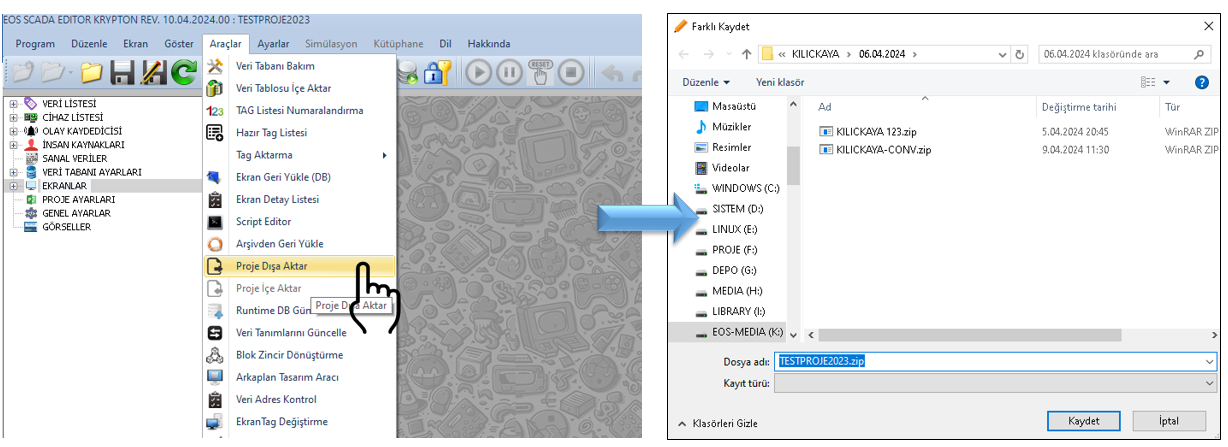
Click the EXPORT PROJECT button under this menu to start the project export process.
Information: The Project Export feature collects important components of the current project into a single ZIP package, making the project easier to transfer and archive.
When the EXPORT PROJECT button is clicked, a window opens for the export operation. In this window, the name of the ZIP file to be created and the folder location where it will be saved can be specified.
Basic information that can be changed:
The user can change the file name and save location as required and then complete the export operation.
The project export operation allows important data belonging to the current project to be transferred within a single package file.
| Project Data | Description |
|---|---|
| Screen Designs | Exporting the screen designs used in the project. |
| Data Tables | Allowing project data tables to be transferred within the package. |
| Images | Packaging images used within the project. |
| Other Important Project Data | Other project components required for transferring or archiving the project. |
The ZIP package created through the export feature helps transfer a project easily from one computer to another.
Completed projects can also be archived as ZIP package files for future reuse or reference when needed.
Example use: When work on a project is completed, the project can be exported and the resulting ZIP file can be stored in a secure location to create a project archive.
The Project Export feature allows projects prepared in EOS SCADA Editor to be exported as a single ZIP package file together with their important components.
By packaging screen designs, data tables, images, and other important project data, projects can be transferred more easily to different computers.
Storing completed projects as ZIP packages also helps create project archives and makes it possible to access previous projects again when required.
Free Software Download Center
Software for industrial data collection, monitoring, and analysis.

Technical Support
Software documentation, sample code, and practical technical information.
You can contact us regarding EOS software, technical documentation, or industrial data communication.