
Free Software Download Center
Software for industrial data collection, monitoring, and analysis.
PROJECT • IMPORT • ZIP • PROJECT TRANSFER • PROJECT UPLOAD
Projects previously converted into ZIP package files using the EXPORT PROJECT tool in EOS SCADA Editor can be imported back into the system.
Project import allows a previously exported project package to be selected and transferred into the EOS SCADA Editor environment. This makes it possible to reuse projects on different computers.

To transfer a project previously packaged as a ZIP file using the EXPORT PROJECT tool into EOS SCADA Editor, open the TOOLS menu on the main menu bar.
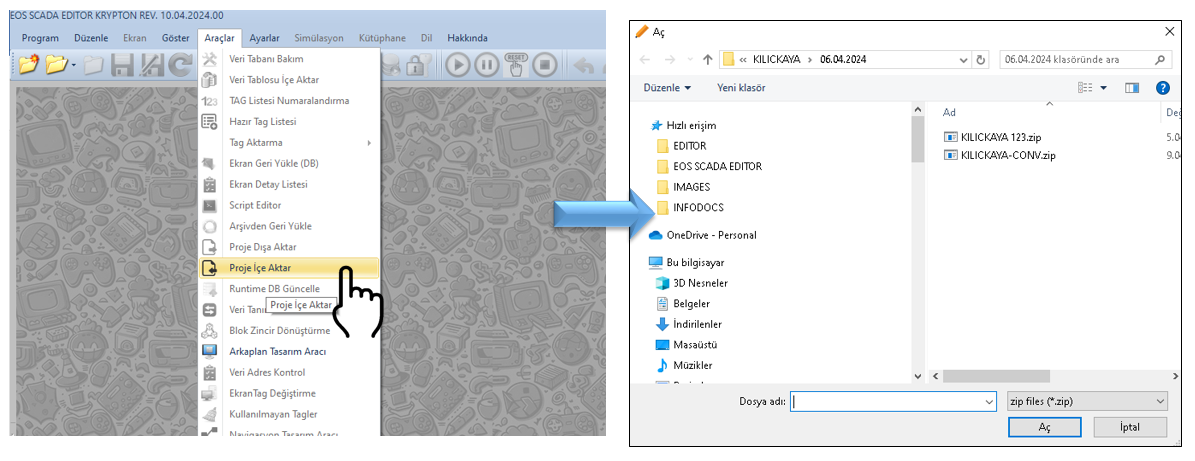
Click the IMPORT PROJECT button under the TOOLS menu to start the project import process.
Information: The Project Import feature allows projects previously exported as ZIP package files to be brought back into the EOS SCADA Editor environment.
When the IMPORT PROJECT button is clicked, a window opens in which the project package can be selected. In this window, select the ZIP file of the project to be imported.
After selecting the ZIP file, click the OPEN button to start the project import process.
Operation sequence:
To perform the project import operation, there must be no project open in EOS SCADA Editor.
If a project is currently open, it must be closed before another project can be imported.
CAUTION: Another project cannot be imported while a project is open. The currently open project must be closed before starting the import operation.
If a project is currently open in EOS SCADA Editor, it must be closed before the project import operation can be performed.
Project import allows a previously created ZIP project package to be brought back into the EOS SCADA Editor environment.
| Operation | Tool | Description |
|---|---|---|
| Project Export | EXPORT PROJECT | Converts important data of the current project into a ZIP package file. |
| Project Import | IMPORT PROJECT | Transfers a previously created ZIP project package into EOS SCADA Editor. |
The Project Import feature allows projects previously converted into ZIP package files using the EXPORT PROJECT tool to be transferred back into the EOS SCADA Editor environment.
To perform the operation, use the IMPORT PROJECT button under the TOOLS menu, select the relevant ZIP file in the dialog window, and click OPEN.
Before importing a project, there must be no other project open in EOS SCADA Editor. If a project is open, the current project must first be closed.
Free Software Download Center
Software for industrial data collection, monitoring, and analysis.

Technical Support
Software documentation, sample code, and practical technical information.
You can contact us regarding EOS software, technical documentation, or industrial data communication.