
Free Software Download Center
Software for industrial data collection, monitoring, and analysis.
SIMULATION • STOP • SCREEN EDITING • AUTOMATIC TERMINATION
While simulation is running in EOS SCADA Editor, no screen editing is permitted on SCADA screens.
To stop the running simulation and return to screen editing mode, use the STOP SIMULATION button on the quick access button bar.
In addition, when all open SCADA screens are closed, the simulation ends automatically.

While simulation is running, screen editing cannot be performed in EOS SCADA Editor. Since simulation mode is intended for testing prepared SCADA pages, screen editing operations are not permitted during this process.
CAUTION: SCADA screens cannot be edited while simulation is running. To edit the screen again, the simulation must first be stopped.
To stop a running simulation manually, click the STOP SIMULATION button located on the quick access button bar.

This operation exits simulation mode and allows the user to return to screen editing mode.
Termination procedure:
A running simulation can be stopped not only with the STOP SIMULATION button on the quick access button bar, but also by using the STOP button in the SIMULATION menu.
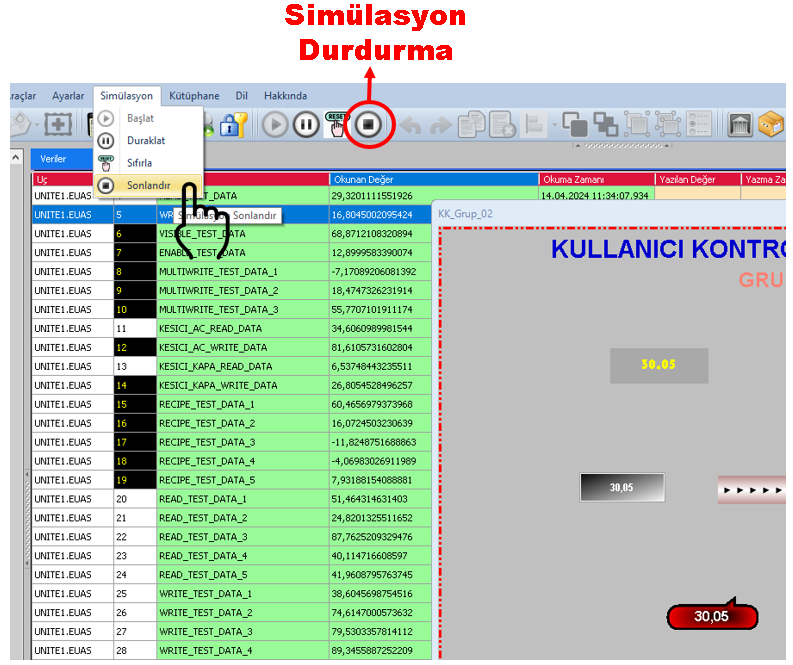
Open the SIMULATION menu and click STOP. The running simulation is then terminated and the user can return to screen editing mode.
Information: There are two user-interface options for stopping the simulation: the STOP SIMULATION button on the quick access button bar and the SIMULATION → STOP menu option.
The user does not necessarily have to issue a command to stop the simulation.
When all open SCADA screens are closed, there are no active open screens remaining and the simulation ends automatically.
Automatic termination: When there is no active open SCADA screen, the simulation stops automatically and the simulation operating state ends.
| Method | Operation | Result |
|---|---|---|
| Quick Access | Click the STOP SIMULATION button. | The simulation stops and the user can return to screen editing mode. |
| SIMULATION Menu | Use SIMULATION → STOP. | The simulation stops and the user can return to screen editing mode. |
| Automatic | Close all open SCADA screens. | The simulation ends automatically. |
Stopping the Simulation allows the user to exit the simulation environment used for testing in EOS SCADA Editor and return to screen editing mode.
Screen editing is not permitted while simulation is running. The simulation must therefore be stopped before making changes to the screen.
The user can stop the simulation using either the STOP SIMULATION button on the quick access button bar or the SIMULATION → STOP menu option.
In addition, when all open SCADA screens are closed, the simulation ends automatically without requiring user intervention.
Free Software Download Center
Software for industrial data collection, monitoring, and analysis.

Technical Support
Software documentation, sample code, and practical technical information.
You can contact us regarding EOS software, technical documentation, or industrial data communication.