
Free Software Download Center
Software for industrial data collection, monitoring, and analysis.
Viewing SCADA Screens in EOS SCADA Runtime
In EOS SCADA Runtime, SCADA screens defined within the project can be opened to perform monitoring and control operations. The user can access the required screen through the OPEN SCREEN options available in the Runtime interface.
Screens can be opened either through the main SCREEN menu or through the quick-access button bar. The screens that a user can open are determined according to the user's authorization level.
To open a SCADA screen for monitoring and control, the SCREEN menu located in the Runtime's Main Menu can be used.
When the OPEN SCREEN option under the SCREEN menu is selected, the screens defined in the project and available for opening are listed.
MAIN MENU → SCREEN → OPEN SCREEN → Screen Selection
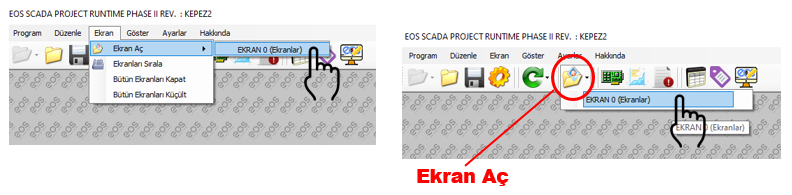
The user can open the required screen by clicking the desired screen from the list under OPEN SCREEN.
The second method for opening a SCADA screen is to use the OPEN SCREEN button located on the Quick Access Button Bar.
When the OPEN SCREEN button is accessed, the screens that can be opened in the system are listed. The user can click the desired screen in the list to open it in the working area.
The same screens can be accessed either through the SCREEN → OPEN SCREEN path in the Main Menu or through the OPEN SCREEN button on the Quick Access Button Bar.
The quick access method makes it easier to reach frequently used SCADA screens in a shorter time, helping to streamline the user's workflow.
EOS SCADA Runtime provides two different user interface paths for accessing SCADA screens. In both methods, the user selects a screen from the screens listed under OPEN SCREEN.
| Access Method | Path | Operation |
|---|---|---|
| Main Menu | SCREEN → OPEN SCREEN | Click the desired screen from the listed screens. |
| Quick Access | OPEN SCREEN button | Click the desired screen from the screens listed under the button. |
Which screens can be opened in EOS SCADA Runtime is determined according to user authorization. Each user can access screens according to the permissions assigned to them.
Therefore, the screens accessible to two different users logged into Runtime may differ depending on their respective permissions.
Each user can open screens only within the scope of their assigned permissions. Users who do not have permission to access a screen are not allowed to open that screen.
EOS SCADA Runtime has a maximum number of instances that can be opened simultaneously for each screen. This limit is defined in the Project Settings.
Therefore, when a user attempts to open a screen, not only the user's authorization but also the maximum number of open instances defined for that screen in the project settings is taken into account.
The number of instances that can be opened simultaneously for each screen is defined in the project settings. Therefore, screen opening behavior depends on the configuration of the relevant project.
This approach is used to prevent unnecessary multiple instances of the same screen from being opened in the Runtime environment and to ensure compliance with the screen usage rules defined within the project.
The general process for opening a SCADA screen for monitoring and control is as follows:
A screen can be opened for monitoring and control by selecting one of the screens listed through the SCREEN → OPEN SCREEN → Screen Selection path or by using the OPEN SCREEN button on the Quick Access Button Bar.
SCADA screens used for monitoring and control in EOS SCADA Runtime can be accessed in two different ways. The user can use the SCREEN → OPEN SCREEN path in the Main Menu or the OPEN SCREEN button located on the Quick Access Button Bar.
In both methods, the screens available to the user are listed, and the user can select the desired screen from the list to display it in the working area.
The user's authorization level is an important factor when opening screens. In addition, the maximum number of instances that can be opened simultaneously for each screen is defined in the project settings.
To open a screen in EOS SCADA Runtime, the SCREEN → OPEN SCREEN menu path or the OPEN SCREEN button on the Quick Access Button Bar can be used. Users can open screens only within the scope of their assigned permissions, and the maximum number of instances that can be opened simultaneously for each screen is defined in the project settings.
Free Software Download Center
Software for industrial data collection, monitoring, and analysis.

Technical Support
Software documentation, sample code, and practical technical information.
You can contact us regarding EOS software, technical documentation, or industrial data communication.