
Free Software Download Center
Software for industrial data collection, monitoring, and analysis.
USER IDENTITY • USER ICON • MOUSE POINTER • ID CARD • AUTOMATIC HIDING
EOS SCADA Runtime allows the identity information of the plant operator currently logged into the system to be viewed. By placing the mouse pointer over the user icon associated with the user's name, the corresponding user's ID card is displayed.
There is no need to click the user icon during this process. The ID card is displayed while the mouse pointer remains over the icon and automatically disappears when the pointer is moved away from the icon.
To view the identity information of the plant operator logged into EOS SCADA Runtime, use the user icon displayed next to the user's name in the program window. To display the ID card, simply move the mouse pointer over the icon and leave it there briefly.
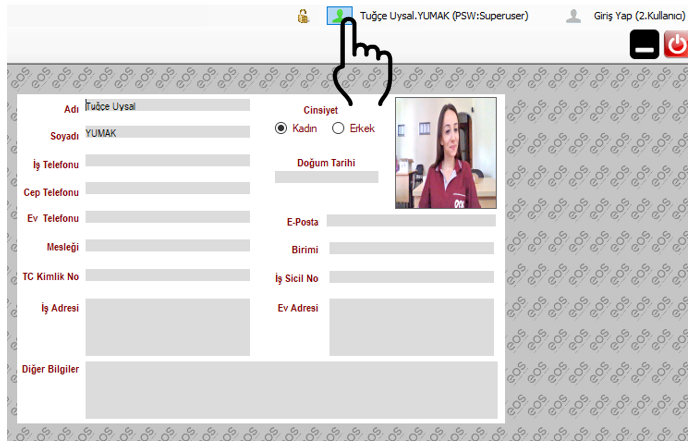
To view the ID card:
This operation is performed simply by keeping the mouse pointer over the user icon. There is no need to click the user icon to display the user ID card.
The ID card display function in EOS SCADA Runtime allows the user's identity information to be viewed quickly without opening an unnecessary window or menu in the user interface.
How the ID card works:
This allows the user to view the identity information of the logged-in plant operator without leaving the Runtime main workspace and close the display simply by moving the mouse pointer away from the icon.
| Operation | User Action | Result |
|---|---|---|
| Display the ID card | Move the mouse pointer over the user icon. | The user's ID card is displayed. |
| Keep the ID card visible | Keep the mouse pointer over the user icon. | The ID card remains visible. |
| Close the ID card | Move the mouse pointer away from the user icon. | The ID card automatically disappears. |
| Click the icon | No click is required. | The ID card is displayed based on the position of the mouse pointer. |
Do not click the user icon to display the ID card. Simply leave the mouse pointer over the user icon. When the pointer is moved away from the icon, the ID card will automatically disappear.
Free Software Download Center
Software for industrial data collection, monitoring, and analysis.

Technical Support
Software documentation, sample code, and practical technical information.
You can contact us regarding EOS software, technical documentation, or industrial data communication.