
Free Software Download Center
Software for industrial data collection, monitoring, and analysis.
USER LOGIN • DUAL USERS • AUTHORIZATION LEVEL • USB KEY • AUTOMATIC LOGIN / LOGOUT
To perform SCADA operations on EOS SCADA Runtime, an authorized user account must be used to log in first. When the user logs into the system, their authorization level is determined, and the menus and operation options available within Runtime are enabled according to their authorization level.
EOS SCADA Runtime supports two different authorized users being logged in to the system simultaneously, particularly to meet the requirements of shift-based operations. When two users are logged in at the same time, the permissions of the user with the higher authorization level are applied.
To perform operator, monitoring, management, or other authorized SCADA operations on EOS SCADA Runtime, the user must log in with a user account defined in the system. The user account also determines the user's authorization level within Runtime.
Primary purposes of user authorization:
After the user login is successfully completed, the relevant menu, button, and operation elements within Runtime are enabled according to the user's authorization level. This allows each user to perform SCADA operations within the authorization limits defined for them by the system administrator.
EOS SCADA Runtime supports dual user login to facilitate operator changes and collaborative operation scenarios in shift-based environments. This feature allows two different authorized personnel to be logged in simultaneously within the same Runtime session.
Dual user login operating principle:
This structure is particularly important during shift changes. When one user leaves the session, the other user's session is not terminated. This preserves operational continuity for monitoring and managing the SCADA system.
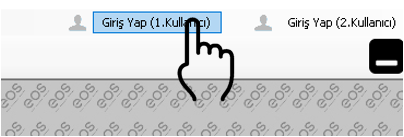
To log in to EOS SCADA Runtime as the first user, use the LOGIN (1st USER) button located in the upper-right section of the program window.
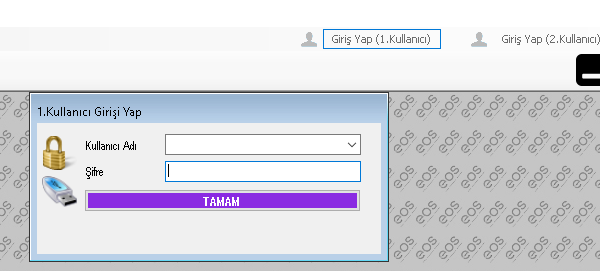
1st User login steps:
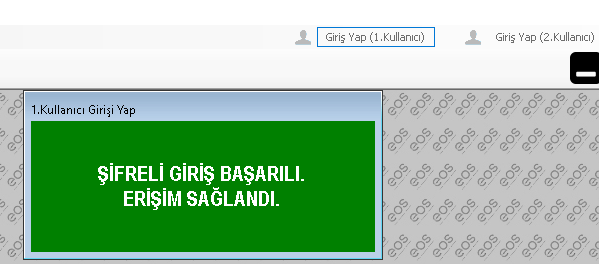
After the login process is completed, the user's authorization level is taken into account by Runtime, and the relevant menu and button elements are enabled according to this level.
To allow a second authorized user to log into the same Runtime session, use the LOGIN (2nd USER) button located in the upper-right section of the program window.
The same login procedure used for the first user is performed for the second user. The user account is selected, the corresponding password is entered, and the login process is completed by clicking OK.
Important: When two users are logged in simultaneously, the permissions of the user with the higher authorization level become effective.
If one of the users logs out, the other user's session continues. This allows the remaining user to continue normal process monitoring and management activities without interruption according to their authorization level.
In addition to the traditional login method using a user account and password, EOS SCADA Runtime also supports authorization using a USB key.
With this method, any USB flash drive can be configured as a specific user's authorization key using EOS SCADA Editor or Runtime. In this way, the USB device can be used as a means of physically transferring the user's authorization to the system.
How the USB key works:
The USB key method can speed up user login and logout operations, particularly in facilities where operator changes occur frequently. This allows the authorization mechanism to be managed through the insertion and removal of the physical USB key without requiring users to manually re-enter their login credentials at every shift change.
Security consideration: Because a flash drive configured as a USB key is associated with the permissions of the corresponding user account, it is important to protect authorized USB devices and ensure that they are used only by authorized personnel.
| Status | Operating Mode | Effective Authorization |
|---|---|---|
| 1 user logged in | The user operates Runtime through their own account. | The authorization level of the logged-in user. |
| 2 users logged in | Two users can work together in the same Runtime session. | The permissions of the user with the higher authorization level. |
| One user logged out | The other user's session continues. | The authorization level of the user remaining in the system. |
| USB key inserted | Automatic SCADA login is performed for the corresponding user. | The authorization level of the user associated with the USB key. |
| USB key removed | The corresponding user is automatically logged out. | The sessions and authorizations of the remaining users continue. |
With this structure, EOS SCADA Runtime can provide controlled user access through both the traditional username/password method and USB-based authorization. Dual user support also allows user changes in shift-based operations to be performed without interrupting SCADA operations.
Free Software Download Center
Software for industrial data collection, monitoring, and analysis.

Technical Support
Software documentation, sample code, and practical technical information.
You can contact us regarding EOS software, technical documentation, or industrial data communication.