
Free Software Download Center
Software for industrial data collection, monitoring, and analysis.
RUNTIME SHUTDOWN • 24/7 OPERATION • SUPER USER • CLOSE • EXIT PROGRAM
EOS SCADA Runtime is a SCADA runtime software developed for continuous process monitoring and control, field data collection, and archiving of the collected data. Therefore, under normal operating conditions, Runtime is expected to operate continuously 24/7.
Due to its continuous operation principle, shutting down EOS SCADA Runtime through the program is not considered a routine user operation. To shut down the software, a user with sufficient authorization must be logged into the system.
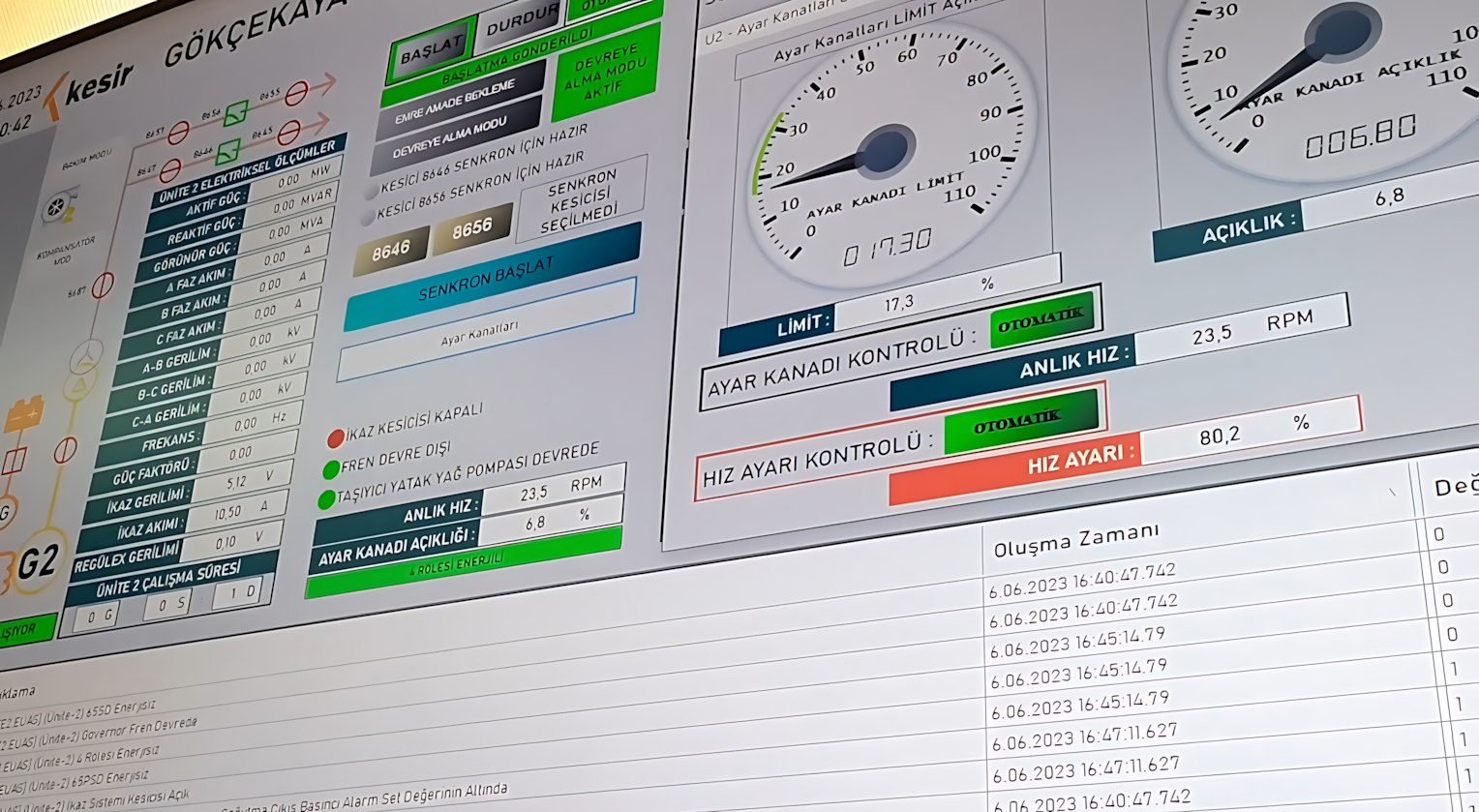
Since EOS SCADA Runtime is expected to operate continuously under normal operating conditions, shutting down the software is restricted to users with special authorization.
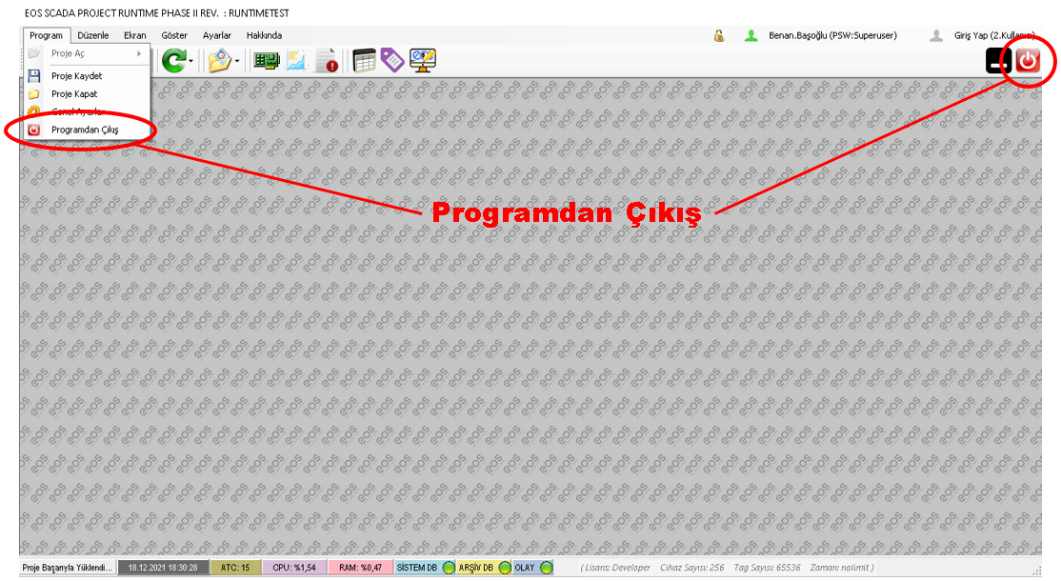
Important: Only a user with Super User authorization can shut down EOS SCADA Runtime.
Users without sufficient authorization cannot shut down Runtime through the normal menu options. This is intended to prevent unauthorized or accidental shutdown of Runtime while it is operating for process monitoring, control, data collection, and archiving.
To exit the Runtime software, a user with Super User authorization must first log in to EOS SCADA Runtime.
Basic operation before program exit:
A user without Super User authorization cannot exit the program through the menus. Therefore, when Runtime needs to be shut down, the operation must be performed by an authorized user.
A user with Super User authorization can shut down the EOS SCADA Runtime program by using the CLOSE button located in the upper-right corner of the program window.
Exiting using the CLOSE button:
| Exit Method | Location | Required Authorization |
|---|---|---|
| CLOSE | Upper-right corner of the program window | Super User |
| EXIT PROGRAM | Submenu under the Program menu | Super User |
Basic rule: To shut down EOS SCADA Runtime through the program interface, the user performing the operation must have Super User authorization.
The primary purpose of EOS SCADA Runtime is to continuously monitor and control processes, as well as collect and archive field data. Therefore, the software should be expected to operate continuously without interruption during plant operation.
The main reason for restricting program exit to a specific user authorization is to prevent Runtime from being shut down during normal operation. Except for a controlled shutdown performed by an authorized user, Runtime is expected to remain operational.
Operational consideration: Since EOS SCADA Runtime is a continuously operating software responsible for data collection and archiving, the program exit operation should only be performed when necessary and by personnel with Super User authorization.
| Step | Operation | Description |
|---|---|---|
| 1 | Log in with an authorized user | Log in using an account with Super User authorization to exit the program. |
| 2 | Select the shutdown method | Use the CLOSE button in the upper-right corner or the EXIT PROGRAM option in the Program menu. |
| 3 | Exit the program | EOS SCADA Runtime is shut down through the program interface. |
Free Software Download Center
Software for industrial data collection, monitoring, and analysis.

Technical Support
Software documentation, sample code, and practical technical information.
You can contact us regarding EOS software, technical documentation, or industrial data communication.