
Free Software Download Center
Software for industrial data collection, monitoring, and analysis.
Active Project Management in EOS SCADA Runtime
When the EOS SCADA Runtime program is started, the project defined as the active project in the system is automatically selected, and the project configuration files are loaded to prepare the runtime environment.
Since the active project has already been defined, the user does not need to select a project separately each time the Runtime program is started. This structure enables the SCADA system to start up quickly and continuously from an operational perspective.
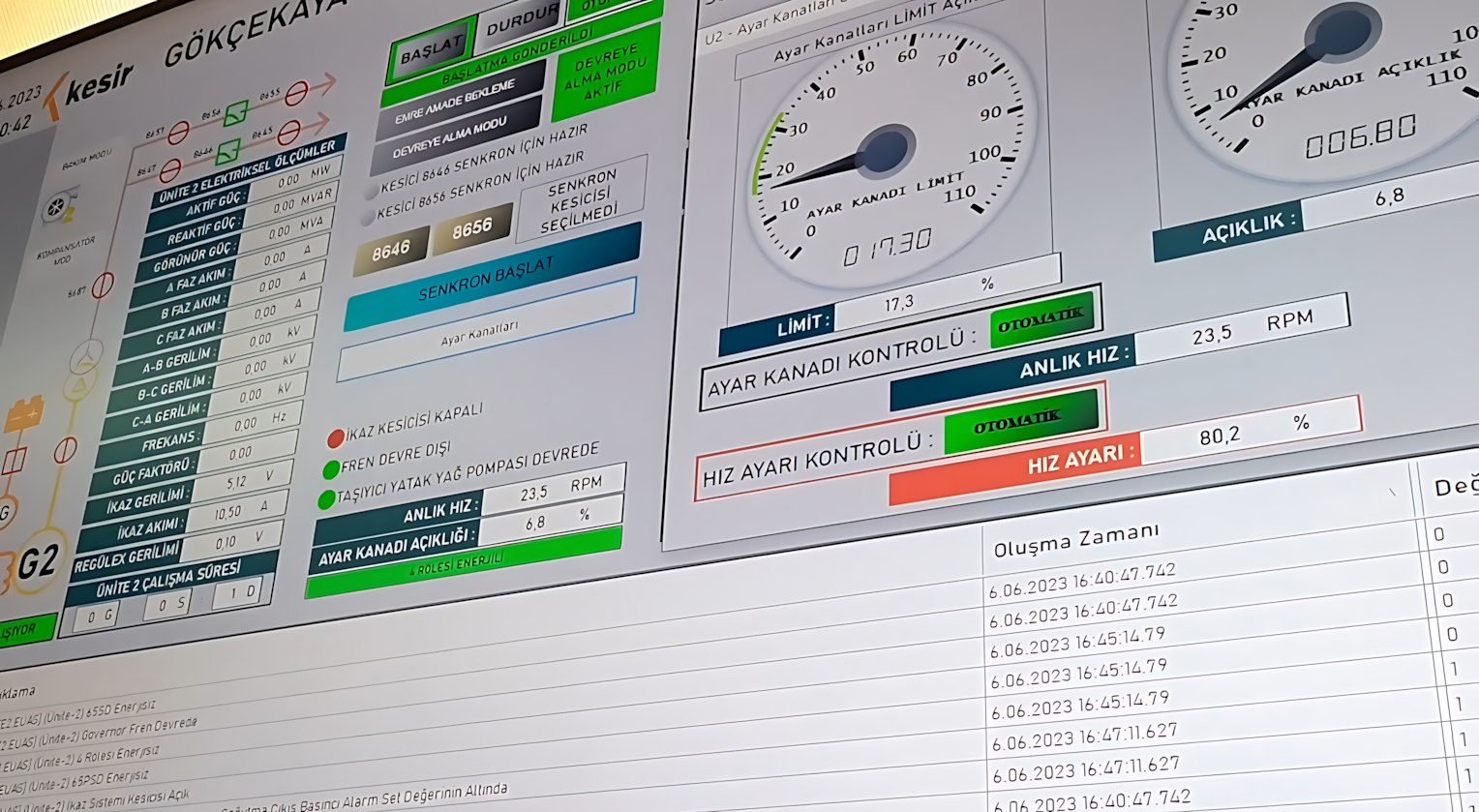
When EOS SCADA Runtime is started, the project defined as the active project in the system is automatically selected. The required project configuration files are loaded to prepare the Runtime operating environment.
Once a project has been defined as the active project, the user does not need to select a project separately when starting the Runtime program. The system automatically uses the defined active project.
Therefore, under normal operating conditions, the operator does not need to select a project. Project changes are only performed when multiple projects are installed on the system and by a user with the required authorization.
The current project running on EOS SCADA Runtime can be closed after a user with sufficient authorization has logged into the SCADA system.
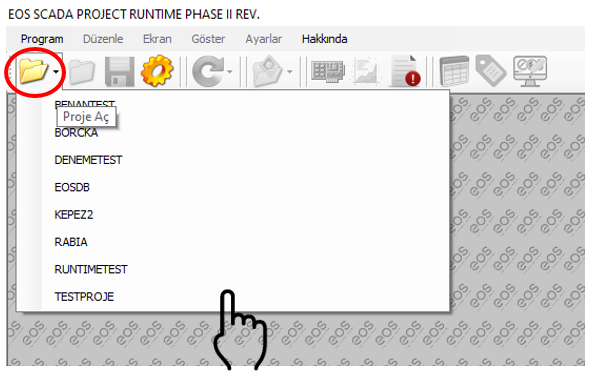
The user can use two different access methods to close the project:
The project closing operation can only be performed by users who have the required authorization and are logged into EOS SCADA Runtime.
When the CLOSE PROJECT command is used, the project currently active in Runtime is closed. If another project is installed on the system, that project can subsequently be activated using the OPEN PROJECT command.
After the current project has been closed, a new project can be activated by selecting one of the other projects installed on the system.
The OPEN PROJECT menu item can be accessed in two different ways:
When the OPEN PROJECT command is used, one of the projects installed on the system can be selected. The selected project is then activated and made available in the Runtime operating environment.
Under normal operating conditions, the system on which EOS SCADA Runtime is installed is expected to contain only one project. In this case, when Runtime starts, the active project is automatically selected and the user does not need to select a project separately.
Multiple-project operation is a working mode that can be used in special or exceptional situations where more than one project is installed on the system.
Since a standard EOS SCADA Runtime installation contains a single project, closing the project and activating another project is generally not required during daily operations.
When multiple projects are installed on the system, an authorized user can close the current project, select one of the other projects available on the system, and activate the new project.
In EOS SCADA Runtime, closing a project and activating a different project are controlled by the authorization mechanism.
These operations can only be performed by authorized users. Unauthorized users are not permitted to perform project management operations.
Since changing the project directly affects the Runtime operating environment, the operation should only be performed by users with the required authorization.
Particularly in SCADA systems used for field operations, changing the active project means switching the current operating environment to a different project. Therefore, it is important that the operation be carried out in a controlled manner by authorized personnel.
| Stage | Description |
|---|---|
| Runtime Starts | The project defined as active is automatically selected and the project configuration files are loaded. |
| Project Is Closed | A user with the required authorization closes the current project using the CLOSE PROJECT command. |
| OPEN PROJECT | The OPEN PROJECT command is used to access other projects installed on the system. |
| New Project Is Selected | The desired project is selected from the available projects and activated. |
| Authorization | Project closing and activating another project can only be performed by authorized users. |
When EOS SCADA Runtime starts, the active project is loaded automatically. When operation with multiple projects is required, the current project is closed using the CLOSE PROJECT command, and another project installed on the system is activated using the OPEN PROJECT command. These operations can only be performed by authorized users.
Free Software Download Center
Software for industrial data collection, monitoring, and analysis.

Technical Support
Software documentation, sample code, and practical technical information.
You can contact us regarding EOS software, technical documentation, or industrial data communication.