
Free Software Download Center
Software for industrial data collection, monitoring, and analysis.
EOS SCADA • PANEL PC • TOUCHSCREEN • WINDOWS • PANEL PC MODE
For the locally developed EOS SCADA system to operate in a stable, fast, and user-friendly manner on Panel PC platforms, it is important to configure the touchscreen settings correctly. Since the Windows operating system uses mouse-click behavior as the default for many user interactions, the response expected by the SCADA operator on a touchscreen may not always occur directly or appropriately.
Particularly for SCADA buttons that send commands to the CPU or process equipment, detecting a touch event only after the finger is lifted from the screen, rather than when the finger initially touches the screen, may result in delayed or unexpected user responses. Therefore, Panel PC Mode should be enabled for EOS SCADA on the Panel PC.

To ensure that the touchscreen operates correctly with the EOS SCADA interface on a Panel PC, the required setting is configured in the project settings of the EOS SCADA Editor. This setting provides more appropriate user interaction management, particularly in systems where operators use SCADA screens through a touchscreen.
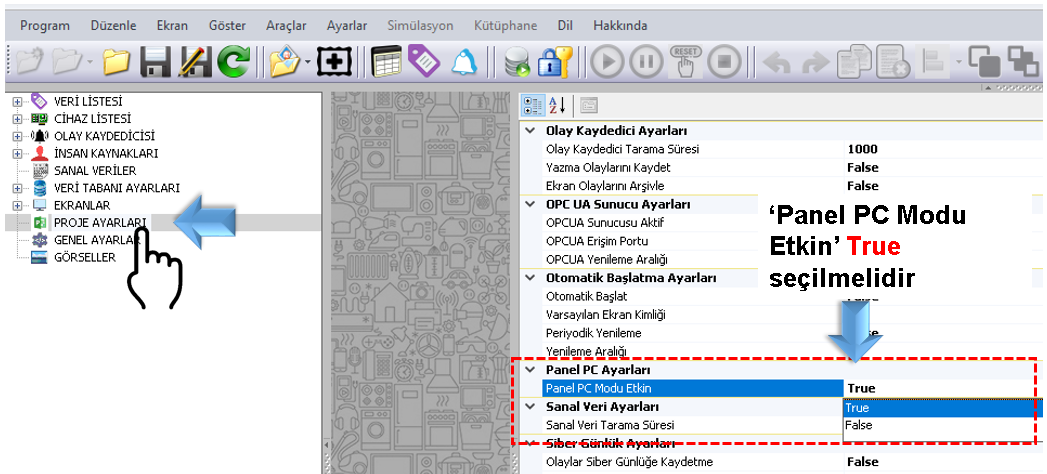
Required setting:
In SCADA systems, a touchscreen is not merely a display device; it is also one of the primary user interfaces through which the operator interacts with the process. Therefore, detecting touch events at the correct time and with the expected behavior is particularly important for control functions.
When Panel PC Mode is enabled, EOS SCADA operates in a manner that provides user interaction appropriate for the Panel PC usage scenario. This is intended to allow operators to use the SCADA interface on a touchscreen in a more natural manner.
Areas requiring particular attention: Buttons that send commands to the CPU or process equipment, control elements, selection fields, and areas where users directly enter data through the touchscreen.
When Panel PC Mode is enabled, the on-screen keyboard will also open automatically in user controls where a setpoint is entered. This feature improves the user experience by allowing numerical or text values to be entered directly on the Panel PC without using a physical keyboard.
Attention: When Panel PC Mode is enabled, the automatic opening of the on-screen keyboard in user controls used for setpoint entry is expected behavior. Therefore, when designing the screen layout for relevant projects, the screen area occupied by the on-screen keyboard should also be taken into consideration.
After setting Panel PC Mode Active to True, the project must be saved. Changes made without saving the project may not be applied in the relevant runtime environment.
Final check: Project Settings → Panel PC Settings → Panel PC Mode Active = True → Save the Project.
Once this configuration has been completed, the required project setting for touchscreen operation of the EOS SCADA application running on the Panel PC will have been configured.
Free Software Download Center
Software for industrial data collection, monitoring, and analysis.

Technical Support
Software documentation, sample code, and practical technical information.
You can contact us regarding EOS software, technical documentation, or industrial data communication.