
Free Software Download Center
Software for industrial data collection, monitoring, and analysis.
EOS SCADA • NAV_BUTTON • USER CONTROL
NAV_BUTTON (NAVIGATION BUTTON) is a navigation-oriented user control that allows SCADA operators to open another screen, display a popup screen associated with the current screen, open or close a popup, and reuse the same popup structure with data from different equipment.
One of the control's most important features is that its functionality extends beyond simply navigating to another screen. Through the PARAMETER_COLLECTION structure, parameters defined in a popup user control can be linked to the relevant SCADA tags through NAV_BUTTON. This allows a single popup design to be reused for multiple items of equipment, such as Motor-01, Motor-02, and Motor-03.

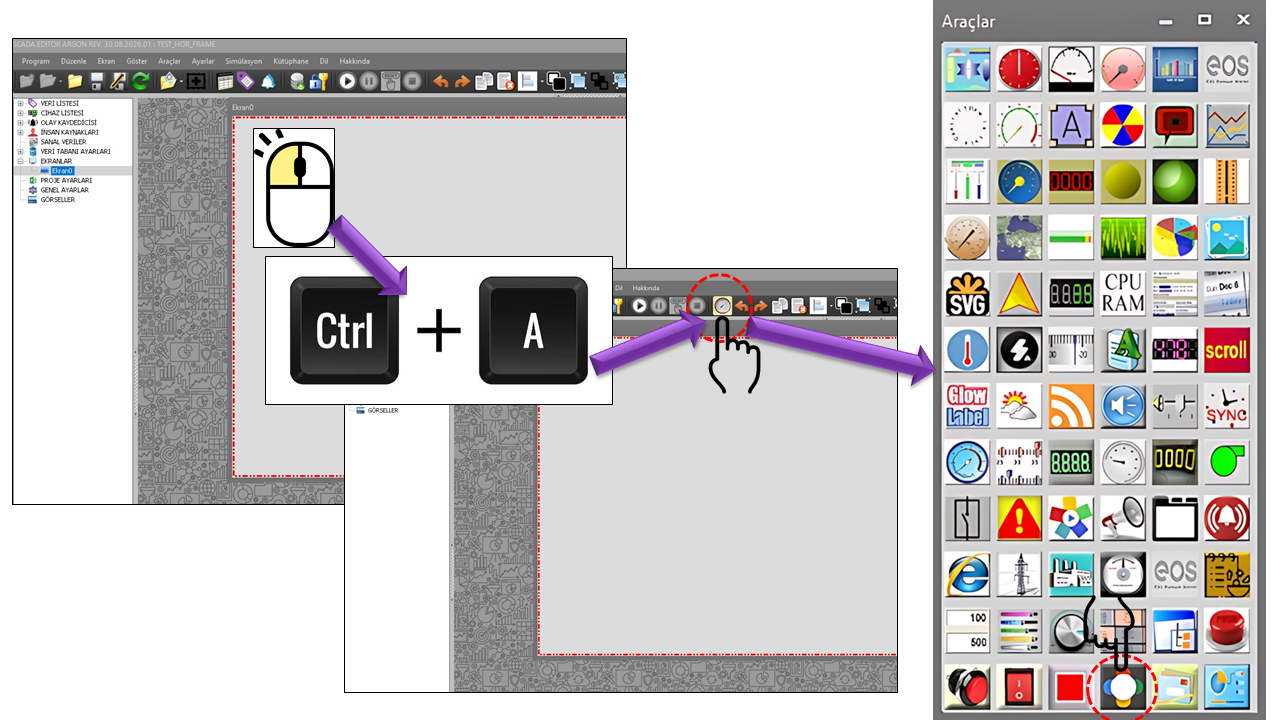
NAVIGATION BUTTON is a special User Control used to create user-controlled navigation between SCADA screens. It can be used in the form of a button, label, picture box, or virtual data selector. Regardless of its appearance in the user interface, its primary purpose is to perform the defined screen or window operation.
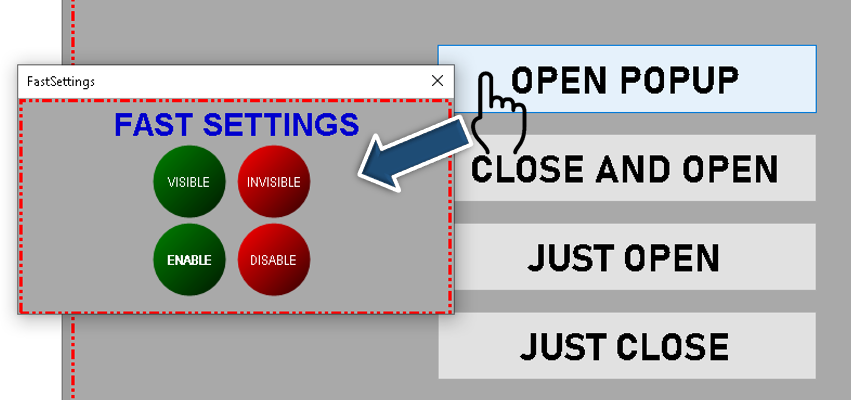
The control can identify the target screen using ScreenID, select the opening behavior using
OperationType, define the popup position using ScreenLocation,
and, when necessary, specify the parent screen associated with the popup using ParentScreenID.
The TagPrefix, TagSuffix, and ScreenSuffix properties are particularly important in equipment-based SCADA designs. They help maintain a common structure for tag names when adapting the same screen/popup design to different equipment.
Basic approach: NAV_BUTTON should not be considered merely a "button." The control combines screen navigation, popup lifecycle management, popup parameter binding, equipment-based tag naming, and authorization at a single navigation point.
In a navigation operation performed using NAV_BUTTON, the definition on the button determines the target screen, opening method, popup position if required, and parameters to be passed to the target screen. This structure creates a reusable screen architecture, particularly for standardized equipment popups.
Instead of designing a separate popup for every motor, pump, valve, or measurement point in a SCADA project, a shared popup screen can be created and variable information can be passed as parameters. This approach reduces repeated screen design and helps maintain a consistent visual structure across equipment popups.
OperationType specifies the basic window operation to be performed on the target screen when NAV_BUTTON is activated. The NBPencereAcma options defined in the source code are as follows.
| Enumeration | Meaning | Description |
|---|---|---|
Navigate |
Navigate to Screen | Indicates that navigation to the specified screen should be performed. |
Justopen |
Open Only | Used to open the target window; navigation behavior depends on how the popup is used. |
Justclose |
Close Only | Used to close the specified window. |
Wildopen |
Open Freely | An option for opening a popup/window using free-window behavior. |
Documentation note: Since the event/method code implementing the internal behavior of these options is not provided in the source code, they are described here within the limits of their definitions and intended usage in the source code.
ButtonType determines which visual control NAV_BUTTON presents in the user interface. This means that the navigation operation is not restricted to the appearance of a conventional button.
| Enumeration | Meaning | Usage |
|---|---|---|
Picturebox |
Picture Box | To create an image-based navigation surface. |
Label |
Label | To create a text-based navigation area. |
Button |
Button | For a conventional button appearance. |
Virtualdataselector |
Virtual Data Selector | For a drop-down list used for data selection rather than a button. |
One of the important applications of NAV_BUTTON in SCADA systems is popup screen management. A small window can be opened to display equipment details without leaving the main architecture. The same popup screen can be closed when needed, or another navigation operation can be performed.
Suppose that clicking the "MOTOR-01 DETAILS" button on the main SCADA screen opens a popup named MotorDetay. Parameters can be defined within the popup for motor status, operating time, current, speed, and alarm information. NAV_BUTTON associates these parameters with the SCADA tags belonging to MOTOR-01.
One of the most powerful use cases for NAV_BUTTON is reusing the same popup User Control for multiple equipment items. For this purpose, equipment-specific data can be defined as members of PARAMETER_COLLECTION within the popup instead of being written directly as fixed tags.
For example, suppose the project contains 10 motors: MOTOR-01 ... MOTOR-10. Instead of designing a separate MotorDetay popup for each motor, a single popup can be created.
Popup:
    MotorDetay

Parameters:
    MOTOR_DURUM
    MOTOR_AKIM
    MOTOR_HIZ
    MOTOR_ALARM

For MOTOR-01:
    MOTOR_DURUM → MOTOR01.Durum
    MOTOR_AKIM  → MOTOR01.Akim
    MOTOR_HIZ   → MOTOR01.Hiz
    MOTOR_ALARM → MOTOR01.Alarm

For MOTOR-02:
    MOTOR_DURUM → MOTOR02.Durum
    MOTOR_AKIM  → MOTOR02.Akim
    MOTOR_HIZ   → MOTOR02.Hiz
    MOTOR_ALARM → MOTOR02.Alarm
In this model, the popup design remains unchanged; what changes is the SCADA data connected to the popup. This allows the same visual structure to display data from different equipment items.
Result: The parameterized popup approach follows the principle of "one screen + equipment-specific data binding" instead of "a separate screen for each equipment item."
In the source code, PARAMETER_COLLECTION represents a data structure intended to establish a parameter-based relationship between a popup or navigation target and SCADA data.
| Item | Type | Default | Description |
|---|---|---|---|
ParameterName |
String |
PR |
Represents the name of the parameter to be used on the popup side. |
ConnectedTag |
String |
"" |
Represents the SCADA tag to which the parameter will be associated. |
The practical meaning of this structure is that the popup identifies "which data it should display" by a parameter name; NAV_BUTTON can then associate that parameter with the actual SCADA tag belonging to the relevant equipment.
TagPrefix provides a way to add the common part of an equipment or plant hierarchy to the beginning of a tag name. It is particularly important when connecting the same screen to different equipment items.
Popup parameter:
    Motor.Durum

TagPrefix:
    MOTOR01.

Result:
    MOTOR01.Motor.Durum
Since the actual tag-naming convention depends on the project, the example above is conceptual. The actual tag-naming standard used in the project should be followed.
ScreenSuffix can be used as an additional screen-naming component associated with the target screen ID. It can help distinguish the same screen structure across different plant, line, unit, or equipment contexts.
ScreenID:
    MotorDetay

ScreenSuffix:
    _01

Example target ID:
MotorDetay_01These two properties can be considered together to determine the screen context in which a popup opens and the position of the window.
| Property | EOS Turkish Equivalent | Default | Description |
|---|---|---|---|
ParentScreenID |
Parent Screen ID | "" |
Used to identify the parent screen associated with the popup. |
ScreenLocation |
Screen Location | Bottom |
Determines the popup screen's position option. |
Opacity |
Opacity | 100 |
Determines the opacity value of the window's appearance. |
TransparentBackground |
Transparent Background | false |
Determines whether a transparent background is used. |
| Value | Meaning |
|---|---|
Top |
Top |
Bottom |
Bottom |
Left |
Left |
Right |
Right |
Free |
Free |
The following table summarizes the main properties in the provided NAV_BUTTON source code together with their EOS Turkish terminology. Default values are taken directly from the supplied source code.
Property table: The technical property name is preserved; its EOS Turkish equivalent, default value, purpose, and typical role on a SCADA screen are explained together.
| Property | EOS Turkish Equivalent | Default | What does it do? | Where is it used? |
|---|---|---|---|---|
UCType |
Control Type | NAV_BUTTON |
Determines the User Control type. | In the basic definition of the navigation control. |
UpdateInterval |
Update Interval | 1000 ms |
Determines the control's update period. | On dynamic SCADA screens. |
DecimalPoint |
Decimal Places | 0 |
Determines the number of decimal places used for numeric display. | When displaying numeric parameters. |
UCBackColor |
Control Background Color | Transparent |
Determines the control's background. | In SCADA screen design. |
UCForeColor |
Control Text Color | Black |
Determines the control's primary text color. | For text and navigation elements. |
UCFont |
Control Font | Arial Narrow, 8.25 pt |
Determines the control's font. | For button and navigation text. |
ButtonType |
Button Type | Button |
Determines the type of navigation surface. | When designing a button, label, image, or virtual data selector. |
LabelText |
Label Text | "" |
Determines the text displayed in the navigation element. | To show the target screen name to the operator. |
DefaultButtonColor |
Default Button Color | Red |
Determines the button's normal-state color. | For the button's appearance. |
PressedButtonColor |
Pressed Button Color | Green |
Determines the button's color when pressed. | For visual feedback during user interaction. |
ScreenID |
Screen ID | "" |
Specifies the target screen for a navigation or window operation. | For screen transitions and popup usage. |
OperationType |
Operation Type | Navigate |
Selects the navigation, opening, or closing behavior. | For screen and popup navigation. |
Opacity |
Opacity | 100 |
Determines the window's visual opacity. | For popup visual design. |
TransparentBackground |
Transparent Background | false |
Determines whether the popup background is transparent. | For custom popup designs. |
ParentScreenID |
Parent Screen ID | "" |
Specifies the parent screen to which the popup is linked. | To preserve the popup context. |
ScreenLocation |
Screen Location | Bottom |
Determines the popup's position option. | For popup placement. |
TextAlign |
Text Alignment | Middlecenter |
Determines the alignment of button/label text. | For positioning navigation text. |
TagPrefix |
Tag Prefix | "" |
Represents the component to be added to the beginning of a tag name. | In shared equipment-based popup structures. |
TagSuffix |
Tag Suffix | "" |
Represents the component to be added to the end of a tag name. | In standardized tag names. |
ScreenSuffix |
Screen Suffix | "" |
Represents suffix information associated with the screen ID. | For naming multiple screens/equipment items. |
AuthorizationLevel |
Authorization Level | Monitor |
Determines the authorization level required to use the control. | To distinguish monitoring, operation, and engineering access levels. |
ButtonParameters |
Button Parameters | PARAMETER_COLLECTION[] |
Represents the collection of parameters to be passed to the popup or target screen. | For parameterized popup usage. |
TextAlign determines the position of the text displayed on the navigation element. The GNKonum options defined in the source code are as follows.
| Enumeration | Meaning |
|---|---|
Topleft |
Top Left |
Topcenter |
Top Center |
Topright |
Top Right |
Middleleft |
Middle Left |
Middlecenter |
Middle Center |
Middleright |
Middle Right |
Bottomleft |
Bottom Left |
Bottomcenter |
Bottom Center |
Bottomright |
Bottom Right |
AuthorizationLevel specifies the authorization level required to use NAV_BUTTON. The default value in the source code is Monitor.
| Enumeration | Meaning |
|---|---|
None |
No Authorization |
Monitor |
Monitoring |
Operation |
Operation |
Engineering |
Engineering |
Superuser |
Superuser |
The actual operating behavior of authorization levels depends on the authorization mechanism configured in the EOS SCADA project. This page describes the options defined in the source code; no additional authorization algorithm has been assumed.
The operator navigates to the Tanklar screen by clicking a main menu button.
ButtonType   = Button
LabelText    = "TANKLAR"
ScreenID     = "TANKLAR"
OperationType = NavigateA NAV_BUTTON is used next to an equipment symbol on the main screen to open the corresponding motor details popup.
ButtonType     = Picturebox
ScreenID       = "MotorDetay"
OperationType  = Justopen
ScreenLocation = FreeA NAV_BUTTON inside a popup is used to close that popup.
ButtonType    = Button
LabelText     = "CLOSE"
OperationType = Justclose
The same MotorDetay screen is used with parameters instead of creating a separate popup for each motor.
ScreenID = "MotorDetay"

PARAMETER_COLLECTION:
    PR_Durum  → MOTOR01.Durum
    PR_Akim   → MOTOR01.Akim
    PR_Hiz    → MOTOR01.Hiz
    PR_Alarm  → MOTOR01.Alarm

Same popup:
    MOTOR02
    MOTOR03
    ...
MOTOR10When designing NAV_BUTTON, attention should be paid not only to the button's appearance but also to its relationship with the target screen. In projects that use popups, the operator should be able to clearly identify which equipment the button belongs to.
Recommended screen model: An equipment symbol + NAV_BUTTON on the main process screen, with a shared details popup populated with equipment-specific parameters as the target. This combines navigation and data binding in a unified user experience.
The enumerations defined in the source code are summarized in the following table.
| Enumeration | Options |
|---|---|
NBDugmeTuru |
Picturebox, Label, Button, Virtualdataselector |
NBPencereAcma |
Navigate, Justopen, Justclose, Wildopen |
NBPencereKonum |
Top, Bottom, Left, Right, Free |
GNKonum |
Topleft, Topcenter, Topright, Middleleft, Middlecenter, Middleright, Bottomleft, Bottomcenter, Bottomright |
GNYetkiSeviyesi |
None, Monitor, Operation, Engineering, Superuser |
| Group | Key Properties | Main Purpose |
|---|---|---|
| General | UCType, UpdateInterval, DecimalPoint |
Basic operating settings of the control. |
| Navigation | ScreenID, OperationType |
Navigating to, opening, and closing screens. |
| Button | ButtonType, LabelText, TextAlign |
Appearance of the navigation surface. |
| Popup | ParentScreenID, ScreenLocation, Opacity |
Context and appearance of the popup screen. |
| Parameters | ButtonParameters, PARAMETER_COLLECTION |
Passing SCADA data to a popup. |
| Tag Naming | TagPrefix, TagSuffix |
Equipment-specific tag association. |
| Screen Naming | ScreenSuffix |
Additional information associated with the target screen ID. |
| Authorization | AuthorizationLevel |
Defining the user's access level. |
NAV_BUTTON is a special User Control that manages user navigation between EOS SCADA screens and can be used with popup screens. In addition to screen transitions, it handles window opening and closing, popup positioning, parameter transfer, and equipment-specific tag association within a single structure.
When used with PARAMETER_COLLECTION, a single popup screen can be reused with SCADA data belonging to different equipment items. For example, a single MotorDetay popup can serve multiple motors by changing its parameter connections.
Free Software Download Center
Software for industrial data collection, monitoring, and analysis.

Technical Support
Software documentation, sample code, and practical technical information.
You can contact us regarding EOS software, technical documentation, or industrial data communication.