
Free Software Download Center
Software for industrial data collection, monitoring, and analysis.
EOS SCADA • SLIDESHOW • VISUAL PRESENTATION CONTROL
SLIDESHOW is a specialized user control within EOS SCADA that automatically displays images placed in the project folder in sequence and applies animated transitions between them. Unlike controls designed to display process values, it creates a continuously running visual presentation area intended for visual information, corporate promotion, and personnel engagement.
It is particularly useful for public relations screens, personnel engagement displays, entrance and lobby screens, and facility presentation screens. Automatically displaying facility photographs, production areas, equipment, employee activities, and corporate visuals can enhance the visual appeal of SCADA screens.

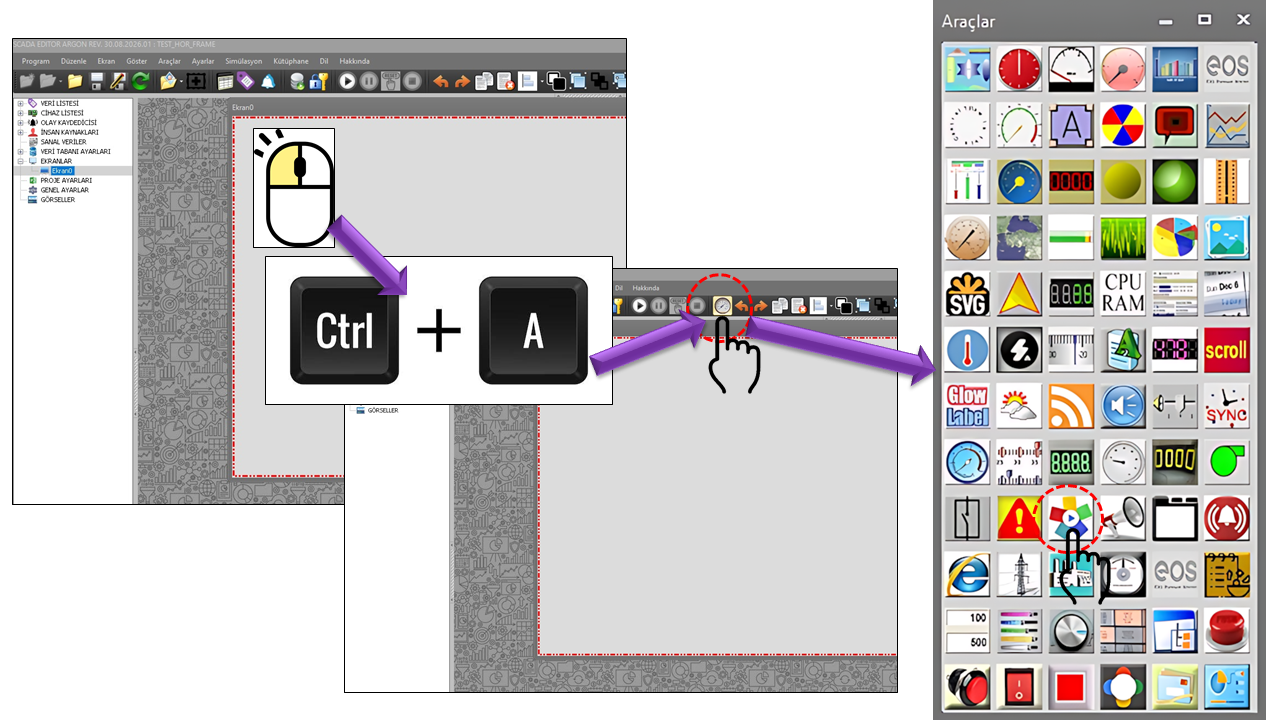
Unlike a conventional image viewer, SLIDESHOW transforms an image folder into a continuously running visual presentation. The control uses the list of images in the dedicated SLIDESHOW folder within the project structure. When the specified Image Update Interval elapses, it advances to the next image and performs the transition using the selected Animation Effect.

With this structure, instead of defining images individually inside the control, new visuals can be added by managing the contents of the relevant project folder. The ImageListReloadInterval property in the source code also allows the image list to be reloaded at specified intervals. This makes it possible to reevaluate changes to the folder contents at defined intervals on information screens that operate for extended periods.
In industrial HMI/SCADA design, the primary purpose of screens is to provide operators with clear, context-appropriate information. Modern HMI approaches emphasize organizing visualizations according to different user roles and tasks while avoiding unnecessary visual complexity. SLIDESHOW is not a direct process-control indicator; rather, it is a supporting screen component that can serve as an information and corporate visual communication layer.
Therefore, SLIDESHOW is best positioned in suitable information, presentation, or employee communication areas, rather than replacing the main process screens that support critical operator decisions.
The basic operating behavior, visual appearance, and image refresh mechanism of the SLIDESHOW control are determined by the properties listed below. Property names are preserved using their technical names from the source code, and their EOS Turkish equivalents are based on the terminology in Türkçe_set2(2).txt.
| Property | EOS Turkish Equivalent | Default | Purpose |
|---|---|---|---|
UCType |
Control Type | SLIDESHOW |
Defines the user control as a SLIDESHOW type. |
ImageUpdateInterval |
Image Update Interval | 5000 |
Specifies the time after which the displayed image is replaced by the next image. |
DecimalPoint |
Decimal Places | 0 |
Defines the general numeric display setting of the control; it does not affect the core visual presentation of SLIDESHOW. |
UCBackColor |
Control Background Color | Transparent |
Defines the background color of the control. |
UCForeColor |
Control Foreground Color | Black |
Defines the foreground color of the control. |
UCFont |
Control Font | Arial Narrow, 8.25 pt |
Defines the general font used by the control. |
ColorForTransparecy |
Color for Transparency | Black |
Defines the color setting associated with transparency. The technical property name is preserved exactly as written in the source code. |
BorderColor |
Border Color | Gray |
Defines the color of the control border. |
DisplayBorder |
Display Border | false |
Specifies whether the border is displayed around the SLIDESHOW area. |
The animation settings are the main section that determines the visual character of SLIDESHOW. The Image Update Interval determines when the next image appears, Animation Speed determines the speed of the transition, and Animation Effect defines the visual transition between two images.
| Property | EOS Turkish Equivalent | Default | Description |
|---|---|---|---|
AnimationSpeed |
Animation Speed | 5 |
Determines the speed of the animated transition between images. |
AnimationEffect |
Animation Effect | Random |
Determines the transition effect used when moving from one image to another. |
ImageListReloadInterval |
Image List Reload Interval | 600000 |
Determines the interval used to reevaluate or reload the image list from the folder. |
The AnimationEffect property selects the transition style to be used between SLIDESHOW images. The options defined in the source code are listed below in the Enumeration, together with their technical names and Turkish descriptions.
| Technical Value | Turkish Equivalent | Transition Approach |
|---|---|---|
None |
None | No animated transition is used. |
Random |
Random | A transition effect is selected randomly from the defined effects. |
Lefttoright |
Left to Right | The image transitions with movement from left to right. |
Rightotleft |
Right to Left | The image transitions with movement from right to left. |
Toptodown |
Top to Bottom | The transition proceeds from top to bottom. |
Downtotop |
Bottom to Top | The transition proceeds from bottom to top. |
Toplefttobottomright |
Top Left to Bottom Right | Diagonal transition. |
Bottomrighttotopleft |
Bottom Right to Top Left | Reverse diagonal transition. |
Bottomlefttotopright |
Bottom Left to Top Right | Diagonal transition. |
Toprighttobottomleft |
Top Right to Bottom Left | Reverse diagonal transition. |
Maximize |
Maximize | The image transitions by enlarging. |
Rotate |
Rotate | The image transitions by rotating. |
Spin |
Spin | A spin-based transition. |
Circular |
Circular | A transition characterized by circular movement. |
Elliptical |
Elliptical | A transition characterized by elliptical movement. |
Rectangular |
Rectangular | A rectangular-shaped transition. |
Splithorizontal |
Split Horizontal | Transitions by dividing the image horizontally. |
Splitvertical |
Split Vertical | Transitions by dividing the image vertically. |
Splitboom |
Split Boom | A split transition effect using the name defined in the source code. |
Splitquarter |
Split Quarter | A transition characterized by quarter-based division. |
Chessboard |
Chessboard | A transition with a chessboard pattern. |
Chesshorizontal |
Horizontal Chessboard | A transition with a horizontal chessboard arrangement. |
Chessvertical |
Vertical Chessboard | A transition with a vertical chessboard arrangement. |
Panorama |
Panorama | A panorama-style transition. |
Panoramahorizontal |
Horizontal Panorama | A horizontal panorama transition. |
Panoramavertical |
Vertical Panorama | A vertical panorama transition. |
Spiral |
Spiral | A transition characterized by spiral movement. |
Spiralboom |
Spiral Boom | A spiral transition effect using the name defined in the source code. |
Fade |
Fade | One image fades out as the next image appears. |
Fade2images |
Fade Between Images | A transition characterized by fading or blending between two images. |
SLIDESHOW operates by combining the dedicated folder structure within the project with the timing and animation settings. The images do not come from a collection embedded inside the user control; they are sourced from the SLIDESHOW directory under the project folder.
ImageUpdateInterval determines how long the current image is displayed, while ImageListReloadInterval determines how often the image list is reloaded. These two settings serve different purposes: the first controls when the slide changes, while the second controls when the image list is read again.
Since SLIDESHOW may be used on screens that run for extended periods, image resolutions and file sizes should be appropriate for the intended screen usage. Using unnecessarily large images may increase resource consumption, particularly on screens where many images are changed continuously. This is not a limit specified in the source code; it is a practical design consideration for general HMI/SCADA visualization.
Photographs of different areas of a facility can be displayed in sequence on a large screen in the entrance area. For example, photographs of the production facility, laboratory, energy center, warehouse, and social areas can be presented automatically in rotation on the same screen.
ImageUpdateInterval = 5000
AnimationSpeed      = 5
AnimationEffect     = Fade
DisplayBorder = trueEmployee events, team photographs, celebrations, social responsibility activities, or internal visual announcements can be placed in the SLIDESHOW folder and displayed automatically on a shared screen.
ImageUpdateInterval = 5000
AnimationSpeed      = 5
AnimationEffect = RandomIt can be used to present visual content intended for visitors or employees, independently of production operations. In this scenario, a softer transition such as Fade or a fixed-direction transition can be preferred.
ImageUpdateInterval = 8000
AnimationSpeed      = 5
AnimationEffect = FadeThe values above are example configurations and should not be confused with the default values specified in the source code. Appropriate timing and effects can be selected according to the actual number of images in the SLIDESHOW folder, their dimensions, and the intended use of the screen.
| Group | Properties | Primary Purpose |
|---|---|---|
| General | UCType, DecimalPoint, UCBackColor, UCForeColor, UCFont |
Basic definition and appearance of the control |
| Image | ImageUpdateInterval |
Slide change timing |
| Animation | AnimationSpeed, AnimationEffect |
Transition speed and transition style |
| Image List | ImageListReloadInterval |
Reloading the image list |
| Appearance | ColorForTransparecy, BorderColor, DisplayBorder |
Visual frame of the control and appearance settings related to transparency |
Unlike EOS SCADA's conventional process monitoring and control controls, SLIDESHOW is a dedicated user control focused on presenting visual content. Its use of the SLIDESHOW directory under the project folder as a source of visual content, its ability to change images at specified intervals, and its range of animation effects make it a flexible option for SCADA screens in shared-use areas.
In scenarios such as corporate presentations using facility photographs, employee engagement through event images, internal communication through visual announcements, and information displays in visitor areas, SLIDESHOW can add visual richness and continuously refreshed content to the SCADA screen.
Property names on this page are preserved using their technical names from the EOS SCADA source code. Options are listed under the Enumeration heading, and the EOS Turkish terminology dictionary Türkçe_set2(2).txt has been used as the basis for the Turkish equivalents.
Free Software Download Center
Software for industrial data collection, monitoring, and analysis.

Technical Support
Software documentation, sample code, and practical technical information.
You can contact us regarding EOS software, technical documentation, or industrial data communication.