CPU USAGE68%
0%50%100%
EOS SCADA • SYSTEM_INFO • REAL-TIME SYSTEM MONITORING • USER CONTROL
SYSTEM INFORMATION (SYSTEM_INFO) is a user control designed to monitor system resource utilization in real time on a SCADA screen. The control can visually display CPU Usage, Memory (RAM) Usage, and optionally Hard Disk (HD) Usage.
Line and fill colors can be configured independently for each resource. System information can also be displayed using a bar-chart approach, helping operators monitor resource utilization not only as numerical values but also through an easily understood graphical representation.

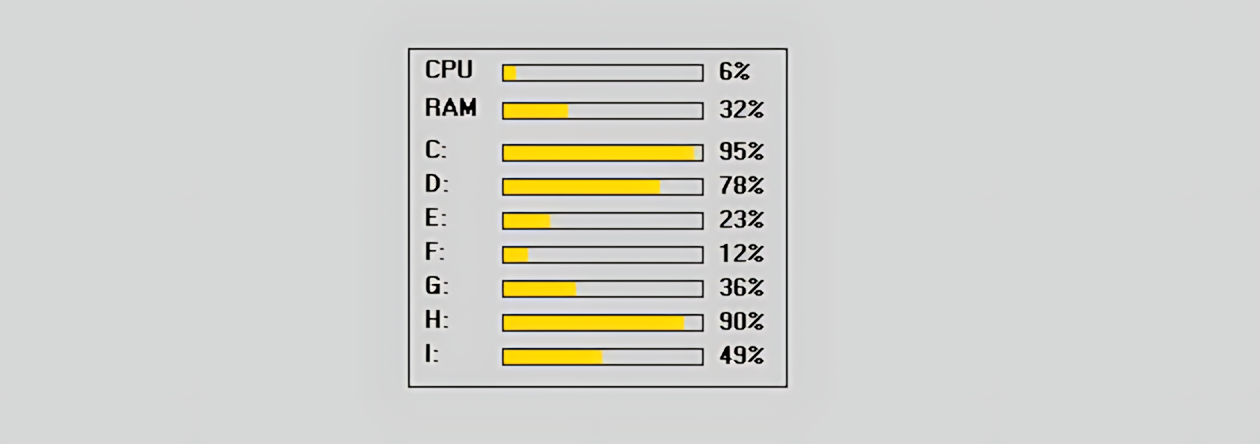
The display below illustrates an example of how the SYSTEM_INFO control can visualize CPU, memory, and hard disk usage using a bar-chart approach. The values shown here are provided for documentation purposes; the actual control displays live system data within its own update interval.
SYSTEM INFORMATION can be used to display not only process equipment on the SCADA screen, but also usage information about the system resources on which the SCADA application runs. This approach combines operator-screen information and system-monitoring data within the same visual area.
The primary purpose of the control is to make current system resource usage levels quickly recognizable. The DisplayCPU, DisplayMemory, and DisplayHD properties determine which resource information is displayed. This makes it possible to disable unnecessary information fields and create a simpler display.
Resource indicators in SYSTEM_INFO can be presented as bar charts. This allows increases or decreases in usage to be quickly perceived from the length of the bar, even without reading the numerical value.
The table below presents the SYSTEM_INFO properties from the supplied source code together with their corresponding terms in the EOS Turkish terminology dictionary. Default values are taken directly from the definitions in the source code.
| PROPERTY | EOS TURKISH EQUIVALENT | DEFAULT | DESCRIPTION |
|---|---|---|---|
UCType |
Control Type | SYSTEM_INFO |
Defines the SYSTEM_INFO type of the user control. |
UpdateInterval |
Update Interval | 1000 |
Specifies the interval at which system information is updated, in milliseconds. |
DecimalPoint |
Decimal Places | 0 |
Specifies the number of decimal places used in numerical displays. |
UCBackColor |
Control Background Color | Transparent |
Specifies the general background color of the control. |
UCForeColor |
Control Text Color | Black |
Specifies the primary text color used in the control. |
UCFont |
Control Font | Arial Narrow 8.25 Bold |
Specifies the font and text style used in the control. |
DisplayCPU |
Display CPU | true |
Determines whether CPU usage information is displayed. |
CPULineColor |
CPU Line Color | Black |
Specifies the line color of the CPU display. |
CPUFillColor |
CPU Fill Color | Gold |
Specifies the fill color of the CPU bar or indicator. |
DisplayMemory |
Display Memory | true |
Determines whether memory (RAM) usage information is displayed. |
MemoryLineColor |
Memory Line Color | Black |
Specifies the line color of the memory display. |
MemoryFillColor |
Memory Fill Color | Gold |
Specifies the fill color of the memory bar or indicator. |
DisplayHD |
Display Hard Disk | false |
Determines whether hard disk (HD) usage information is displayed. |
HDLineColor |
Hard Disk Line Color | Black |
Specifies the line color of the hard disk display. |
HDFillColor |
Hard Disk Fill Color | Gold |
Specifies the fill color of the hard disk bar or indicator. |
DisplayBorder |
Display Border | true |
Determines whether the border around the control is displayed. |
BorderColor |
Border Color | Black |
Specifies the color used for the control border. |
BorderWidth |
Border Width | 1 |
Specifies the width of the control border. |
The three main resource indicators in SYSTEM_INFO allow different system resources to be monitored
within the same control on the operator screen. The CPU and memory indicators are enabled by default;
the hard disk indicator is disabled by default in the source code and can be enabled using DisplayHD.
The display is enabled using DisplayCPU. The line and fill colors of the graphical display are specified using CPULineColor and CPUFillColor.
Memory display is managed using DisplayMemory. The visual appearance is configured using MemoryLineColor and MemoryFillColor.
When DisplayHD is enabled, hard disk usage is also included in the display. HDLineColor and HDFillColor define the colors.
The control's operating approach can be summarized as retrieving the current value from the system resource, checking whether the display for that resource is enabled, and visualizing the value in the graphical area.
On a screen designed to display CPU and RAM information, DisplayCPU=true and
DisplayMemory=true can be used. If hard disk usage is also required,
DisplayHD=true can be set to add a third display. This allows three different system resources
to be monitored together within the same SYSTEM_INFO control.
SYSTEM_INFO can bring system resources that may be important to the operation of the SCADA software onto the operator screen alongside process data. Keeping resource usage visible in a single area can be useful, especially on central monitoring and technical support screens.
Can be used to continuously monitor CPU and RAM usage in a compact graphical area.
Can provide an information area where operators or technical personnel can view the general status of system resources.
Can help users quickly identify changes in resource usage through graphical bar height.
By enabling DisplayHD, hard disk usage can also be displayed within the same control.
The boundaries of the control on the screen can be configured using DisplayBorder, BorderColor, and BorderWidth.
Unnecessary resource indicators can be disabled so that only the required CPU, memory, or disk information is displayed.
SYSTEM INFORMATION (SYSTEM_INFO) is a simple yet functional monitoring control that brings system resources onto the SCADA screen. Presenting CPU, memory, and hard disk usage within the same visual structure provides an information area for quickly assessing system status on operator screens.
The resources to be displayed can be selected using the DisplayCPU, DisplayMemory, and DisplayHD properties; the control's visual appearance can be adapted to the screen design through the corresponding line and fill colors. According to the supplied source code, UpdateInterval=1000 defines a basic update interval of one second.
System resource → live update → bar chart → rapid visual perception → system information on the SCADA screen.
Free Software Download Center
Software for industrial data collection, monitoring, and analysis.

Technical Support
Software documentation, sample code, and practical technical information.
You can contact us regarding EOS software, technical documentation, or industrial data communication.