
Free Software Download Center
Software for industrial data collection, monitoring, and analysis.
MANUAL DATA • 24-HOUR PROGRAM • MODBUS HOLDING REGISTER • RECORDER EMULATOR
MAESTRO Recorder Emulator (MAESTROrecsim.exe) is a recorder emulator that allows values normally expected from a MODBUS-enabled recorder device to be generated in a software environment. Values entered by the user are published as MODBUS Holding Registers at the specified time.
It can be particularly useful in applications where no physical measurement or recording device is available, but certain values need to be manually entered into the system by an operator. In some applications in Türkiye, it can also help transfer values such as BARASET, which need to be incorporated into the system, to SCADA or data acquisition systems.
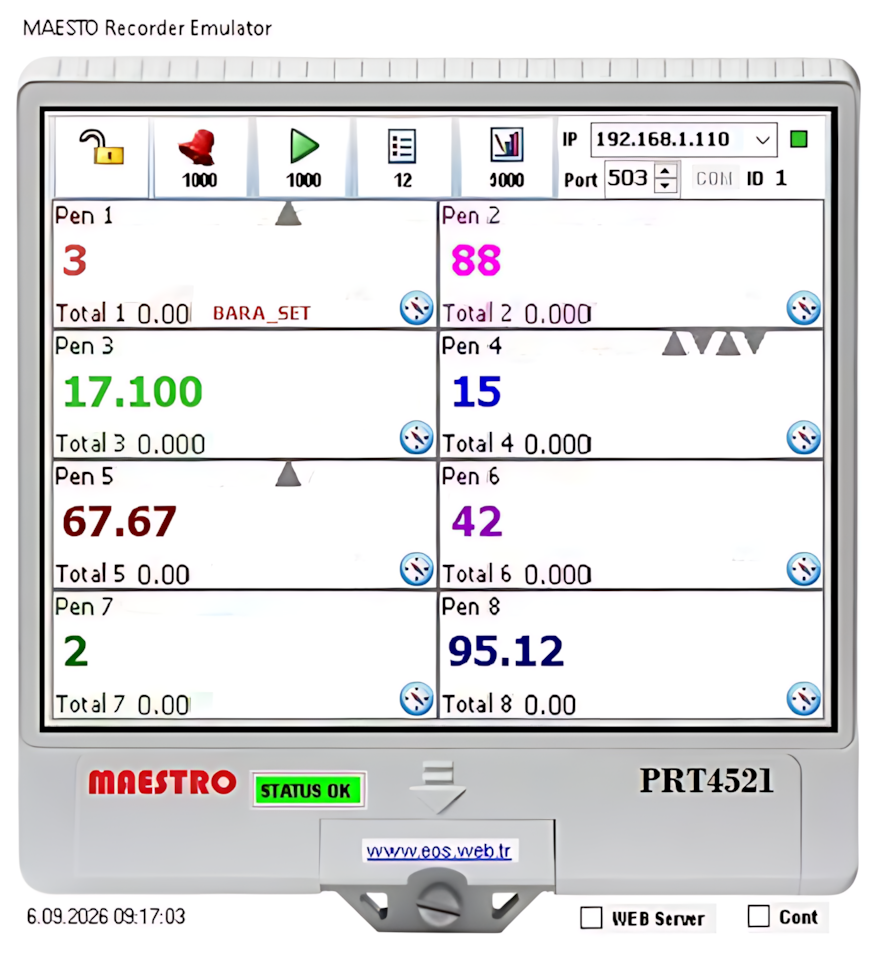
In industrial systems, not every piece of data can be automatically generated by a physical transmitter, measurement device, or electronic recorder. Some values may need to be entered into the system manually by an operator at specific times.
MAESTRO Recorder Emulator was developed to address this requirement. The program publishes values entered by the user as MODBUS Holding Registers when the specified time is reached. This allows the upper-level system to read the data via MODBUS.
Basic approach: Manual Data → MAESTRO Recorder Emulator → MODBUS Holding Register → SCADA / Data Acquisition System
When the program is started, a total of 8 channels are displayed in the user interface. Each channel represents a recorder channel, and an instantaneous value can be entered directly for each channel.
MODBUS addresses of the channels:
These addresses represent the starting addresses of the channels. The MODBUS read settings in the upper-level system should therefore be configured accordingly.
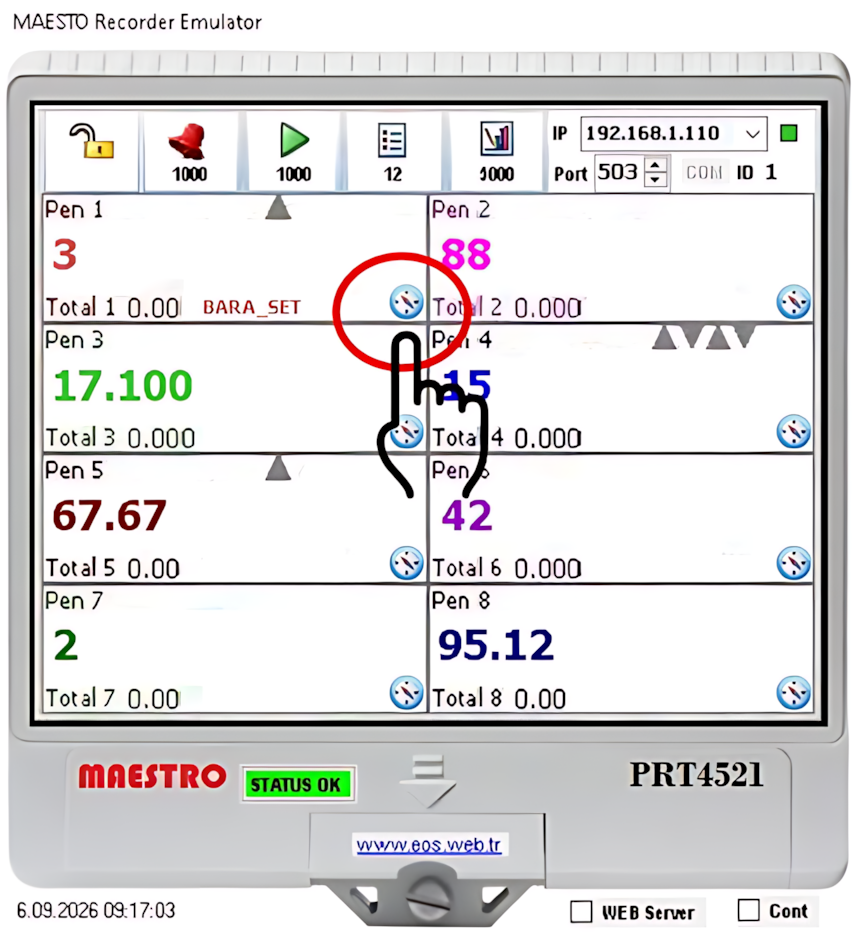 The clock icon next to each channel opens the time
schedule for that channel. For the selected channel, 24-hour data entry
fields are displayed for both Today and
Tomorrow.
The clock icon next to each channel opens the time
schedule for that channel. For the selected channel, 24-hour data entry
fields are displayed for both Today and
Tomorrow.
Single-channel time table: Before opening the hourly data table of another channel, the currently open table must be closed by clicking the clock icon of the same channel.
The user can predefine 24-hour values to be used for each channel for today and tomorrow. When the specified hour is reached, the entered value starts being published at the channel's MODBUS Holding Register address.
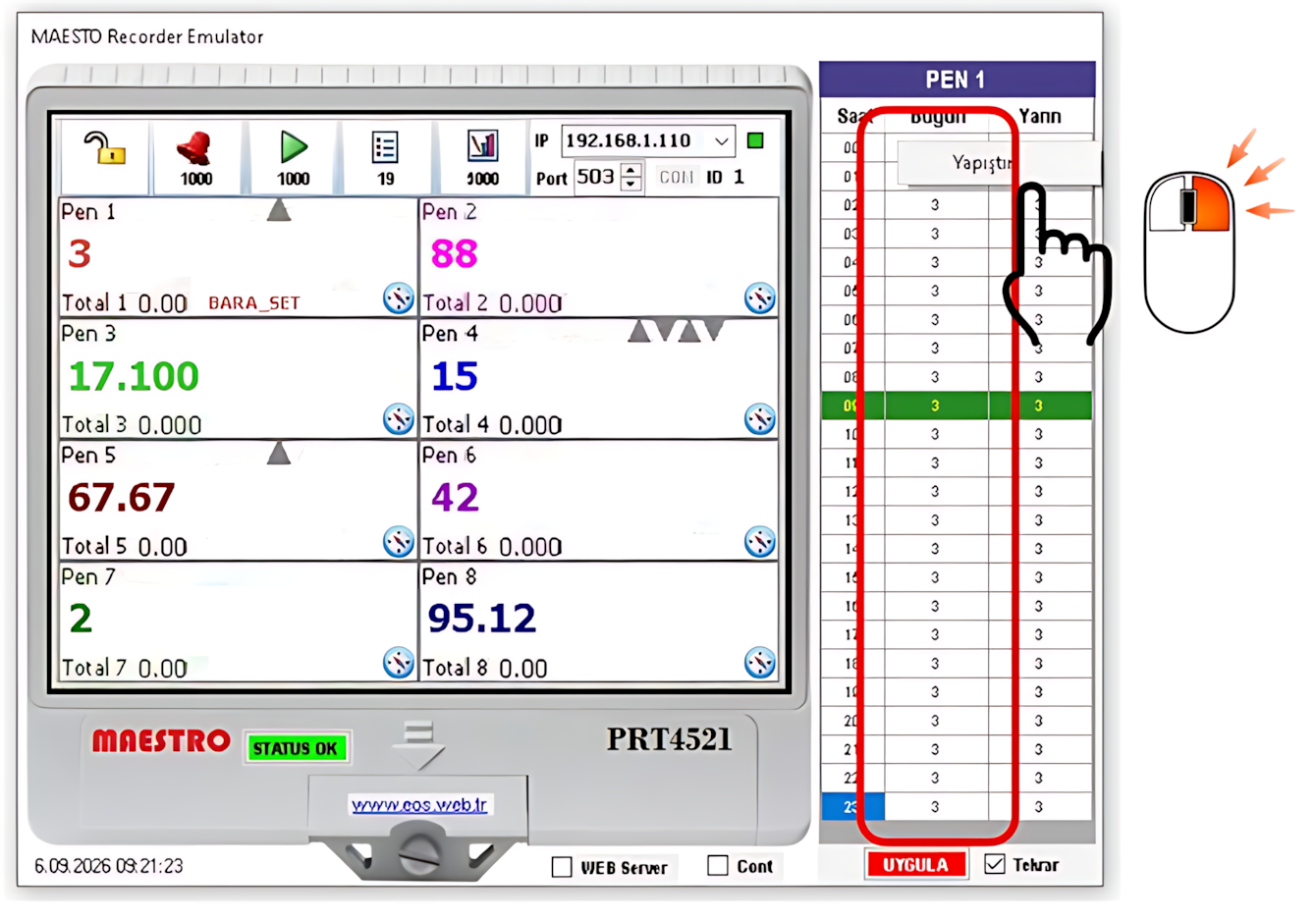
Bulk data entry:
Select the 24-hour values from an application such as Excel and
copy them to the clipboard using COPY. Then,
right-click the appropriate cell in the program's
Today or Tomorrow column and
select PASTE from the context menu.
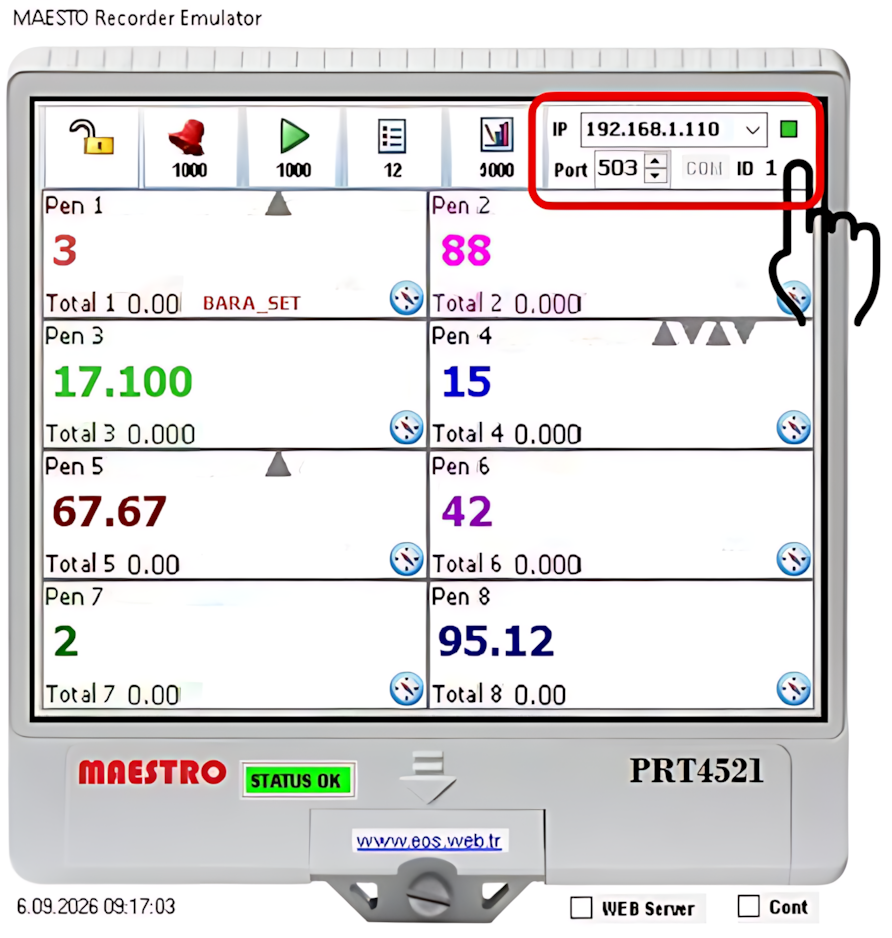 After starting the program, the IP address and
port number to be used for MODBUS output must be selected.
Then, click the STATUS OK button to start the output.
After starting the program, the IP address and
port number to be used for MODBUS output must be selected.
Then, click the STATUS OK button to start the output.
Successful output indicators:
This indicates that the MODBUS output service has been started successfully.
When the WEB Server option in the program is enabled, data and data read addresses are published on the web server as a live table.
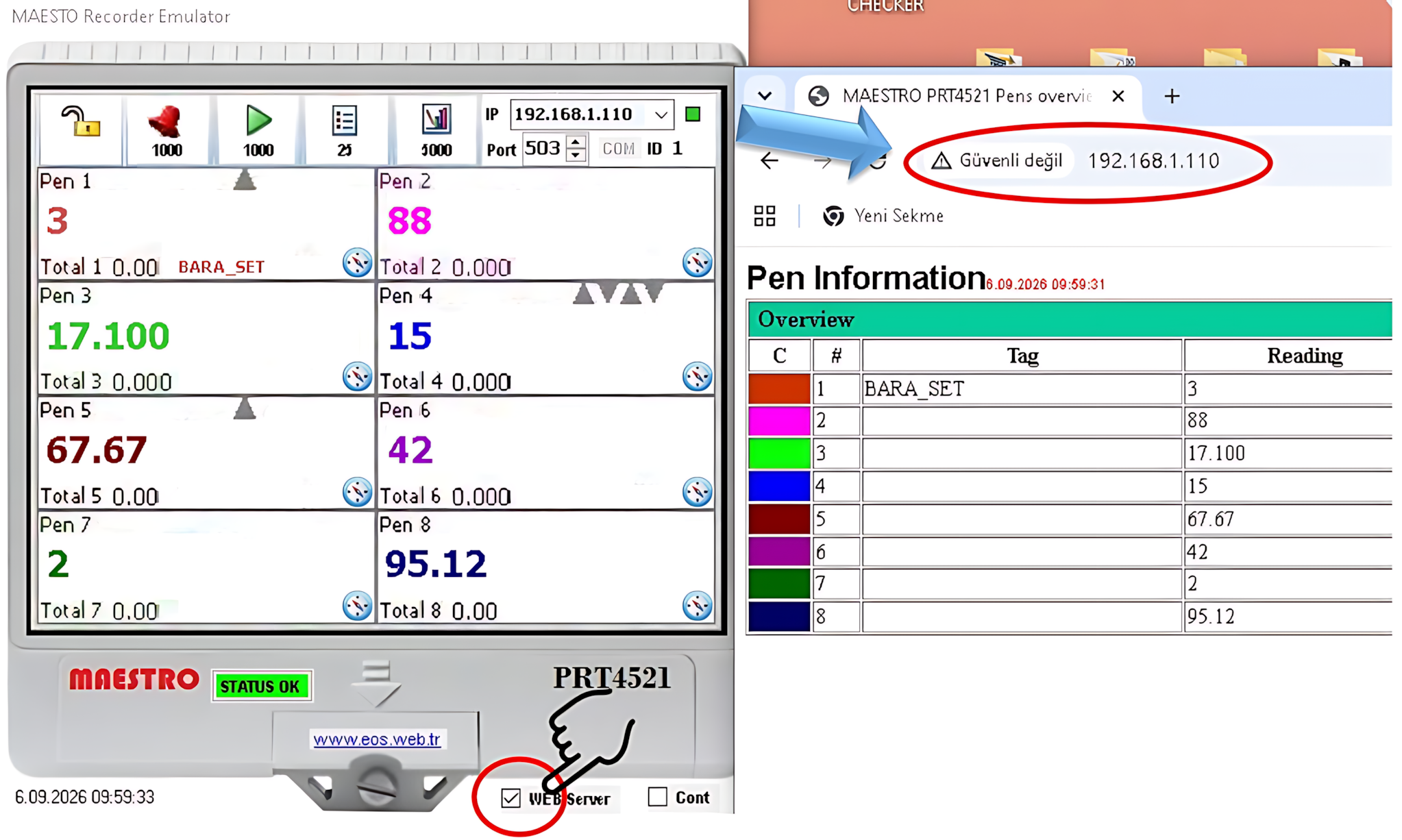 The web-based table is updated every 15 seconds.
This feature allows channel values and MODBUS addresses being published
to be monitored quickly during development, commissioning, and testing.
The web-based table is updated every 15 seconds.
This feature allows channel values and MODBUS addresses being published
to be monitored quickly during development, commissioning, and testing.
The other program settings are stored in the MAESTROrecsim.dat input file. This file can be opened with NOTEPAD or a similar text editor, and the required settings can be configured manually.
Run as Administrator: For the program to operate correctly, MAESTROrecsim.exe must be run as Administrator. The required administrator permissions should be configured in advance on Windows.
| Option | Function |
|---|---|
| Cont | Keeps the program running continuously. Even if the program is closed, it automatically restarts itself. |
| Repeat | At the change of day, automatically copies the previous day's 24-hour data to the Tomorrow column. |
After all operations have been completed, the program can be minimized by pressing the ESC key while the program window is active, or by double-clicking on the program window.
The program does not completely close; it continues running as a small icon in the Windows notification area (system tray). Double-clicking this icon restores the main program window.
This feature can be used to prevent the program from remaining permanently visible as an open desktop window while MODBUS data output continues in the background.
MAESTRO Recorder Emulator was developed to integrate manually entered values into SCADA and data acquisition systems via MODBUS.
Execution requirement: The program must be run as Administrator. The other program settings can be configured through the MAESTROrecsim.dat file.
Free Software Download Center
Software for industrial data collection, monitoring, and analysis.

Technical Support
Software documentation, sample code, and practical technical information.
You can contact us regarding EOS software, technical documentation, or industrial data communication.