
Free Software Download Center
Software for industrial data collection,
monitoring, and analysis.
PROJECT WORKSPACE AND INTERFACE LAYOUT
When a project is opened, EOS SCADA Editor provides an organized and easy-to-use workspace designed to simplify the development of SCADA applications.
The editor workspace consists of menus, toolbars, SCADA components, user controls, property and settings areas, and a central workspace where SCADA screens are designed.
Users can open, close, or resize panels located in different areas of the interface to create the workspace that best suits their needs.

When a project is opened, EOS SCADA Editor provides the user with an integrated workspace containing the tools required for project development.
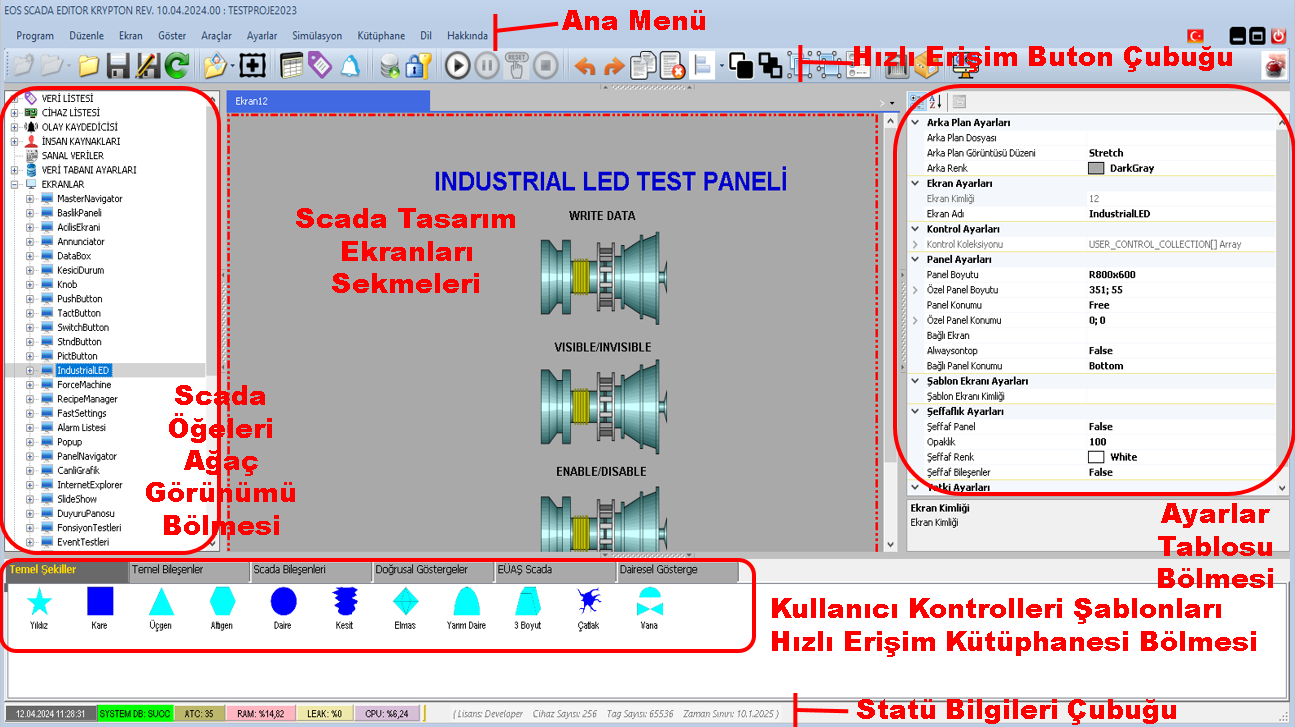
The main interface components are positioned in specific areas of the workspace. This layout provides quick access to the tools used during the design and configuration of a SCADA project.
Basic interface layout:
The SCADA Components Tree Menu Bar is located on the left side of the editor workspace.
This section displays the SCADA components available in the project or configurable for the project in a hierarchical tree structure.
Through this area, users can access SCADA components used in the project, select the relevant components, and perform project development operations.
The bottom section of the editor workspace contains the User Controls Selection Library, which provides the basic graphical elements and user controls that can be used when designing SCADA screens.
User controls are classified under Tab pages divided into different categories.
This structure allows users to quickly locate the graphical element or control they want to use on a SCADA screen through the relevant tab.
The Settings Table panel is located on the right side of the editor workspace.
This section displays the properties of the SCADA object or component selected by the user and allows these properties to be modified when required.
As a result, various parameters such as the properties, appearance, and behavior settings of an object selected in the design area can be managed through a centralized panel.
The SCADA Screen Design Area is located at the center of the EOS SCADA Editor workspace.
This area is the primary workspace for creating, opening, and editing the screens used in a SCADA application.
Different SCADA screens and other design areas that may be used within the project can be opened through the tabbed interface located in the central workspace.
The tabbed structure makes it easier to work with multiple screens within the same project and allows users to switch quickly between different design areas.
The Status Information Bar is located at the bottom-most section of the editor workspace.
This section displays various status information and messages that provide the user with information about the current state of the software and system.
The status bar helps users monitor the results of performed operations, the current operating status, and various informational messages that need to be communicated to the user.
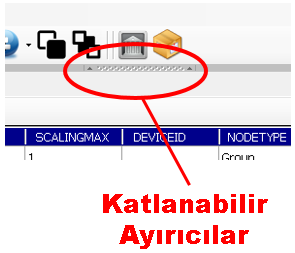
The panels located at the top, bottom, right, and left sides of the EOS SCADA Editor interface can be managed using Collapsible Separators.
Collapsible separators allow unused sections to be temporarily hidden and displayed again whenever they are needed.
In addition, the width and height of the panels can be adjusted according to the user's requirements. This makes it possible to enlarge the SCADA design area or allocate more workspace to the required auxiliary tools.
Operations that can be performed using collapsible separators:
The panel visibility and size settings configured using the collapsible separators in EOS SCADA Editor are not limited to the current working session.
The layout settings configured by the user are automatically saved when the project is closed.
When the same project is opened again, EOS SCADA Editor restores and uses the previously saved interface layout.
Important: When a project is reopened, the visibility and size settings of the collapsible separators are restored as closely as possible to their state when the project was last closed.
This feature eliminates the need for users to rearrange the workspace every time a project is opened. The interface layout configured according to the user's working habits is preserved together with the project.
Collapsible panels allow users to easily adapt the workspace according to the task they are performing.
For example, when a larger design area is required during SCADA screen design, unused auxiliary panels can be hidden. When the properties of an object need to be modified, the relevant panel can be displayed again to access the Settings Table.
In this way, EOS SCADA Editor provides a flexible development environment that can be adapted to different working requirements.
Main advantage of the workspace: Users can arrange the interface according to their own working methods, and these settings are preserved when the project is closed and opened again.
When a project is opened, EOS SCADA Editor provides an integrated workspace consisting of the main menu, quick access buttons, SCADA components, user controls, settings table, SCADA design area, and status information bar.
The central area where SCADA screens are designed uses a tabbed structure that makes it easier to work with multiple screens.
The panels located at the top, bottom, right, and left sides of the workspace can be hidden, displayed again, and resized according to user requirements using the Collapsible Separators.
The interface layout settings configured by the user are saved when the project is closed. When the project is opened again, the workspace is restored while preserving the previously used layout settings.
Free Software Download Center
Software for industrial data collection,
monitoring, and analysis.

Technical Support
Documentation, sample code, and
application-oriented technical information
for EOS software.
You can contact us regarding software, technical content, or collaboration opportunities.