
Free Software Download Center
Software for industrial data
collection, monitoring, and analysis.
FIRST RUN • DEVELOPMENT ENVIRONMENT
EOS SCADA Editor is a graphical SCADA development environment used to create, edit, and develop EOS SCADA projects.
This section explains how to run the software for the first time after installation and introduces the main components of the development environment.

If the installation package was used, shortcuts for launching the EOS SCADA Editor application are automatically created on the operating system after the EOS SCADA installation is completed.
After installation, an application shortcut for EOS SCADA Editor is created both on the Desktop and under the Application Shortcut Folder.
If a portable package was downloaded, shortcuts for EDITOR
EOSscadaED.exe and RUNTIME EOSscadaRT.exe yazılımları için
masaüstünde kısayollar MANUEL olarak oluşturmak gerekecektir.
To run the software for the first time, simply double-click any of these shortcuts.
Note: When EOS SCADA Editor is opened for the first time, if no project has yet been selected, only the basic project-independent tools of the development environment will be active. When a project is opened or created, the other development tools associated with the project become available.
When EOS SCADA Editor is launched, the software's main window is displayed. This window provides all the essential development tools required to design, edit, and manage the SCADA project in one place.
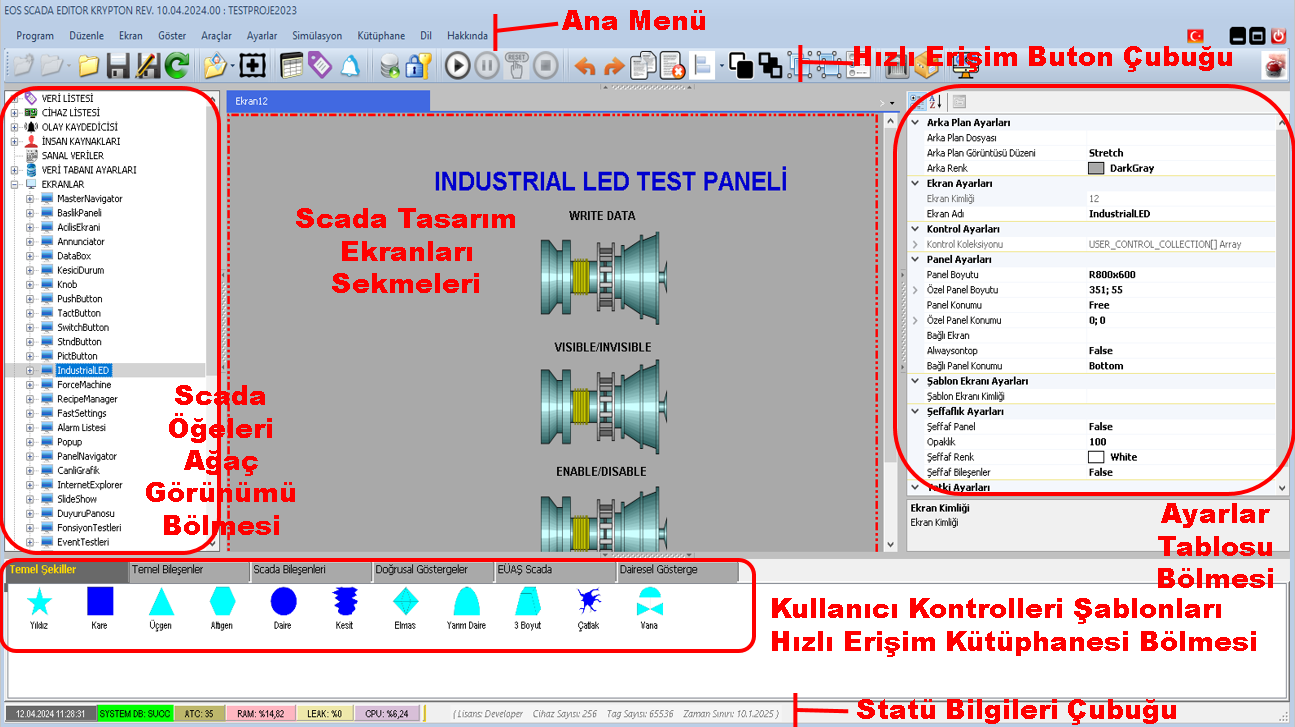
The development environment consists of menus, toolbars, SCADA elements, user controls, the screen design area, and sections for editing object properties.
The main components of the window are described below.
Main Menu Bar is the main navigation section that provides access to the core functions of EOS SCADA Editor.
Project creation and opening, project management, SCADA screen editing, object operations, tool management, and other software features can be accessed through this menu.
Quick Access Toolbar is the toolbar located at the top of the editor window that provides quick access to frequently used functions during project development.
The functions in this section are presented as large buttons, allowing users to access frequently used commands without navigating through menus.
Users can arrange the workspace according to their needs. Tool panels can be opened or temporarily closed using the relevant collapsible separators.
The SCADA Elements Tree Menu, located on the left side of the editor window, displays the SCADA elements available for use and editing within the project in a hierarchical structure.
This section provides access to SCADA project elements, allows relevant objects to be selected, and makes it easier to manage the project structure.
Alanın kapladığı ekran genişliğini azaltmak veya working alanını genişletmek için ilgili collapsible separator available.
User Controls Library, provides the graphical elements and user controls that can be used when designing SCADA screens.
Frequently used basic graphical elements and user controls required for SCADA design are listed under Tab sections classified according to their functions.
Users can select the required control from the relevant tab and use it on the SCADA screen.
The Screen Design Area, located in the center of the editor window, is the main workspace where SCADA screens are graphically created and edited.
In this area, users can design SCADA screens, place graphical objects, change object positions and sizes, and create the visual structure of the screen.
Keeping the screen design area as large as possible makes work easier, especially when preparing complex SCADA screens.
Therefore, unused side panels can be temporarily closed using the relevant collapsible separators.
The Properties Window, located on the right side of the editor window, is used to view and modify the properties of the selected object.
When a SCADA object is selected, its configurable properties are displayed in this section. Users can modify the object's behavior and appearance by changing the values of the relevant properties.
The Status Information Bar, located at the bottom of the editor window, provides information about the current operating status of the software and the operations being performed.
This area allows users to monitor status information generated as a result of an operation.
Collapsible Separators are interface components that allow the EOS SCADA Editor workspace to be arranged according to user needs.
These separators can be used to temporarily close unused tool panels, providing more workspace for the screen design area.
To display a previously closed panel again, simply open the relevant collapsible separator.
When EOS SCADA Editor is run for the first time and no project has yet been selected, not all sections of the development environment are expected to be active.
Until a project is selected, only the basic project-independent tools can be used. At this stage, in particular, Main Menu Bar and Quick Access Toolbar are active.
When the user creates a project or selects an existing project, the other development sections associated with the project become available.
The program may open relevant collapsible areas based on the user's previous selections. This allows the workspace to be prepared according to the user's last working arrangement.
If the user cannot see a tool that was previously in use, the relevant section may be collapsed.
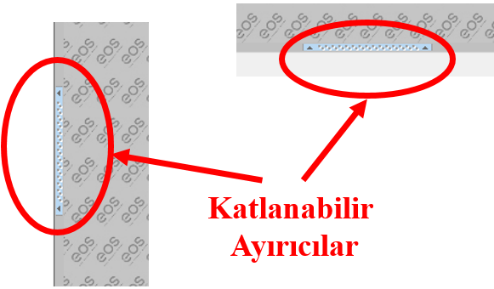
In this case, the panel can be reopened by clicking the relevant collapsible separator. The hidden tool or workspace section will then be displayed again.
EOS SCADA Editor is an integrated development environment for the graphical development of SCADA projects. The tools available in the main window allow users to manage the project structure and design SCADA screens quickly and in a controlled manner.
The ability to arrange the workspace using collapsible panels helps use the screen design area more efficiently, especially in large and complex SCADA projects.
Free Software Download Center
Software for industrial data
collection, monitoring, and analysis.

Technical Support
Software documentation and practical
technical information.
You can contact us regarding EOS software, technical documentation, or industrial data communication.