
Free Software Download Center
Software for industrial data
collection, monitoring, and analysis.
PERSONNEL IDENTIFICATION • OPERATOR MANAGEMENT • USER INFORMATION
EOS SCADA requires personnel who will monitor, operate, control, or configure the SCADA system to be defined in the system.
Human resources lists allow plant personnel to be identified in SCADA and provide the basis for managing the operations they can perform according to their assigned permissions.

Introducing the personnel who will use the SCADA system is an important management step for keeping the operations performed by operators under control.
Users who will perform operations on the SCADA system, from operators who will monitor or operate the facility to personnel who will perform engineering activities, must be defined in the system.
Personnel defined in the system can subsequently perform the required operations on SCADA according to the permissions assigned to them. This allows user access and the operations they can perform on the system to be managed in a controlled manner.
The main purpose is to centrally define the identity information of personnel who will use the SCADA system, store user information in an organized manner, and prepare personnel as a user resource that can later be used for authorization operations.
To perform human resources operations, use theHUMAN RESOURCES menu item in the SCADA tree menu.
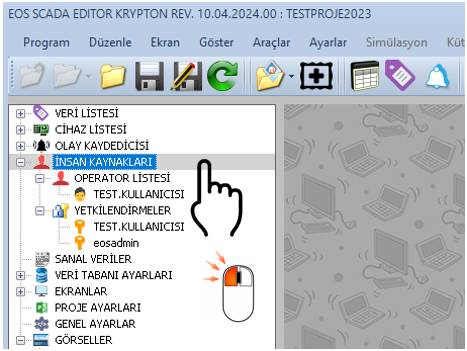
The HUMAN RESOURCES menu contains two submenus:
To create and edit personnel information, first use the OPERATOR LIST section. Personnel access and operation permissions on the SCADA system can then be configured through the AUTHORIZATIONS section.
OPERATOR LIST alt menu item on right fare button by clicking Human Resource Durum Menu can be opened.
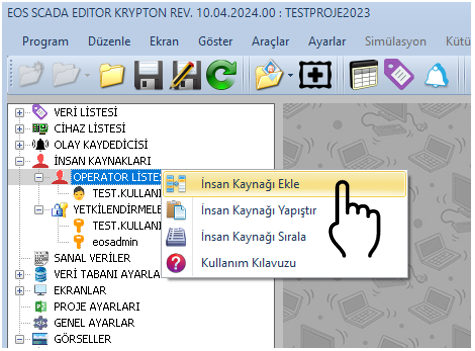
The following operations can be performed on the human resources list using the opened status menu:
After adding a new human resource, the relevant personnel information can be entered and edited in the settings table located on the right side of the screen.
Basic identity, contact, job, and personal information for a human resource can be defined through the settings table. The table below shows the human resource properties in EOS SCADA, their descriptions, and the specified default values.
| Property Name | Property Description | Default Value |
|---|---|---|
| EmployeeId | Employee ID number | 0 |
| Active | Indicates whether the employee is active. | false |
| Name | Employee's first name | |
| LastName | Employee's last name | |
| OfficePhone | Employee's office phone | |
| MobilePhone | Employee's mobile phone | |
| HomePhone | Employee's home phone | |
| EMailAddress | Employee's email address | |
| Gender | Employee's gender | Male / Female |
| DateOfBirth | Employee's date of birth | |
| Occupation | Employee's occupation | |
| Department | Employee's department | |
| CountryIdentityNumber | Employee's national identity number | |
| CompanyIdentityNumber | Employee's company identity number | |
| WorkAddress | Employee's work address | |
| HomeAddress | Employee's home address | |
| ExtraInformation | Additional information about the employee | |
| PassportPhoto | Employee's passport-style photograph |
When the user OPERATOR LIST menu item, a window opens in a Tab within the center of the software layout, allowing personnel information to be entered and edited.
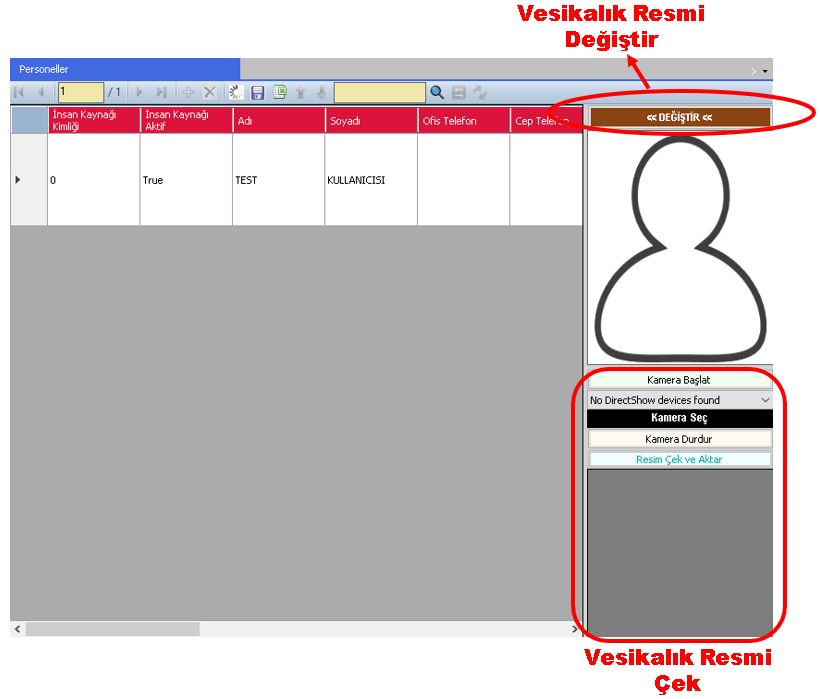
The identity, contact, job, and other personnel information of the human resource created through this window can be edited.
To transfer changes made to personnel information to the database, select the relevant personnel record in the data table and, after completing the required edits, click the MODIFY button.
If the computer has camera support, EOS SCADA allows a passport-style photograph of the personnel to be captured directly using the camera.
To create a passport-style photograph using the camera, follow these steps:
To associate the photograph with the relevant personnel, the correct personnel record must be selected in the data table and the MODIFY operation must be performed.
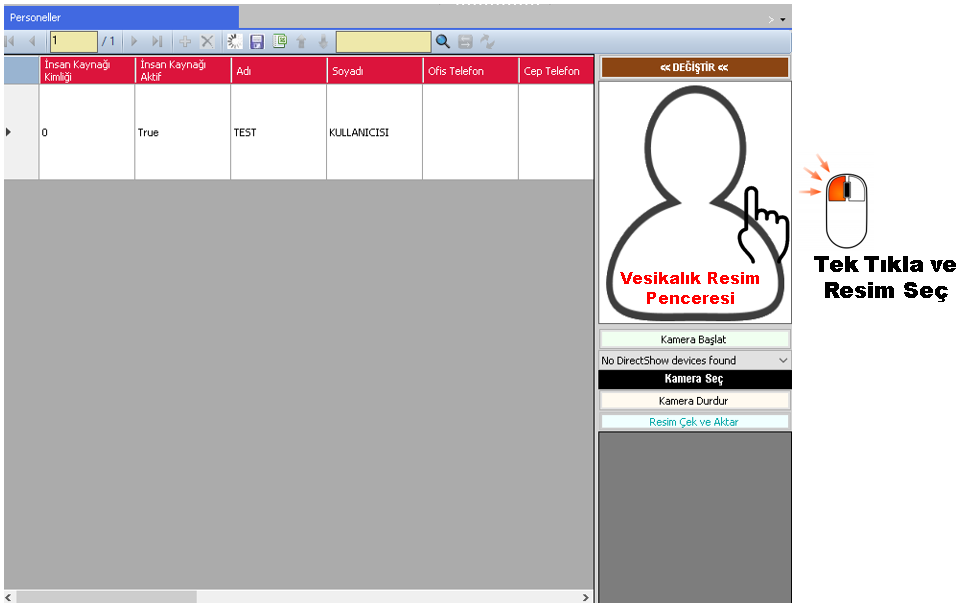
A personnel photograph can be captured using a camera or added to the database using a previously prepared image file.
To add a passport-style photograph in a supported image format such as JPEG or BMP, click the passport-style photograph area with the left mouse button.
Select the image to use from the file selection window. The selected image will be displayed in the passport-style photograph area.
After completing operations on personnel information, permissions, and passport-style photographs, the changes must be saved to the database.
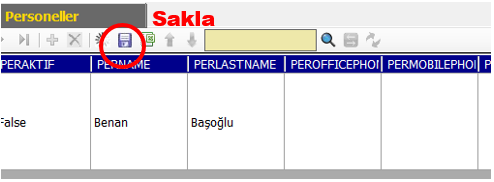
If the changes are not saved, the modifications may not be stored permanently. Therefore, after adding or modifying human resources information, make sure that the project/database is saved.
The save operation must always be performed after completing changes to human resource information. In particular, verify that records such as personnel information and passport-style photographs are associated with the correct user.
Creating a human resources list in EOS SCADA is not limited to entering personnel information into the system. This list is a centralized user resource where personnel who will use the SCADA system are defined and which forms the basis for authorization operations in later stages.
Properly defining personnel makes user management more organized; the operations users can perform on SCADA can then be controlled through authorization mechanisms.
Therefore, creating the human resources list is an important configuration step, especially in SCADA systems with multiple operators or personnel with different duties and responsibilities.
Free Software Download Center
Software for industrial data
collection, monitoring, and analysis.

Technical Support
Software documentation and practical
technical information.
You can contact us regarding EOS software, technical documentation, or industrial data communication.