
Free Software Download Center
Software for industrial data
collection, monitoring, and analysis.
UNDO • CORRECTING DESIGN ERRORS • QUICK EDITING
Many operations can be performed in EOS SCADA Editor while designing a screen, including adding, deleting, moving, resizing, and changing various properties of user controls.
If an operation produces an unwanted result, the last change can be undone and the screen can be returned to its previous state using the UNDO function.

During the preparation of SCADA screens, operations may not always produce the desired result. A user may accidentally move a control, change its size, delete it, or modify the arrangement of objects on the screen.
In such cases, instead of performing the operation again from the beginning, the previous design state can be restored using the UNDO function.
The UNDO function helps reverse the last operation performed during screen design and return the screen to its state before the operation.
This feature makes it easier to quickly correct design errors, especially when preparing complex SCADA screens containing a large number of user controls.
To undo an operation performed on the screen, first the relevant SCADA project must be open in EDITOR.
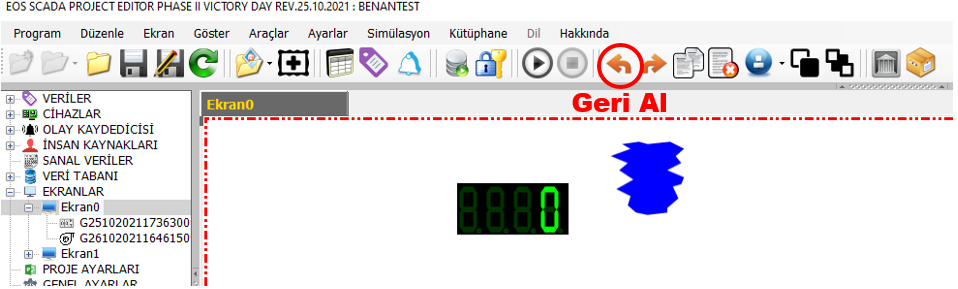
 In addition to the UNDO button on the quick-access button bar, users can
also use keyboard shortcuts.
In addition to the UNDO button on the quick-access button bar, users can
also use keyboard shortcuts.
CTRL + Z
The UNDO operation can also be performed from the keyboard by pressing Ctrl + Z keys together.
Using the keyboard shortcut provides convenience, especially when screen design operations performed consecutively need to be quickly undone.
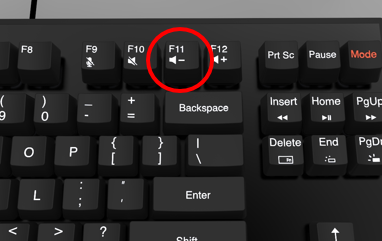
Within EOS SCADA Editor, the F11 function can also be used to perform UNDO.
The user can perform the UNDO operation by pressing the F11 key on the keyboard.
This allows the user to undo the last operation using either the quick-access button or the keyboard shortcut, depending on the preferred working method during screen design.
For example, if a user accidentally moves a user control on the SCADA screen to a different location, the UNDO function can be used to reverse this change.
Example operation:
The user control is returned to its previous position as a result.
The UNDO function provides an important convenience during the project development process by allowing errors in screen design to be corrected quickly.
Operations performed during screen design in EOS SCADA Editor can be undone using the UNDO function to return the screen to its previous state.
The user can perform this operation using the UNDO button on the quick-access button bar or by using Ctrl + Z or F11 keyboard shortcuts.
This feature allows incorrect or unwanted changes made during the preparation of SCADA screens to be corrected quickly, helping the design process to be carried out in a more controlled manner.
Free Software Download Center
Software for industrial data
collection, monitoring, and analysis.

Technical Support
Software documentation and practical
technical information.
You can contact us regarding EOS software, technical documentation, or industrial data communication.