
Free Software Download Center
Software for industrial data
collection, monitoring, and analysis.
USER CONTROLS • SETTINGS TABLE • QUICK SETTINGS • SCREEN DESIGN
On-screen user controls added in EOS SCADA Editor can be configured through their settings, including behavior, appearance, and other properties.
There are two different methods for editing user control settings: the Settings Table and the Quick Settings Table Window.

Two different methods can be used to edit the settings of user controls added to the screen:
After selecting the user control, the editable properties of the selected control are displayed in the Settings Table located on the right side of the screen.
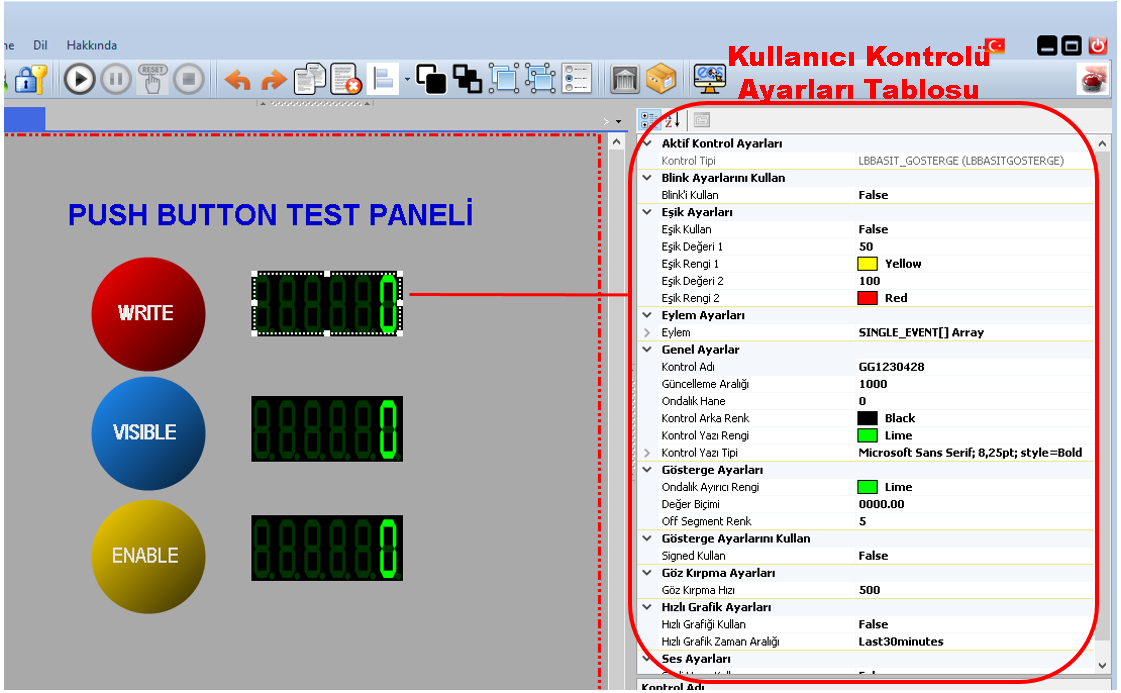
The user can modify the settings in this table according to their requirements. The changes made may affect the appearance and operating properties of the selected user control.
This method is particularly useful when working in TAB Mode. Since the user can access the Settings Table on the right side together with the screen design area, both can be used within the same working environment.
Usage: Select the user control and modify its editable properties in the Settings Table displayed on the right side according to your requirements.
The second method for editing the settings of a user control is to right-click the selection outline of the control.
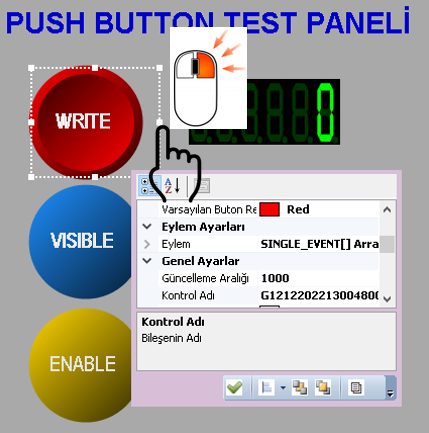
As a result of this operation, the Quick Settings Table Window for the user control is opened. The user can quickly modify the required properties of the control using the settings available in this window.
The Quick Settings Table is particularly useful when the screen is being edited in an independent window or in full-screen mode. In these working modes, the screen design area provides a larger workspace, so accessing the Settings Table on the right side may not always be possible or practical.
Usage: Right-click the selection outline of the user control. In the opened Quick Settings Table Window, perform the required modifications.
The Quick Settings Table Window provides quick access to the basic settings of the selected user control.
The fields and buttons in the window help the user modify the properties of the user control and apply the changes made.
The modifications that can be performed in the Quick Settings Table Window and the meanings of the buttons available in the window are shown below.
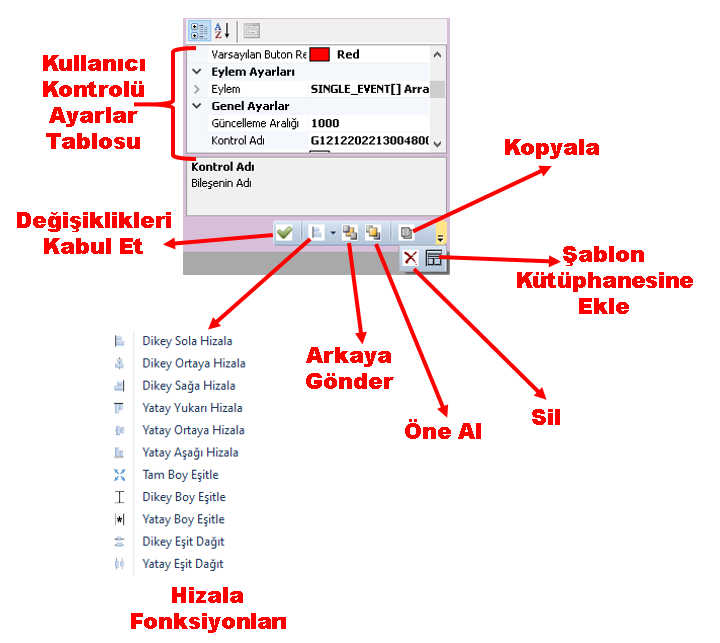
Note: The options available in the Quick Settings Table Window may vary depending on the type of the selected user control and the properties it supports.
When TAB Mode is used, the Settings Table on the right side can be accessed directly. Therefore, editing user control properties in this table is a practical method.
When Independent Screen Mode and Full-Screen Mode are used, the Quick Settings Table Window may provide a more convenient alternative because it allows the screen design area to be used more extensively.
Tip: When access to the Settings Table is limited while working in the screen design area, you can open the Quick Settings Table Window by right-clicking the selection outline of the user control.
In EOS SCADA Editor, the settings of user controls added to the screen can be edited using two different methods. In the first method, the user selects the user control and uses the Settings Table located on the right side.
In the second method, the user right-clicks the selection outline of the user control to open the Quick Settings Table Window.
The Quick Settings Table is particularly useful for providing quick access to user control settings when working in Independent Screen Mode and Full-Screen Mode.
Free Software Download Center
Software for industrial data
collection, monitoring, and analysis.

Technical Support
Software documentation and practical
technical information.
You can contact us regarding EOS software, technical documentation, or industrial data communication.