
Free Software Download Center
Software for industrial data
collection, monitoring, and analysis.
USER CONTROLS • RESIZING • SELECTION BOX • SCREEN DESIGN
User control objects added during screen design in EOS SCADA Editor can be resized according to their intended use and placement on the screen.
After selecting a user control, its width and height can be changed using the handles on the selection box by dragging with the mouse.

To resize the user control, first select the user control on the screen.
When the user control is selected, a selection box is displayed around the control. The handles on the selection box are used to change the dimensions of the user control.
When any of these handles is clicked and held with the left mouse button, the user control can be resized by moving the mouse.
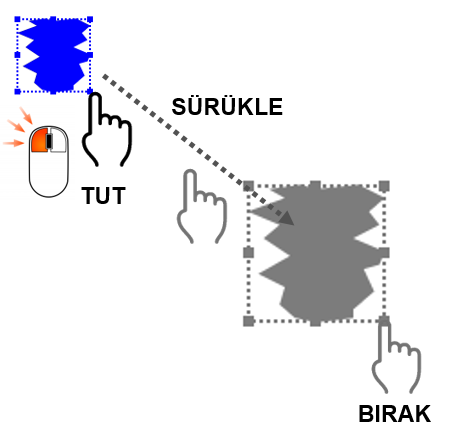
The mouse can be dragged in the desired direction. This allows the width or height of the user control to be adjusted to the dimensions required by the screen design. getirilebilir.
Usage: Select the user control. Move the mouse pointer over one of the handles on the selection box. Move the mouse. Click and hold the left mouse button and drag it. The size of the user control will change according to the drag direction.
The handles displayed on the selection box when a user control is selected are the control points used to resize the object.
When one of these handles is selected and dragged with the left mouse button, the corresponding edge or corner of the user control is moved. This changes the object's dimensions on the screen. değiştirilir.
Dragging can be continued until the user control reaches a size appropriate for the area in which it will be used in the screen design. kadar sürükleme işlemine devam edilebilir.
Tip: When determining the size of a user control, make sure that it does not overlap other objects on the screen and that it remains large enough to be easily read or used by the operator. It is recommended to keep the control at an appropriate size.
For these types of user controls, even if resize handles are displayed on the selection box, the dimensions may not be changeable using the mouse.
Whether a user control can be resized depends on the properties of the control and its intended design purpose.
When resizing a user control, its position and relationship with other objects on the screen should be taken into consideration.
Especially for user controls that display numerical values, contain text, or use graphical symbols, making the control too small may negatively affect information readability. olumsuz etkileyebilir.
Similarly, user control objects that are unnecessarily large can use excessive screen space and make it more difficult to arrange other screen elements.
When resizing a user control, make sure that the object does not overlap other user controls on the screen. The control should be kept at a suitable size so that its text, values, or graphical information can be viewed comfortably.
To resize a user control in EOS SCADA Editor, first select the relevant ilgili User Control. When the user control is selected, a selection box is displayed around the object and can be used for resizing.
When one of the handles on the selection box is dragged while clicking and holding the left mouse button, the user control is resized.
The drag operation can be performed in different directions to achieve the width and height required for the user control in the screen design.
After resizing is complete, check the user control's compatibility with other objects on the screen, as well as its readability and usability.
Free Software Download Center
Software for industrial data
collection, monitoring, and analysis.

Technical Support
Software documentation and practical
technical information.
You can contact us regarding EOS software, technical documentation, or industrial data communication.