
Free Software Download Center
Software for industrial data
collection, monitoring, and analysis.
PREDEFINED GROUPS • FAST SCREEN DESIGN • REUSABILITY
User control groups previously saved in the library in EOS SCADA Editor can be added directly to the required SCADA screens.
This method allows a previously prepared user control group to be selected and placed at the desired location on the screen as a whole, instead of recreating each control in the group individually.

User control groups previously created in EOS SCADA Editor and stored in the or library can later be added to the required screens.
The library structure reduces screen design time, especially in projects where the same control layout will be used on multiple SCADA screens, and helps establish a standardized user interface.
A group added from the library places previously prepared user controls on the screen as a single unit. This eliminates the need to create and rearrange the controls in the group individually.
To place a user control group previously added to the library on a SCADA screen, follow the steps below.
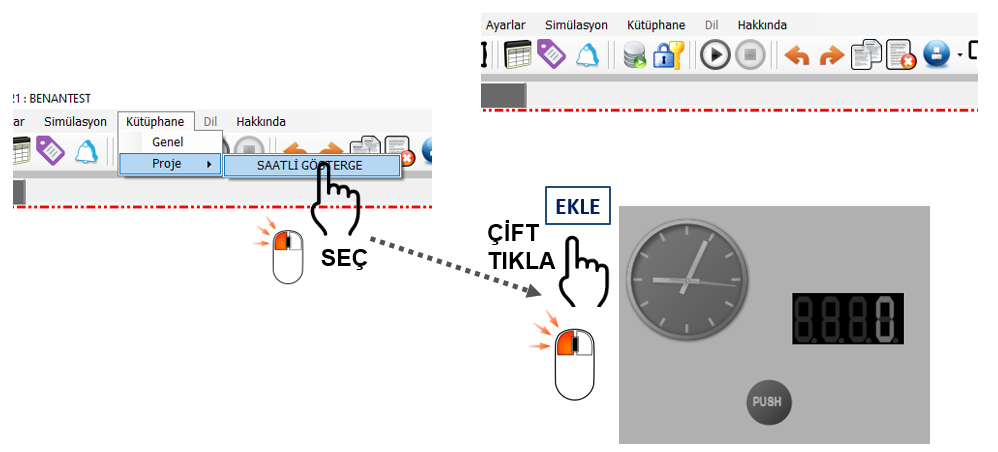
When adding a user control group, pay attention to which library contains the group.
For example, if a standard pump control group created for use in different projects is stored in the library, it can be selected through the LIBRARY → GENERAL menu and added to the current SCADA screen.
After selecting a user control group from the library, the user can determine where the group will be placed on the screen.
When the user moves to a suitable location on the screen, the is displayed. This cursor indicates the point at which the group will be placed on the screen.
To place the group, simply .
The previously prepared user control group is then placed at the selected location together with all of its controls.
For example, a may be required for use on a newly prepared SCADA screen.
Procedure:
When the operation is complete, the pump control group is placed on the SCADA screen while preserving its previously prepared structure.
Within , user control groups saved in the library can be added to the required SCADA screens quickly and in a controlled manner.
To do this, select the required group from the or categories under the menu. Then, move to the selected location on the screen and to place the group on the screen.
This feature enables previously prepared user control groups to be reused, allowing SCADA screens to be created more quickly, helping maintain design standards, and streamlining the project development process.
Free Software Download Center
Software for industrial data
collection, monitoring, and analysis.

Technical Support
Software documentation and practical
technical information.
You can contact us regarding EOS software, technical documentation, or industrial data communication.