
Free Software Download Center
Software for industrial data
collection, monitoring, and analysis.
MULTIPLE SELECTION • USER CONTROLS • BULK SETTING CHANGES
On screens containing multiple user controls of the same type in EOS SCADA Editor, several user controls can be selected at the same time so that their settings can be changed in bulk instead of changing each control individually.
This feature provides significant convenience when designing SCADA screens containing many user controls with the same properties. The user can select user controls of the same type as a group and change their common properties at once through the Settings Table.
This eliminates the need to repeatedly change the same setting for numerous controls and allows the screen design process to be completed more quickly and consistently.

First, select the user controls on the screen whose settings are to be changed together.
During multiple selection, user controls of the same type should be selected. Even if user controls of different types are selected at the same time, bulk changes may not be possible for properties that are not common to all selected controls.
After the selection is complete, the selected user controls are indicated by selection boxes on the screen. At this stage, common settings can be changed through the Settings Table on the right.
Important: When making bulk setting changes, it is recommended to select user controls of the same type. This allows the common properties of the selected controls to be edited safely and clearly.
After user controls of the same type have been selected in bulk, the common properties of the selected controls can be viewed in the Settings Table on the right.
The user can select the setting to be changed in the Settings Table and enter its new value or select the appropriate option.
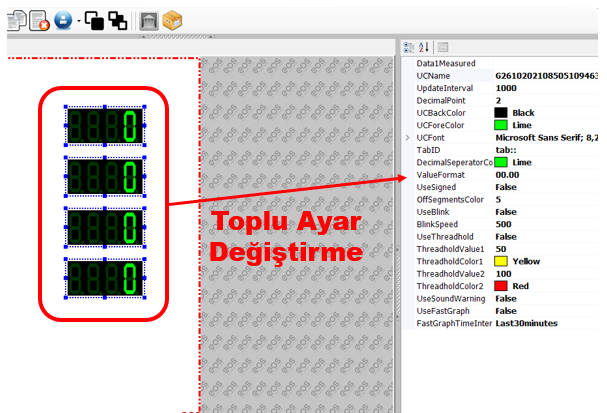
The change made is applied to all selected user controls of the same type. Therefore, there is no longer a need to change the same setting individually for each user control.
Usage: Select user controls of the same type in bulk and edit the common property you want to change through the Settings Table on the right.
With multiple user control selection, the common properties of the selected controls can be edited in bulk. This feature provides significant convenience, especially on screens containing many controls with the same visual characteristics.
For example, when the font, color, appearance, or other common properties of many indicators or graphical objects of the same type need to be changed, the controls can be selected in bulk instead of being edited individually.
This method helps preserve the visual consistency of user controls on the screen and allows design changes to be applied more quickly.
Example: For example, if the font size of many numerical indicator objects of the same type on a SCADA screen needs to be changed, all of the indicators can be selected and the relevant setting can be changed at once through the Settings Table.
To change the settings of user controls of the same type in bulk, the following sequence can be followed:
Bulk user control setting changes provide significant time savings, especially when designing SCADA screens containing many similar controls.
Applying the same property to dozens of user controls in a single operation instead of changing it individually makes screen design changes easier.
In addition, editing the common properties of controls of the same type together helps make the objects on the screen more visually and functionally consistent.
On screens containing many user controls of the same type, it is recommended to use multiple selection and bulk setting changes whenever possible instead of editing the controls individually.
When making bulk setting changes, make sure that the selected user controls are of the same type.
User controls of different types may have non-common properties; during bulk editing, only settings that are common to the selected controls can be used.
Before making a bulk setting change, make sure that the correct user controls are selected. A setting change may be applied to all selected user controls.
In EOS SCADA Editor, user controls of the same type can be selected in bulk and their common settings can be changed at once.
To do this, first select user controls of the same type, then use the Settings Table on the right.
By making an appropriate change through the Settings Table and applying it to all selected user controls, screen design can be completed more quickly and consistently.
This feature provides an important design convenience, especially on large SCADA screens containing many similar user controls.
Free Software Download Center
Software for industrial data
collection, monitoring, and analysis.

Technical Support
Software documentation and practical
technical information.
You can contact us regarding EOS software, technical documentation, or industrial data communication.