
Free Software Download Center
Software for industrial data
collection, monitoring, and analysis.
MULTIPLE SELECTION • USER CONTROLS • SELECTION RECTANGLE
Selecting multiple user controls simultaneously in EOS SCADA Editor provides significant convenience, especially when editing large SCADA screens containing many objects.
Using the multiple selection feature, all user controls within a selection rectangle drawn on the screen can be selected in a single operation instead of selecting the controls individually.
To quickly select multiple controls, press and hold the left mouse button at an empty point in the upper-left area of the screen, drag toward the lower-right corner, and create a rectangle that contains the user controls to be selected.

In EOS SCADA Editor, a selection rectangle can be used to select multiple user controls at the same time.
The selection rectangle is created by dragging the mouse across the screen. User control objects located within the created rectangle are selected in the same operation.
This method provides significant convenience, especially when a large number of user controls positioned close to each other need to be moved, resized, or have their common properties edited together.
Basic operation: When a selection rectangle is created so that it contains the user controls, all controls located within the rectangle are selected as a group.
To perform a multiple selection, first determine a suitable starting point on the screen outside the user controls to be selected.
The starting point should be located to the upper-left of the controls to be selected. At this point, press and hold the left mouse button and drag the mouse toward the lower-right of the controls.
As the mouse is moved, a selection rectangle is created on the screen. The dragging operation should be completed so that all of the user controls to be selected remain within this rectangle.
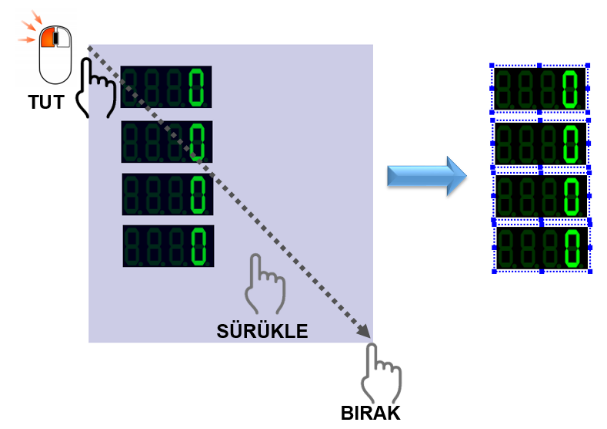
Tip: When creating the selection rectangle, make sure that the starting point is above and to the left of the controls to be selected, while the ending point is below and to the right.
The following steps can be followed to perform multiple user control selection:
When the multiple selection operation is completed, all user controls within the selection rectangle are selected simultaneously.
The selected controls can be moved together according to the design requirements, or supported common editing operations can be applied.
The multiple selection feature speeds up design operations, especially on complex SCADA screens containing a large number of user controls, and reduces the time required to select objects individually.
Recommendation: If you need to perform the same editing operation on multiple user controls, using the selection rectangle to select them as a group can provide a faster workflow than selecting the controls individually.
In EOS SCADA Editor, a selection rectangle can be used to quickly select multiple user controls.
The selection is performed by pressing and holding the left mouse button at an empty point above and to the left of the user controls to be selected, and then dragging toward the lower-right area.
User controls located within the created rectangle are selected in a single operation. This method provides a fast and practical way to select objects, especially when editing SCADA screens containing a large number of objects.
Free Software Download Center
Software for industrial data
collection, monitoring, and analysis.

Technical Support
Software documentation and practical
technical information.
You can contact us regarding EOS software, technical documentation, or industrial data communication.