
Free Software Download Center
Software for industrial data
collection, monitoring, and analysis.
USER CONTROL ENGINE • QUICK ACCESS TOOLBAR • TEMPLATES • REUSE
EOS SCADA Editor includes a User Controls Quick Access Library that allows frequently used user control objects to be added to designs quickly and easily.
This library allows previously prepared and completed user control objects to be reused on different SCADA screens without having to recreate them repeatedly. This can significantly accelerate the screen design process, especially in large projects.
The User Control Engine is a tool that provides access to the user control engines supported by EOS and facilitates the creation of new user control objects.
The following sections explain how to first add a new user control to the screen using the User Control Engine, then save this control as a template in the Quick Access Library, and finally add the prepared template to other screens through the library.

To provide users with faster access to frequently used user control objects, the button in EOS SCADA Editor is initially hidden.
To make this button visible, first click an empty area of any screen design window and then press on the keyboard.
When this operation is performed, the button becomes visible on the Quick Access Button Bar. By clicking this button, the user can open a selection panel containing a visual list of the user control engines supported by EOS SCADA.
Click an empty area of the screen design area and then press on the keyboard. The User Control Engine button will become visible on the Quick Access Button Bar.
When the button on the Quick Access Button Bar is clicked, a selection panel opens displaying a visual list of the user control engines supported by EOS SCADA.
The panel contains visual selection buttons for , allowing frequently used user control objects to be added to designs quickly and easily. Thanks to the visual interface, users can quickly identify the required control by examining its appearance rather than selecting it based only on its name.
Once the required user control engine has been identified, simply it. The user control can then be placed in the screen design area.
The User Control Engine panel is designed to provide quick access to the user controls supported by EOS SCADA. The user can select the appropriate control engine from this panel.
After selecting the control engine to be added from the User Control Engine panel, determine the location where the user control will be placed on the screen.
To do this, navigate to the area of the screen where the user control is to be added and double-click the that appears on the screen. The selected user control will then be added to the specified location.
The user control added to the screen can later be moved, resized, and aligned with other screen elements according to the design requirements.
After the user control has been placed on the screen, its properties can be edited so that it is ready for use on the SCADA screen.
Select the desired control from the User Control Engine panel, then double-click the that appears at the location where the control will be placed on the screen.
After the properties, appearance, and operating behavior of the user control added to the screen have been configured according to the design requirements, the control can be saved in the .
This allows the same user control to be reused on other screens in the future, eliminating the need to recreate previously completed design work.
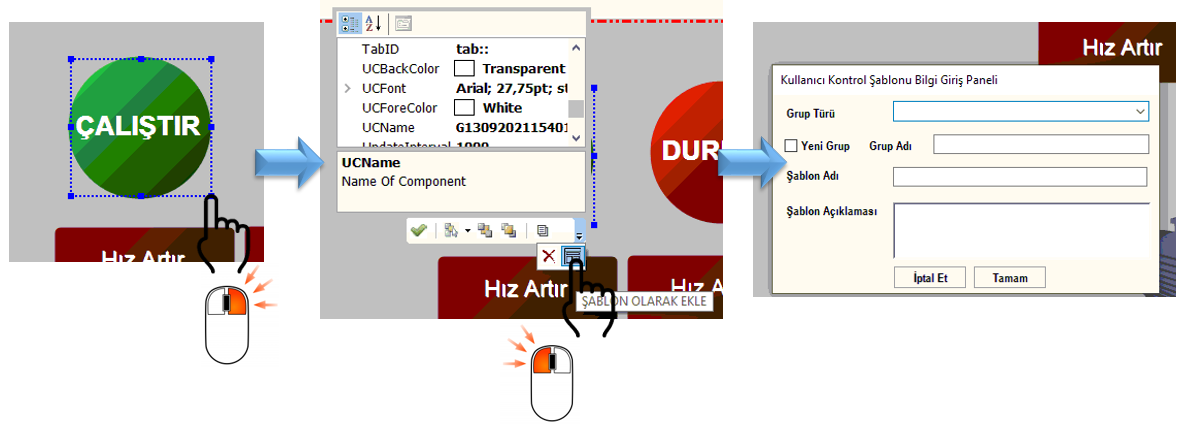
To add the prepared user control to the library as a template, first select the user control on the screen. Then the control to open the relevant settings window.
At the bottom of the settings window, click the button to add the prepared user control to the Quick Access Template Library.
The properties and visual layout of the user control to be saved as a template must first be completed. This ensures that the template added to the library becomes a ready-to-use user control that can be directly used in subsequent designs.
The allows previously prepared user control templates to be easily stored, categorized, and reused.
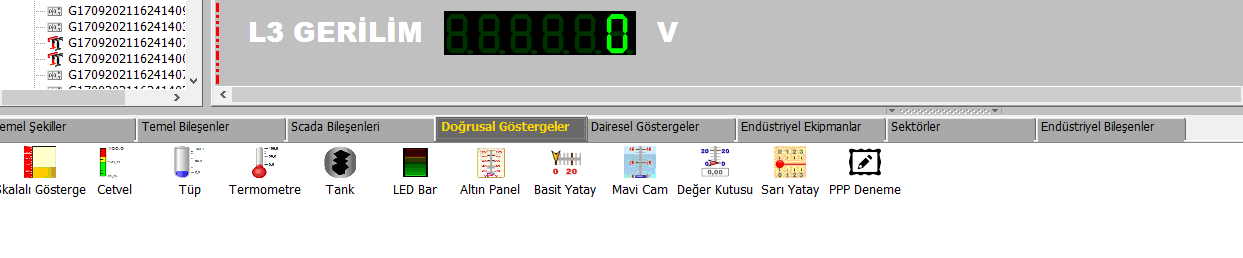
The library consists of . Users can organize their prepared templates into different groups according to their intended use or function within the project.
This structure makes it easier to find the desired control in projects containing a large number of user control templates. It provides significant time savings, especially for pump, valve, motor, measurement, alarm, and similar graphical components used repeatedly on different screens.
Grouping your prepared templates according to their intended use allows you to find the user control you need more quickly within the library.
Adding a previously prepared user control template from the Quick Access Library to a SCADA screen is extremely easy.
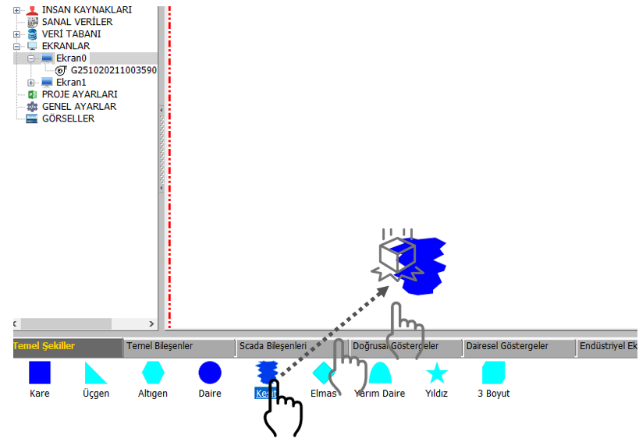
The user can select the desired template from the library and
When the drag-and-drop operation is completed, the selected user control template is added to the screen. The user can then change the object's position, size, and required properties according to the design requirements.
This makes it possible to add a previously prepared and tested user control to a new SCADA screen within a few seconds, without having to recreate it.
Select the desired user control template from the Quick Access Library, then drag and drop it into the screen design area.
The following workflow can be recommended for using user control templates effectively:
The User Controls Quick Access Library helps make the design process faster and more standardized, especially in SCADA projects containing many screens.
Designing a user control only once and saving it as a template allows the same control to be reused repeatedly on different screens. This approach both reduces design time and helps maintain visual consistency between screens.
In addition, the ability to group user-created templates allows the user control library, which grows over time, to be managed in a more organized manner.
Saving user controls that will be reused as templates in the library reduces unnecessary workload caused by recreating the same design.
Especially in large SCADA projects containing standardized screen components, effective use of the Quick Access Library contributes to making the design process more organized and sustainable.
Using the User Control Engine in , the required control can be selected from among many user controls and easily added to the screen design.
Completed user controls can be saved to the Quick Access Library using the feature. This eliminates the need to recreate a previously prepared user control.
Templates in the Quick Access Library can be organized under group tabs created by the user. The user can select the required template from the library and
This method speeds up and standardizes user control design, especially in projects containing many SCADA screens, and enables previously prepared designs to be reused.
Free Software Download Center
Software for industrial data
collection, monitoring, and analysis.

Technical Support
Software documentation and practical
technical information.
You can contact us regarding EOS software, technical documentation, or industrial data communication.