
Free Software Download Center
Software for industrial data
collection, monitoring, and analysis.
USER CONTROLS • UNGROUP • INDEPENDENT MOVEMENT
When previously grouped user controls in EOS SCADA Editor need to be moved independently, the group containing those user controls can be ungrouped.
When the ungroup operation is performed, the group relationship between the user controls is removed. The user controls that previously moved together become independent user controls again.
To ungroup a user control group, first select the relevant group and then use the UNGROUP button on the Quick Access Button Bar.

To separate previously grouped user controls, the relevant group must first be selected.
After selecting the group, the group relationship between the selected user controls can be removed by clicking the UNGROUP button on the Quick Access Button Bar.
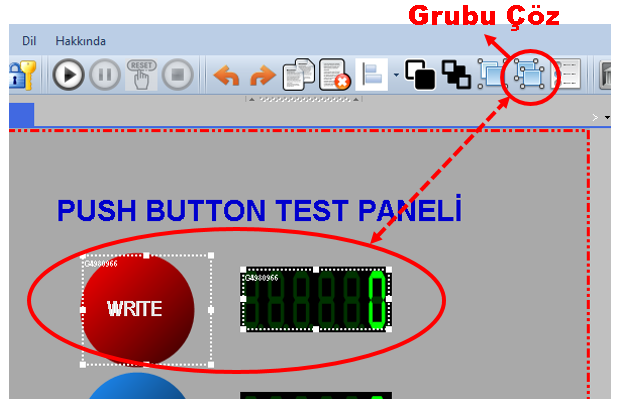
When the ungrouping operation is completed, the user controls that formed the group are no longer treated as a single group, and each user control can be moved independently on the screen.
Usage: Select the relevant user control group and click the UNGROUP button on the Quick Access Button Bar.
When a user control group is ungrouped, the Group ID information displayed in the upper-left corner of the user controls is removed.
This makes it visually clear that the user controls are no longer associated with a group.
The disappearance of the Group ID information provides a visual indication that the ungrouping operation has been completed successfully.
Information: When the group is ungrouped, the Group ID information displayed in the upper-left corner of the user controls disappears.
After the ungrouping operation, the user controls that were previously part of the same group become independent of one another.
Each user control can now be selected separately and moved to different locations on the screen.
Therefore, just as before the group was created, the positions of the user controls and other editing operations can be performed independently of one another.
Example: If the user controls consisting of a motor, status indicator, and measurement value belonging to a pump symbol were previously arranged as a single group, each of these objects can be selected separately and moved to different locations after the group is ungrouped.
The following procedure can be followed to ungroup a user control group.
The ungrouping operation only removes the group relationship between the user controls. The individual properties of the user controls and their associated SCADA data connections are preserved.
Therefore, after the group is ungrouped, each user control continues to operate with its own properties and data connections.
The ungrouping operation can be used when user controls need to be edited independently on the screen.
The ungrouping operation allows user controls to move independently of one another. The existing data connections and other properties of the user controls are not affected.
In EOS SCADA Editor, the Ungroup operation can be used when previously grouped user controls need to be edited independently of one another.
To perform the ungrouping operation, select the relevant user control group and click the UNGROUP button on the Quick Access Button Bar.
When the operation is completed, the Group ID information displayed in the upper-left corner of the user controls disappears, and the user controls become independent again.
As a result, user controls that previously moved together can be selected, moved, and edited separately on the screen.
Free Software Download Center
Software for industrial data
collection, monitoring, and analysis.

Technical Support
Software documentation and practical
technical information.
You can contact us regarding EOS software, technical documentation, or industrial data communication.