
Free Software Download Center
Software for industrial data
collection, monitoring, and analysis.
USER CONTROLS • GROUPING • GROUP ID • JOINT MOVEMENT
On screens containing many user controls in EOS SCADA Editor, the Grouping feature can be used to move related objects together.
By collecting user controls under a group, controls belonging to the same group can be moved together as if they were a single user control. This feature makes it easier to manage objects in an organized manner, especially when designing complex SCADA screens.
The grouping operation is performed by selecting the user controls that should move together and then using the GROUP button on the Quick Access Button Bar.

To group user controls under a single group, first select the user controls that are intended to belong to the same group.
After multiple user controls have been selected, the selected user controls can be combined into a single group by clicking the GROUP button on the Quick Access Button Bar.
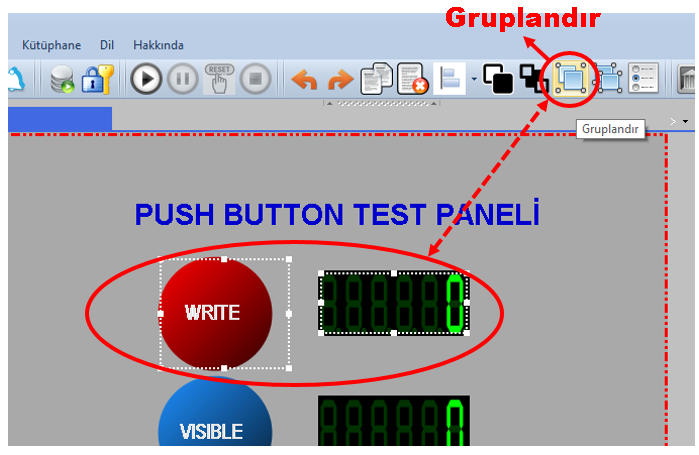
After the group is created, the user controls included in the group are associated with one another and can move together within the group.
Usage: Select the user controls you want to group and click the GROUP button on the Quick Access Button Bar.
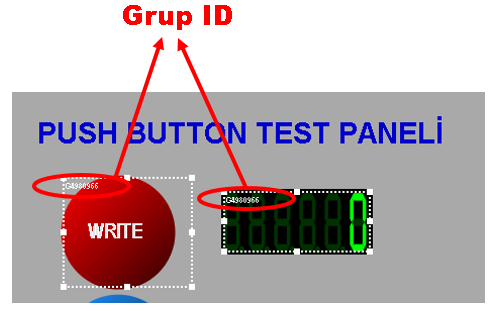
The ID information of the group to which specific user controls belong is displayed in the upper-left corner of those user controls.
This information makes it easy to understand which group the user controls on the screen belong to.
Especially on complex screens containing a large number of user controls, displaying the Group ID information helps determine which group the objects belong to.
Information: The same Group ID information is displayed on user controls belonging to the same group.
User controls belonging to a group move together as if they were a single user control after the group is created.
This eliminates the need to select and move each user control forming the group individually. The group can be moved to a new location as a single unit while preserving the relative positions of the objects within the group.
This feature provides significant convenience when moving pump, motor, valve, turbine, or similar equipment symbols consisting of multiple graphical objects together on the screen.
Example: If a pump symbol consists of a motor indicator, operating status indicator, and other related graphical user controls, these objects can be combined into a single group. When the pump symbol is subsequently moved on the screen, all user controls belonging to the group move together.
The fact that user controls are within the same group does not mean that the SCADA data information to which these controls are connected is linked together.
Although user controls belonging to the same group move together, the data connection and related settings of each user control can be configured separately.
Therefore, the SCADA data points of user controls within the group can be changed independently of one another.
NOTE: The data information associated with user controls belonging to the same group can be changed separately.
The following procedure can be used when grouping user controls.
The grouping feature makes it easier to manage graphical structures consisting of multiple user controls on the screen.
For example, multiple graphical objects belonging to a pump, motor, valve, turbine, or process equipment can be collected into a single group. This allows these objects to be moved together during screen design.
Similarly, a status indicator, measurement value, and other auxiliary graphical objects can be organized under a single group together with an equipment symbol.
This approach can help design work be performed more quickly and in a more controlled manner, especially on large SCADA screens containing a large number of equipment items.
If multiple user controls belonging to an equipment item always need to move together on the screen, grouping these objects under a single group can simplify screen design.
The grouping operation is used to simplify the movement and editing of user controls on the screen.
The fact that user controls within a group move together does not mean that these controls use a single data point or have the same operating properties.
Each user control retains its own properties and the SCADA data information to which it is connected. When necessary, the relevant settings of user controls within the group can be changed separately.
Although user controls belonging to the same group move together, the data connection and related settings of each user control can be configured separately.
In EOS SCADA Editor, user controls can be organized into groups to simplify screen design.
To perform grouping, first select the user controls that are intended to move together, and then click the GROUP button on the Quick Access Button Bar.
The Group ID of the group to which the grouped user controls belong is displayed in the upper-left corner. User controls belonging to the same group move together as if they were a single user control.
However, grouping does not combine the data connections of user controls. The data information and related settings of user controls belonging to the same group can be changed separately.
Free Software Download Center
Software for industrial data
collection, monitoring, and analysis.

Technical Support
Software documentation and practical
technical information.
You can contact us regarding EOS software, technical documentation, or industrial data communication.