
Free Software Download Center
Software for industrial data
collection, monitoring, and analysis.
SCREEN LAYOUT • ALIGNMENT • SIZE EQUALIZATION • EQUAL DISTRIBUTION
During screen design in EOS SCADA Editor, user controls can be positioned in an organized and controlled manner relative to one another using alignment features.
This feature makes it easier to align multiple user controls along the same axis, equalize their dimensions, and organize the spacing between them. This makes it possible to create more organized, readable, and professional operator interfaces on SCADA screens.

SCADA on SCADA screens many number of user control's from one another independently as placement, controls between small position differences formation cause olabilir.
This differences especially button, indicator, input box or similar user of the controls same row or column on used on screens visual inconsistency can create.
EOS SCADA Editor, birden more user control's by selecting specific bir to the axis according to alignment, dimensions to one another to be equalized and between them distances to be arranged ability provides.
Important: Alignment operations single bir user control on not, together arrangement istenen multiple user controls that are intended to be arranged together.
EOS SCADA Editor within user of the controls screen on positions and dimensions to arrange for the purpose of different hizalama options are available. This options only kontrollerin positions by arranging does not remain, same time screen of the design geometrically as more organized state to make provides.
Vertical hizalama options, selected user of the controls horizontal axis on positions arrangement provides.
Horizontal hizalama options, selected user of the controls vertical axis on positions arrangement provides.
Boyut equalization options, selected user of the controls same dimensions use provides. This feature especially same of the same type button or other user of the controls standard bir appearance standardizing is useful.
Equal distribution options, selected user controls between spacing arrangement provides. Thus controls between uneven distances formation preventing by going through more balanced screen designs can be created.
| Alignment Operation | Purpose |
|---|---|
 Vertical Left Alignment
|
Aligns the left edges of the controls. |
 Vertical Center Alignment
|
Centers the controls along the horizontal axis. |
 Vertical Right Alignment
|
Aligns the right edges of the controls. |
 Horizontal Top Alignment
|
Aligns the top edges of the controls. |
 Horizontal Center Alignment
|
Centers the controls along the vertical axis. |
 Horizontal Bottom Alignment
|
Aligns the bottom edges of the controls. |
 Full Size Equalization
|
Equalizes the width and height values. |
 Vertical Size Equalization
|
Equalizes the heights of the controls. |
 Equalize Width
|
Equalizes the widths of the controls. |
 Vertical Equal Distribution
|
Distributes the controls at equal intervals vertically. |
 Equal Horizontal Distribution
|
Distributes the controls at equal intervals horizontally. |
Alignment operation before applying before same hizalama operation within to be arranged user of the controls selection is required. Selected controls more then iki different method biri using can be aligned.
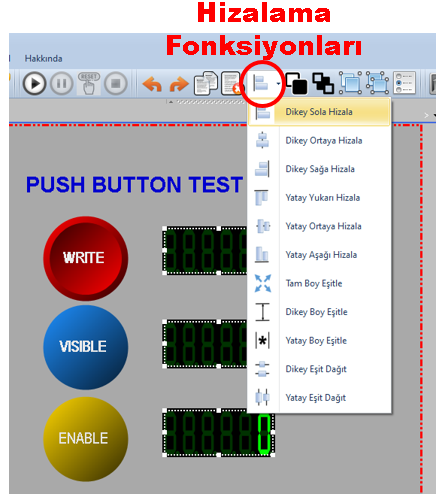
Alignment operations quick to access for Quick Access Button Bar on the ALIGNMENT button can be used.
Selected hizalama operation, selected user to controls by applying screen on positions or dimensions again is arranged.
Recommendation: Multiple more of the control same row or column to be used on screens hizalama features using, kontrollerin single single manuel as positioning according to more quick and more consistent bir screen design provides.
Alignment operations, quick access button of the bar as well as order selected user of the controls herhangi birinin selection rectangle on right mouse button by clicking opened settings window through de can be performed.
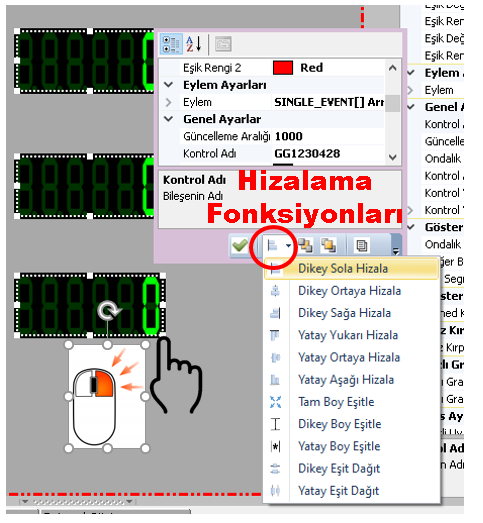
In this method, the user control from which the settings window was opened is used as the reference control .
How the reference control works: Selected user of the controls birinin selection rectangle on right mouse button by clicking hizalama operation when started, setting of the window from which it was opened control reference is taken as.
Other selected user of the controls relevant position or dimension values, selected hizalama to the operation associated as bu reference controle according to is arranged.
Especially user of the controls specific bir of the control to the position or dimension according to arrangement when necessary reference control becomes particularly important when user controls need to be arranged according to the position or dimensions of a specific control.
Second in the method right mouse with the button selected user control reference as accepted is performed and other selected kontrollerin relevant values bu to the control according to is arranged.
This approach, screen on previously correct positioned or correct sized bir of the control other controls for basis to be used as a basis provides.
CAUTION: Alignment before the operation before which user of the controls that was selected attention should be performed. Incorrect kontrollerin selection, relevant kontrollerin position or dimensions istemeden to be changed cause olabilir.
A SCADA on the screen same function grubuna belonging to four items user control's that there are and bu kontrollerin horizontal as same aligned being that it is necessary consider.
Example application:
This way several different hizalama operation together using, user of the controls hem positions hem dimensions hem de between them distances organized state can be made.
Alignment and dimension editing features only visual bir editing tool is not. Organized bir user interface, operator's screen more quick understand and relevant to the control more easy to reach helps becomes.
EOS SCADA Editor within located hizalama features, user of the controls screen on position and dimensions quick and controlled manner arrangement provides.
Vertical Left Alignment, Vertical Center Alignment and Vertical Right Alignment options arrange positions along the horizontal axis; Horizontal Top Alignment, Horizontal Center Alignment and Horizontal Bottom Alignment options ise vertical on the axis positions arrangement provides.
Full Size Equalization, Vertical Size Equalization and Equalize Width options kontrollerin dimensions while standardizing, Vertical Equal Distribution and Equal Horizontal Distribution options controls between distances arrangement provides.
Alignment operations can be performed both through the Quick Access Button Bar through hem de user control settings within ALIGNMENT option in the user control settings.
In particular, the reference control mechanism thanks to other selected user of the controls position and dimensions specific bir user control basis based on can be arranged.
Conclusion as hizalama features, EOS SCADA of screens only visual as more organized to be not, same time operator use facilitating, standardized and maintainable user interfaces creation provides.
Free Software Download Center
Software for industrial data
collection, monitoring, and analysis.

Technical Support
Software documentation and practical
technical information.
You can contact us regarding EOS software, technical documentation, or industrial data communication.