
Free Software Download Center
Software for industrial data
collection, monitoring, and analysis.
MULTIPLE USER CONTROL QUICK SELECTION
When designing complex SCADA screens in EOS SCADA Editor, it may be necessary to select many user controls at the same time.
Instead of selecting user controls one by one, the Multiple User Control Quick Selection method can be used to select multiple user controls in a single operation.
In this method, a rectangular selection area is created on the screen using the mouse. All user controls within the created rectangle are selected in a single operation.

A rectangular selection area can be created on the screen to quickly select a large number of user controls.
First, the upper-left corner of the selection area that will contain all user controls is determined.
At the selected point, click and hold the left mouse button, then drag the mouse toward the lower-right corner so that all user controls are enclosed.
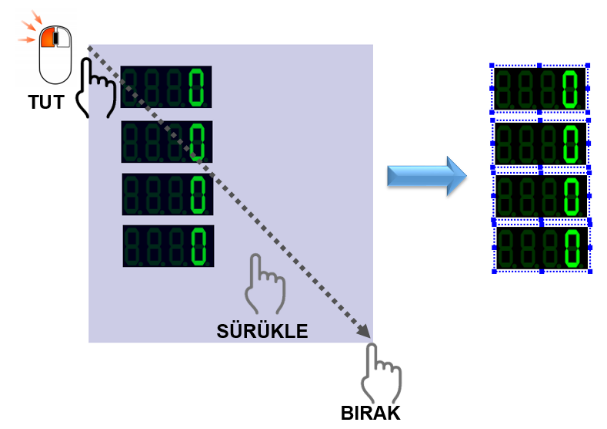
During this operation, a rectangular selection area is created on the screen. When the mouse button is released, the user controls within the selection area are selected in a single operation.
Usage: At an empty point in the upper-left area of the screen, click and hold the left mouse button. Drag the mouse toward the lower-right corner so that all user controls are enclosed, then release the mouse button.
The rectangular selection area created during the multiple-selection operation must encompass all user controls that are intended to be selected.
The point where the selection operation starts should be located above and to the left of the user controls. While holding the left mouse button, move the pointer toward the lower-right direction to expand the selection area.
When the mouse button is released, the user controls within the created selection area are selected together.
Tip: When creating the selection area, make sure that all user controls intended for selection remain inside the rectangle to prevent an incomplete selection.
Because the user controls within the rectangular selection area are selected in a single operation, subsequent editing operations on the selected objects can be performed more easily.
For example, the multiple-selection method can be used when several user controls need to be moved, resized, or repositioned together on the screen.
This method can save significant time, especially when designing complex SCADA screens containing many graphical objects.
Example: If a large number of measurement indicators located in the same area of a SCADA screen need to be moved together, all of these user controls can be selected at the same time using a single rectangular selection area.
Multiple user control selection can be performed by following the steps below:
To perform the multiple-selection operation correctly, the selection area must be created so that it encompasses the user controls to be selected.
User controls outside the selection area will not be included in the multiple-selection operation. Therefore, the starting and ending points of the selection area should be determined carefully.
When creating the rectangular selection area, make sure that all user controls intended for selection remain within the selection area.
Since user controls outside the selection area will not be included in the selection, it is recommended to verify the selected objects after the multiple-selection operation.
Instead of selecting a large number of user controls one by one in EOS SCADA Editor, multiple controls can be selected quickly using a rectangular selection area.
To do this, click and hold the left mouse button at a point above and to the left of the user controls, then drag the mouse toward the lower-right corner so that all user controls are enclosed.
When the mouse button is released, the user controls within the selection area are selected in a single operation.
This method is particularly useful for complex SCADA screens containing many user controls, as it simplifies moving, resizing, and other batch editing operations and accelerates the design process.
Free Software Download Center
Software for industrial data
collection, monitoring, and analysis.

Technical Support
Software documentation and practical
technical information.
You can contact us regarding EOS software, technical documentation, or industrial data communication.