
Free Software Download Center
Software for industrial data
collection, monitoring, and analysis.
CHANGING THE POSITION OF A USER CONTROL
The positions of user control objects added during screen design in EOS SCADA Editor can be changed whenever required.
After selecting the user control, the control object can be moved to the desired position on the screen using the drag-and-drop method.
This operation makes it easy to rearrange the user control objects on the screen and configure the overall appearance of the SCADA screen according to operational needs.

To change the position of a user control on the screen, the relevant user control must first be selected.
After the user control is selected, the control object can be dragged to the desired position on the screen while the left mouse button is held down.
After the user control has been moved to the desired position, release the left mouse button. The control object is then placed at its new position.
Usage: Select the user control. Hold down the left mouse button and drag the control. Release the mouse button when the control reaches the desired position.
The basic method used to change the position of a user control on the screen is the drag-and-drop operation.
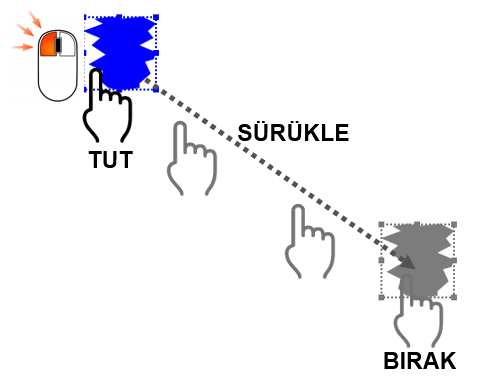
This operation allows the screen design to be rearranged quickly. It is particularly useful on SCADA screens containing many user controls, making it possible to change the positions of objects easily.
When moving user controls on the screen, attention should be paid to the valid position boundaries defined within the screen design area.
The valid area in which user controls can be placed on the screen is indicated by a dotted red line.
User control objects must be positioned so that they remain within these boundaries. This ensures that user controls remain within the valid operating area of the screen during the design process.
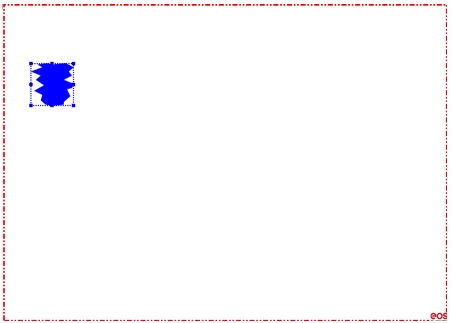
The valid position boundaries on the screen are indicated by a dotted red line.
All user controls must be positioned within these boundaries.
When positioning user control objects on the screen, their relationships with one another and the overall purpose of the screen should be taken into consideration.
Arranging the controls so that they do not overlap makes the required information easier to read and allows the operator to use the screen more comfortably.
In particular, user controls that are directly monitored by the user, such as measurement values, status indicators, buttons, and alarm indicators, should be positioned appropriately.
Tip: When moving user controls, consider not only the current position of the object but also the overall layout of the entire screen. A regular and clear arrangement of controls makes the SCADA screen easier to use.
The position of user control objects on the screen in EOS SCADA Editor can be easily changed using the drag-and-drop method.
After selecting the user control, hold down the left mouse button and drag the control to the desired position. When the appropriate position is reached, release the mouse button to place the control at its new position.
During positioning, attention should be paid to the valid screen boundaries indicated by the dotted red line. User controls must be positioned so that they remain within these boundaries.
An organized user control layout helps make SCADA screens more understandable, usable, and efficient for operational purposes.
Free Software Download Center
Software for industrial data
collection, monitoring, and analysis.

Technical Support
Software documentation and practical
technical information.
You can contact us regarding EOS software, technical documentation, or industrial data communication.