
Free Software Download Center
Software for industrial data collection, monitoring, and analysis.
EVENT RECORDER • LEVEL DEFINITION • SEVERITY AND VISUAL CLASSIFICATION
Every event and alarm defined in the EOS SCADA Editor must belong to a level class. Level classes are defined during SCADA design and entered into the system using the EOS SCADA Editor.
The alarm level can be used as an attribute that indicates the severity of an event or alarm. Levels help operating personnel quickly assess the importance of events.

Every event and alarm defined in EOS SCADA software must belong to a level class. These level classes should be determined during SCADA design and entered into the system using the EOS SCADA Editor.
Alarm levels can be used to indicate the degree of importance and severity of an event or alarm from an operational perspective. This allows different events within the same system to be easily distinguished by the user.
Important: Defining level classes in advance during project design is important for standardizing alarm notifications and displaying them consistently from a visual perspective.
Different levels can be created according to the degree to which process values deviate from the normal operating range.
Example level definitions:
Different names and levels of importance can be defined according to the structure of the project. It is recommended that level names be easy for operating personnel to understand.
To perform operations related to event levels, click the EVENT RECORDER menu item in the SCADA tree menu with the left mouse button.
The EVENT RECORDER menu contains the following five submenu items:
Event level operations are performed through the EVENT LEVELS submenu.
The Event Level Context Menu can be opened by right-clicking the EVENT LEVELS submenu item.
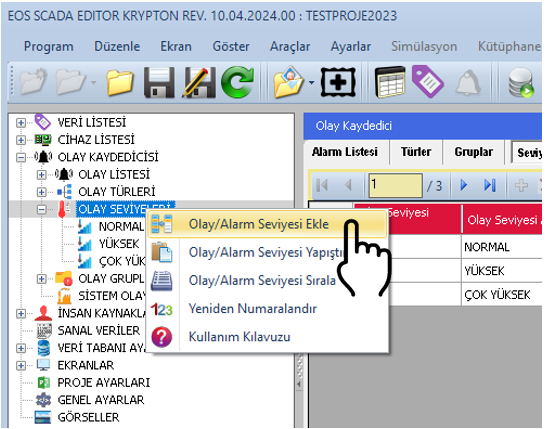
The following operations can be performed on event levels using the opened menu:
These operations allow the required level classes to be created within the project, existing levels to be edited, and unused levels to be removed.
When a new event level is added by the user, its information can be modified through the settings table located on the right side of the screen.
Event level properties allow information such as the level ID, name, visual colors, and description to be defined.
| Property Name | Property Description | Default Value |
|---|---|---|
| EventLevelId | Event Level ID Number | 0 |
| EventLevelName | Event Level Name | EVENTLEVEL |
| EventLevelBackColor | Event Level Text Color | White (Black) |
| EventLevelForeColor | Event Level Background Color | White (White) |
| Event Level Definition | Event Type Definition | — |
Note: The source text describes EventLevelBackColor as "Event Level Text Color" and EventLevelForeColor as "Event Level Background Color." These descriptions have been preserved from the source. The actual color meanings of these field names can be verified separately in the software interface.
The user can define different text and background colors for each event or alarm level to be used in visual components.
This feature is particularly useful on SCADA screens where many events and alarms are displayed simultaneously, helping users distinguish between different levels quickly.
Text and background colors that can be easily distinguished from one another can be used for events with different degrees of importance. This allows the operator to evaluate event records not only through text but also through visual classification.
When selecting colors, the usage habits of operating personnel and the plant's existing alarm display standards should be taken into consideration.
A new event level can generally be defined in the EOS SCADA Editor according to the following sequence of operations.
EOS SCADA software automatically adds the Normal level with EventLevelId = 0.
CAUTION: The user does not need to create another Normal level using EventLevelId = 0.
When defining new levels, it should be taken into consideration that the Normal level automatically created by the software has the value EventLevelId = 0.
Event and alarm levels provide classification of information generated in the SCADA system according to its degree of importance. This structure helps operating personnel identify critical conditions more quickly, particularly in plants with a large number of events and alarms.
Clearly defining level names and using appropriate text and background colors for each level improves the readability of alarm screens.
Planning the level structure at the beginning of the project provides an important foundation for filtering, reporting, and analyzing events at later stages.
Defining event and alarm levels in the EOS SCADA Editor enables events and alarms to be classified according to their severity.
Using the EVENT LEVELS section under the EVENT RECORDER menu, users can create, copy, cut, paste, delete, and sort levels.
For each created event level, the EventLevelId, EventLevelName, EventLevelBackColor, EventLevelForeColor, and Event Level Definition values can be edited through the settings table.
Using different text and background colors in visual components helps distinguish alarms and events quickly. It should be taken into consideration that the Normal level automatically added by the software has EventLevelId = 0.
Free Software Download Center
Software for industrial data collection, monitoring, and analysis.

Technical Support
Software documentation, sample code, and practical technical information.
You can contact us regarding EOS software, technical documentation, or industrial data communication.