
Free Software Download Center
Software for industrial data collection, monitoring, and analysis.
EVENT RECORDER • EVENT/ALARM DEFINITION • LIMIT VALUE • OPERATOR WARNINGS
After event groups, event types, event levels, and system alarms have been defined in the EOS SCADA Editor, the event and alarm list to be used in the SCADA application must be prepared.
Event/alarm definitions are the fundamental configuration information that determines which data the event is associated with, which type, group, and level it belongs to, under which condition it becomes active, and how it is communicated to the operator.

After defining event groups, event types, event levels, and system alarms, the event/alarm lists to be used for SCADA must be prepared.
For each event or alarm, the relevant data, definition, type, level, and group information must be specified. In addition, the limit condition under which the alarm will become active and the methods by which the operator will be notified are defined through the event/alarm properties.
Important: Before event/alarm records are created, the EVENT TYPES, EVENT GROUPS, and EVENT LEVELS classes to be used must be prepared. Each event/alarm must be associated with the appropriate classes.
To define events/alarms, click the EVENT RECORDER menu item in the SCADA tree menu with the left mouse button.
The EVENT RECORDER menu contains the following five submenu items:
The EVENTS submenu is used to create event and alarm definitions.
The Event Context Menu can be opened by right-clicking the EVENTS submenu item.
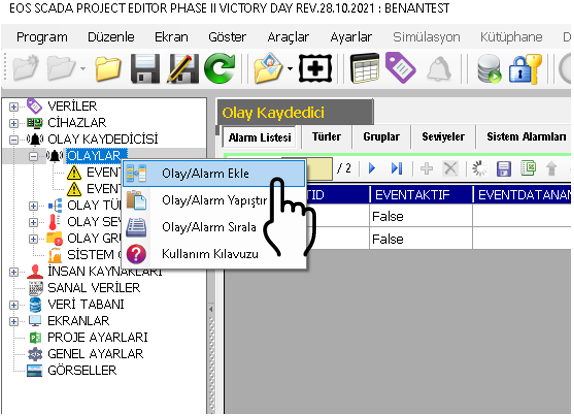
The following operations can be performed on event/alarm records using the opened context menu:
Information related to a newly added event/alarm can be modified using the settings table located on the right side of the screen.
The editable properties and default values related to event/alarm definitions are shown in the table below.
| Property Name | Property Description | Default Value |
|---|---|---|
| EventId | Event/Alarm ID Number | 0 |
| EventActive | Event/Alarm Active | false |
| EventDataName | Name of the Data Associated with the Event/Alarm | — |
| EventDataType | Event/Alarm Data Type |
Analog (Analog) Digital (Digital) Text (Text) |
| EventDefinition | Event/Alarm Definition | — |
| EventType | Event/Alarm Type | — |
| EventLevel | Event/Alarm Level | — |
| EventGroup | Event/Alarm Group | — |
| EventLimitValue | Event/Alarm Limit Value | 100 |
| EventLimitType | Event/Alarm Limit Type |
Greaterthan (Greater Than) Greaterthanorequalto (Greater Than or Equal To) Lessthan (Less Than) Lessthanorequalto (Less Than or Equal To) Equalto (Equal To) |
| EventAcknowledgement | Wait for Acknowledgement for Event/Alarm Acceptance | false |
| EventIndicator | Show Event/Alarm in the Warning Indicator | false |
| EventSound | Use Audible Warning for Event/Alarm |
Nosound (Silent) Sound (Audible) Popup (Popup Screen) |
As can be seen from the properties above, every defined event/alarm must be included in a type, a level, and a group.
These classes must be defined in the EVENT TYPES, EVENT GROUPS, and EVENT LEVELS sections before event/alarm records are entered.
CAUTION: The type, group, and level classes to be used during event/alarm definition must be created in advance. This ensures that the defined event/alarm records can be correctly associated with the classification structure within the project.
The EventDataName property specifies the name of the data associated with the event or alarm. This field provides a reference to the SCADA data on which the event/alarm will be evaluated.
The EventDataType property is used to specify the type of data associated with the event/alarm. Within EOS SCADA, the Analog, Digital, and Text options can be used for this property.
Analog: Can be used to compare numerical process values against defined limits.
Digital: Can be used to generate events/alarms based on binary or logical values.
Text: Enables text-based status and system information to be used in event/alarm definitions.
The EventLimitValue property specifies the limit value required for the alarm to occur. The default value is defined as 100.
The EventLimitType property specifies the condition under which the read data value is compared with the defined limit value.
Greaterthan (Greater Than): The alarm becomes active when the read data value is greater than the limit value.
Greaterthanorequalto (Greater Than or Equal To): The alarm becomes active when the read data value is equal to or greater than the limit value.
Lessthan (Less Than): The alarm becomes active when the read data value is less than the limit value.
Lessthanorequalto (Less Than or Equal To): The alarm becomes active when the read data value is equal to or less than the limit value.
Equalto (Equal To): The alarm becomes active when the read data value is equal to the limit value.
The EventAcknowledgement property determines whether user acknowledgement is required when the alarm list user control announces the relevant event/alarm to the operator.
When this property is set to true, the user must acknowledge the relevant event/alarm through the ALARM_INDICATOR user control. This property operates in an integrated manner with the ALARM_INDICATOR user control.
Example: For a critical alarm where operator intervention needs to be tracked, EventAcknowledgement = true can be selected.
The EventIndicator property determines whether the relevant event or alarm will be included in the event/alarm list displayed in the Alarm Indicator user control to alert the operator.
When the property is set to true, the relevant event/alarm is included among the records to be reported to the user through the alarm indicator.
The EventSound property can be used to define audible or popup-based warning behavior for the operator when the relevant event or alarm occurs.
This property can be used to ensure that critical events are detected by the operator not only through the alarm list, but also through audible or visual warnings.
The following general procedure can be followed when defining a new event/alarm in EOS SCADA Editor.
Creating event and alarm definitions in EOS SCADA Editor determines which data will be used to evaluate the conditions monitored in the SCADA system and how they will be reported to the operator.
Defining EventType, EventLevel, and EventGroup information for each event/alarm ensures that events are systematically classified within the system.
While the EventLimitValue and EventLimitType properties determine the conditions under which an alarm becomes active, the EventAcknowledgement, EventIndicator, and EventSound properties configure the operator warning behavior.
Thus, event and alarm management in EOS SCADA can be structured as an integrated system covering classification, evaluation, recording, and operator notification.
After defining event groups, event types, event levels, and system alarms, the event/alarm lists to be used for SCADA must be prepared.
For each event or alarm, the relevant data, definition, type, level, and group information must be specified. In addition, the limit condition under which the alarm will become active and the methods by which the operator will be notified are defined through the event/alarm properties.
Important: Before event/alarm records are created, the EVENT TYPES, EVENT GROUPS, and EVENT LEVELS classes to be used must be prepared. Each event/alarm must be associated with the appropriate classes.
To define events/alarms, click the EVENT RECORDER menu item in the SCADA tree menu with the left mouse button.
The EVENT RECORDER menu contains the following five submenu items:
The EVENTS submenu is used to create event and alarm definitions.
The Event Context Menu can be opened by right-clicking the EVENTS submenu item.
The following operations can be performed on event/alarm records using the opened context menu:
Information related to a newly added event/alarm can be modified using the settings table located on the right side of the screen.
The editable properties and default values related to event/alarm definitions are shown in the table below.
| Property Name | Property Description | Default Value |
|---|---|---|
| EventId | Event/Alarm ID Number | 0 |
| EventActive | Event/Alarm Active | false |
| EventDataName | Name of the Data Associated with the Event/Alarm | — |
| EventDataType | Event/Alarm Data Type |
Analog (Analog) Digital (Digital) Text (Text) |
| EventDefinition | Event/Alarm Definition | — |
| EventType | Event/Alarm Type | — |
| EventLevel | Event/Alarm Level | — |
| EventGroup | Event/Alarm Group | — |
| EventLimitValue | Event/Alarm Limit Value | 100 |
| EventLimitType | Event/Alarm Limit Type |
Greaterthan (Greater Than) Greaterthanorequalto (Greater Than or Equal To) Lessthan (Less Than) Lessthanorequalto (Less Than or Equal To) Equalto (Equal To) |
| EventAcknowledgement | Wait for Acknowledgement for Event/Alarm Acceptance | false |
| EventIndicator | Show Event/Alarm in the Warning Indicator | false |
| EventSound | Use Audible Warning for Event/Alarm |
Nosound (Silent) Sound (Audible) Popup (Popup Screen) |
As can be seen from the properties above, every defined event/alarm must be included in a type, a level, and a group.
These classes must be defined in the EVENT TYPES, EVENT GROUPS, and EVENT LEVELS sections before event/alarm records are entered.
CAUTION: The type, group, and level classes to be used during event/alarm definition must be created in advance. This ensures that the defined event/alarm records can be correctly associated with the classification structure within the project.
The EventDataName property specifies the name of the data associated with the event or alarm. This field provides a reference to the SCADA data on which the event/alarm will be evaluated.
The EventDataType property is used to specify the type of data associated with the event/alarm. Within EOS SCADA, the Analog, Digital, and Text options can be used for this property.
Analog: Can be used to compare numerical process values against defined limits.
Digital: Can be used to generate events/alarms based on binary or logical values.
Text: Enables text-based status and system information to be used in event/alarm definitions.
The EventLimitValue property specifies the limit value required for the alarm to occur. The default value is defined as 100.
The EventLimitType property specifies the condition under which the read data value is compared with the defined limit value.
Greaterthan (Greater Than): The alarm becomes active when the read data value is greater than the limit value.
Greaterthanorequalto (Greater Than or Equal To): The alarm becomes active when the read data value is equal to or greater than the limit value.
Lessthan (Less Than): The alarm becomes active when the read data value is less than the limit value.
Lessthanorequalto (Less Than or Equal To): The alarm becomes active when the read data value is equal to or less than the limit value.
Equalto (Equal To): The alarm becomes active when the read data value is equal to the limit value.
The EventAcknowledgement property determines whether user acknowledgement is required when the alarm list user control announces the relevant event/alarm to the operator.
When this property is set to true, the user must acknowledge the relevant event/alarm through the ALARM_INDICATOR user control. This property operates in an integrated manner with the ALARM_INDICATOR user control.
Example: For a critical alarm where operator intervention needs to be tracked, EventAcknowledgement = true can be selected.
The EventIndicator property determines whether the relevant event or alarm will be included in the event/alarm list displayed in the Alarm Indicator user control to alert the operator.
When the property is set to true, the relevant event/alarm is included among the records to be reported to the user through the alarm indicator.
The EventSound property can be used to define audible or popup-based warning behavior for the operator when the relevant event or alarm occurs.
This property can be used to ensure that critical events are detected by the operator not only through the alarm list, but also through audible or visual warnings.
The following general procedure can be followed when defining a new event/alarm in EOS SCADA Editor.
Creating event and alarm definitions in EOS SCADA Editor determines which data will be used to evaluate the conditions monitored in the SCADA system and how they will be reported to the operator.
Defining EventType, EventLevel, and EventGroup information for each event/alarm ensures that events are systematically classified within the system.
While the EventLimitValue and EventLimitType properties determine the conditions under which an alarm becomes active, the EventAcknowledgement, EventIndicator, and EventSound properties configure the operator warning behavior.
Thus, event and alarm management in EOS SCADA can be structured as an integrated system covering classification, evaluation, recording, and operator notification.
Free Software Download Center
Software for industrial data collection, monitoring, and analysis.

Technical Support
Software documentation, sample code, and practical technical information.
You can contact us regarding EOS software, technical documentation, or industrial data communication.