
Free Software Download Center
Software for industrial data collection, monitoring, and analysis.
DEFINING AUTHORIZATION SETTINGS FOR HUMAN RESOURCES
SCADA systems must not only provide monitoring and operation of the plant, but also ensure that interventions in the system are performed in a controlled manner by authorized users.
Therefore, in addition to registering personnel who will work with the SCADA system, it is important to determine which operations each user is authorized to perform.
EOS SCADA software uses a four-level authorization system for this purpose. The authorization level assigned to a user can determine both the operations that can be performed within SCADA Runtime and, when required, the use of user controls that send commands to the system.
Proper configuration of the authorization mechanism helps ensure that operators perform operations appropriate to their duties and responsibilities, supporting the safe and controlled use of the SCADA system.

EOS SCADA software provides four different authorization levels to restrict the operations that users can perform:
Authorization levels can be considered as a hierarchical structure in which higher levels include the permissions of lower levels. A user with a higher authorization level can perform the operations available to users at lower levels, as well as additional operations assigned to their own authorization level.
The same authorization levels can also be assigned to user control objects that send commands from SCADA screens. This ensures that a specific command can only be issued by an operator with the required authorization level.
The Monitor level is the basic authorization level for personnel who primarily use the SCADA system to monitor the status of the facility.
A user at this level can use the SCADA Runtime software to open screens and monitor the operating status of the facility.
The user can also open the Status screen, which displays device connections and the general health status of the system.
Basic usage: A user with Monitor authorization can monitor the facility's SCADA screens and system status, but cannot perform higher-level operation or engineering tasks.
Operation authorization is used to monitor the facility's daily operational activities and access the required operational data.
A user with Operation authorization can perform all operations available at the Monitor level, as well as the following operations:
Therefore, the Operation level is suitable for users who monitor the facility's daily operations and need to analyze operational data.
Engineering authorization is used when the SCADA system needs to be configured and technically managed.
A user with Engineering authorization can perform all functions available at the Monitor and Operation levels, as well as more comprehensive operations related to SCADA project and system configuration.
Refreshing the project reloads the configuration in a manner equivalent to closing and restarting the software.
Authorization principle: Engineering authorization should be assigned to users who require more comprehensive SCADA configuration capabilities beyond normal facility operation activities.
Superuser is the highest authorization level defined in the EOS SCADA system.
A user at this level can perform all configuration and management operations available in the SCADA system. This includes defining new personnel and creating or modifying existing authorizations.
Superuser authorization allows comprehensive changes to the entire SCADA system and should therefore only be assigned to authorized personnel who require these capabilities.
The EOS SCADA authorization system is not limited to determining the user's system login level. The same authorization levels can also be assigned to user controls that send commands from SCADA screens.
For example, if the Engineering authorization level is assigned to a button, the user must have at least the corresponding authorization level to send a command to the system through that button.
Example: If the authorization level of a user control is set to Engineering, only a user with Engineering or higher authorization can send the associated command through that control.
This structure is an important control mechanism that enhances operational safety, particularly by ensuring that commands sent to critical devices can only be executed by personnel with the appropriate authorization.
To define authorizations, click the HUMAN RESOURCES menu item in the SCADA Tree Menu Bar on the left side of the SCADA Editor using the left mouse button.
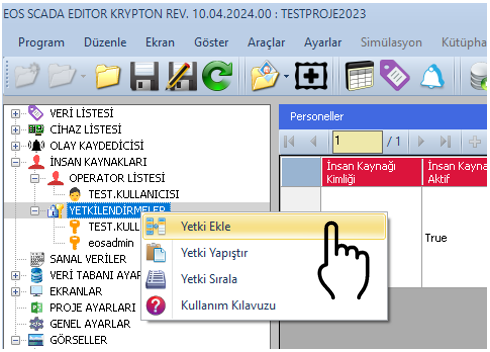
The HUMAN RESOURCES menu contains two different submenus:
The OPERATOR LIST section is used to define personnel, while the AUTHORIZATIONS section is used to assign login and access permissions to these users.
Right-clicking the AUTHORIZATIONS submenu item opens the Authorization Menu.
The following operations can be performed on authorization records using this menu:
The information belonging to a newly added or existing authorization record can be modified through the Settings Table on the right side of the screen.
When an authorization record is selected, its properties can be edited through the Settings Table on the right side.
The basic properties available for authorizations are described below.
| Property Name | Property Description | Default / Options |
|---|---|---|
| AuthorizedUser | Authorized user name | - |
| AuthorizationType | Determines which authorization method the user will use to log in to the system. |
None Password USBDongle PasswordAndUSBDongle |
| Password | Password information. | - |
| PasswordAuthorizationLevel | Authorization level to be used when logging in with a password. |
None Monitor Operation Engineering Superuser |
| USBDonglePasscode | USB Dongle password. | - |
| USBDongleAuthorizationLevel | Authorization level to be used when logging in with a USB Dongle. |
None Monitor Operation Engineering Superuser |
| DateLimit | Date limit for the authorization validity period. | - |
EOS SCADA software supports three different authorization methods for users to log in to the system:
The authorization type selected for a user determines the authentication method used when logging in to the SCADA Runtime software.
When the Password authorization method is selected, the user must enter their username and password when logging in to the SCADA Runtime software.
The information entered by the user is matched against the defined authorization record to determine the user's authorization level.
When the USB Key authorization method is selected, inserting the USB Flash Drive whose specific hardware characteristics have been registered in the SCADA authorization table into the SCADA computer is sufficient for login.
Once the USB Flash Drive matches the authorization record, the authorization level defined for the user is applied.
Purpose: The USB Key method provides an alternative login mechanism that requires the user to physically possess authorized hardware.
When Both Password and USB Key is selected, two different login methods can be defined for the user.
The user can log in to the SCADA system using a username and password, or by inserting the USB Flash Drive whose specific hardware characteristics have been registered in the authorization table into the SCADA computer.
One important feature of this method is that independent authorization levels can be defined for the password and USB Flash Drive login methods.
A user can be assigned Monitor authorization when logging in with a password and Operation authorization when logging in with a USB Flash Drive.
Thus, the same personnel can access the SCADA system with different authorization levels depending on the login method used.
EOS SCADA software supports the dual login feature.
This feature allows two operators to log in to the SCADA software simultaneously. Operators can log in to the system using either passwords or USB Flash Drive methods.
The dual login feature allows multiple operators to access the same SCADA Runtime environment through the authorization mechanism.
EOS SCADA software also allows a time limit to be added to authorizations.
When a date limit is defined for an authorization record, the corresponding authorization automatically expires when the specified date is reached.
This feature allows the authorization of users who need temporary system access to be automatically terminated later without requiring manual removal.
Usage example: A temporary authorization can be created for personnel who will work on the SCADA system for a specific period, and the validity period of this authorization can be limited using the DateLimit property.
The EOS SCADA Editor provides a dedicated Authorization Entry Panel to make it easier to create new authorization definitions and to edit existing authorizations more efficiently.
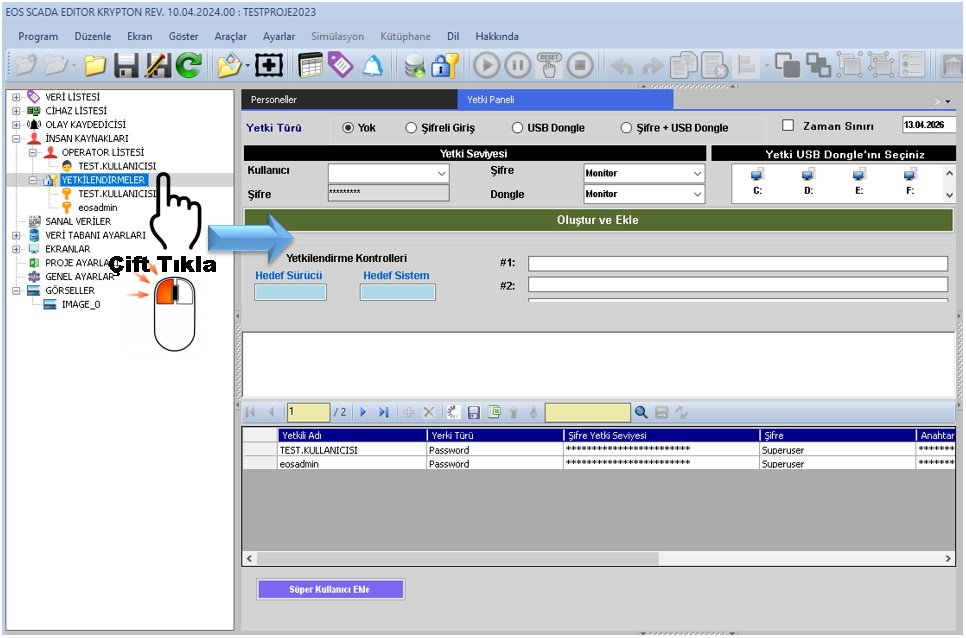
To access this panel, the user must double-click the AUTHORIZATIONS submenu item using the right mouse button.
Existing authorization information can be edited using the authorization table displayed in the panel. New authorizations can be created using the entry tools located at the top of the panel.
The following steps should be performed sequentially to create a new authorization through the Authorization Entry Panel.
After the authorization has been created, the record can be viewed in the authorization table, and the required modifications can be made through the relevant settings fields.
When defining authorizations in SCADA systems, it is recommended that users be given only the level of authorization required to perform their assigned tasks.
This approach helps ensure more controlled use of the SCADA system by limiting users' access to critical operations outside the scope of their assigned duties.
Users should not be assigned higher authorization than necessary. In particular, the Engineering and Superuser levels should be used in a controlled manner because they provide access to operations that can affect the configuration and overall operation of the SCADA system.
Authorization levels assigned to user controls that send commands should also be configured consistently with user authorizations. This ensures that critical commands can only be issued by users with the required authorization.
For temporary users, the DateLimit property may be used whenever possible so that the authorization automatically expires at the specified date.
In EOS SCADA systems, assigning the appropriate authorization level to each user is as important as defining personnel in the system.
EOS SCADA software provides four authorization levels: Monitor, Operation, Engineering, and Superuser. These levels are used to determine the SCADA operations that users are permitted to perform.
In addition to user authorizations, the same levels can be assigned to user controls that send commands to the system. This ensures that specific commands can only be executed by operators with the appropriate authorization.
EOS SCADA software also supports authorization methods based on Password, USB Key, and Both Password and USB Key, and allows separate authorization levels to be assigned to password and USB login methods.
The dual login and time-limited authorization features also provide more flexible management of user access.
After all authorization operations have been completed, the changes must be saved to the database.
Free Software Download Center
Software for industrial data collection, monitoring, and analysis.

Technical Support
Software documentation, sample code, and practical technical information.
You can contact us regarding EOS software, technical documentation, or industrial data communication.