
Free Software Download Center
Software for industrial data collection, monitoring, and analysis.
SIMULATION • PAUSE • MANUAL DATA • READ VALUE • WRITTEN VALUE • RESUME
A running simulation in EOS SCADA Editor can be paused, allowing users to assign manual values to SCADA data.
This feature makes it possible to examine how user controls respond to different data values and to test SCADA page behavior under different operating conditions.

While simulation is running, the user can pause the simulation and assign different values to the desired data through the Data List.
Manual data entry allows SCADA screens and user controls to be tested using user-defined values instead of automatically generated random simulation values.
Information: Manual data entry is particularly useful for examining and testing how user controls respond to different data values.
To enter manual data, first open the DATA LIST using the quick access button bar.
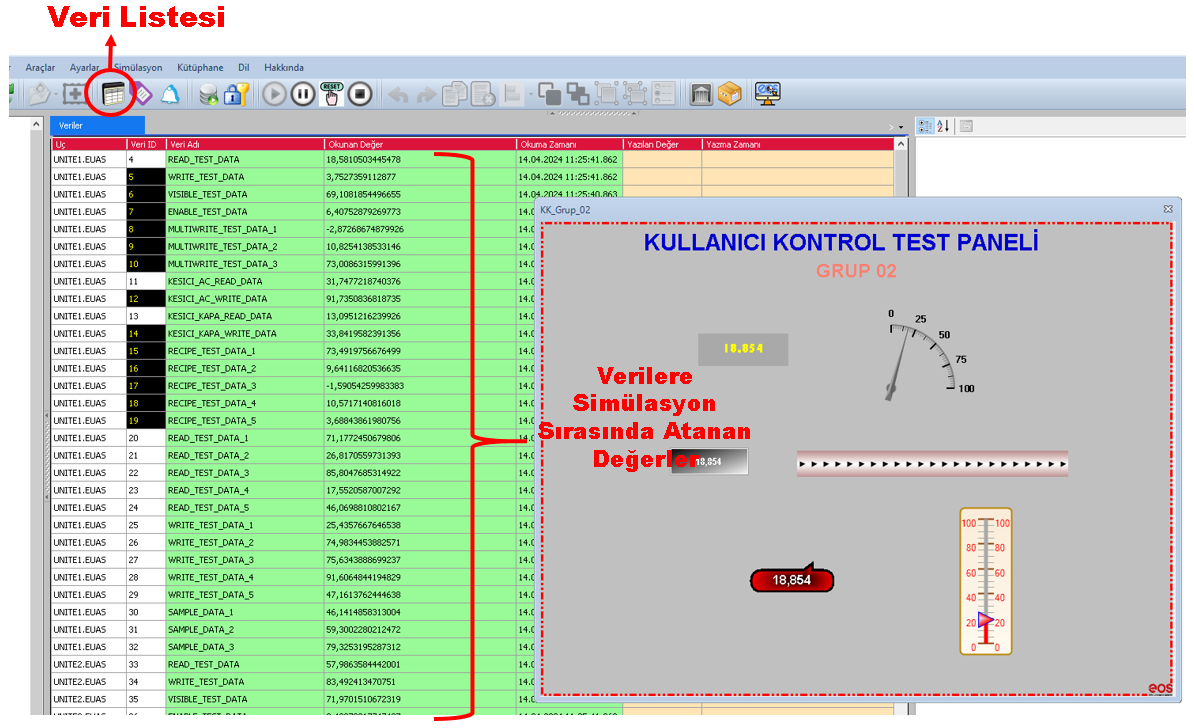
The Data List allows SCADA data to be viewed. After the simulation is paused, manual values can be assigned to the relevant data fields.
First step:
After the Data List has been opened, the running simulation can be paused using the PAUSE button located under the SIMULATION menu.
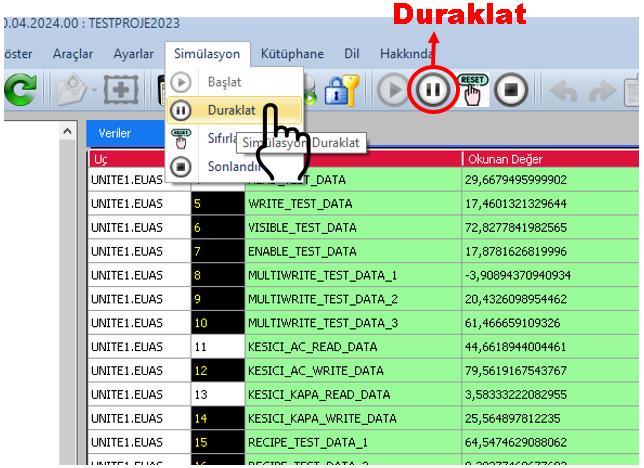
When the simulation is paused, the automatic simulation that assigns random values is temporarily stopped.
CAUTION: Before entering manual data, the simulation must be paused using the PAUSE button. This prevents values entered by the user from being changed by the automatic simulation.
After the simulation has been paused, the user can manually enter desired values in the Read Value and Written Value columns for each data item in the Data Table.
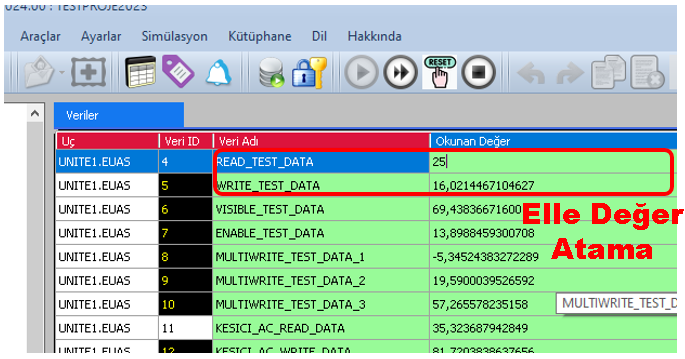
| Field | Usage |
|---|---|
| Read Value | Allows the user to manually assign a read value to the data item. |
| Written Value | Allows the user to manually assign a written value to the data item. |
Example: When testing how a user control behaves with a different data value, enter the value to be tested manually in either the Read Value or Written Value field of the relevant data item.
One of the important uses of manual data entry is testing how user controls on SCADA screens respond to different data values.
Using user-defined values, the behavior of controls, indicators, and other SCADA components on the screen can be examined.
Test objective: User control functions can be checked by creating different value conditions without requiring real field data.
When necessary, the user can use the SIMULATION menu to reset all data included in the simulation.
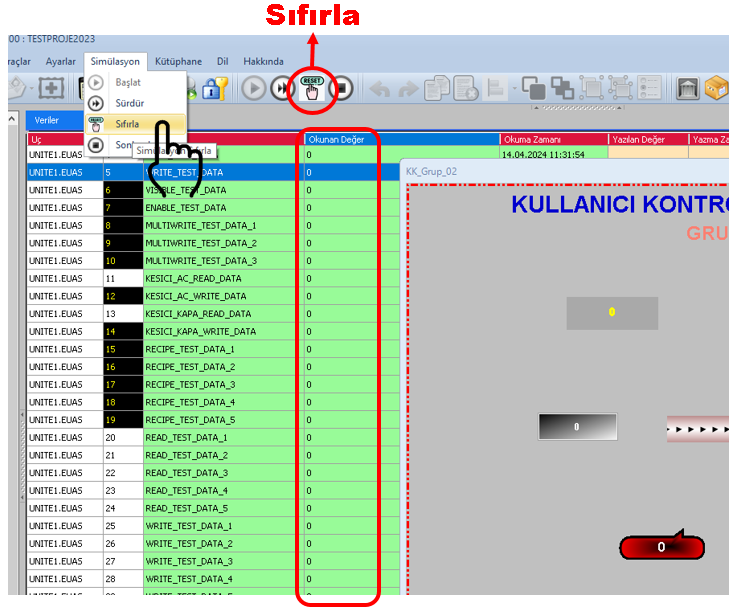
This feature can be used to make a clean start between different test scenarios and to remove previously assigned manual values.
Changing the test scenario: After one test is completed, all data can be reset and a different test scenario can be started with a new set of values.
After manual data entry and testing have been completed, automatic simulation can be resumed.
To do this, click the RESUME button under the SIMULATION menu.
When RESUME is clicked, the automatic simulation using random initial values and slowly changing values continues from where it left off.
Information: After the RESUME command, the simulation returns to automatic operation and values continue to change according to the simulation behavior generated by EOS SCADA Editor.
| Stage | Operation |
|---|---|
| 1. Start | Start automatic simulation. |
| 2. Pause | Use the SIMULATION → PAUSE command. |
| 3. Manual Value | Enter manual values in the Read Value and Written Value fields in the Data Table. |
| 4. Test | Check the behavior of user controls and the SCADA page. |
| 5. Reset | If necessary, reset all simulation data. |
| 6. Resume | Continue automatic simulation using the SIMULATION → RESUME command. |
Manual Data Entry During Simulation allows the automatic simulation running in EOS SCADA Editor to be paused so that testing can be performed using values specified by the user.
To do this, first open the DATA LIST and use the SIMULATION → PAUSE command. In the paused simulation environment, manual values can be assigned to the Read Value and Written Value fields in the Data Table.
Manual values can be used especially to test how user controls respond to different data conditions. All data can also be reset when necessary.
After testing is complete, use the SIMULATION → RESUME command to continue the automatic simulation with random and slowly changing values from where it left off.
Free Software Download Center
Software for industrial data collection, monitoring, and analysis.

Technical Support
Software documentation, sample code, and practical technical information.
You can contact us regarding EOS software, technical documentation, or industrial data communication.