
Free Software Download Center
Software for industrial data collection, monitoring, and analysis.
SCADA SIMULATION • TESTING • TAGS • RANDOM VALUES • RUNTIME
The simulation feature can be used in EOS SCADA Editor to test prepared SCADA pages as if they were operating with real field data.
During simulation, randomly selected initial values are assigned to SCADA data sets (tags) by EOS SCADA Editor, and these values are then changed slowly over time.
This makes it possible to reproduce the visual and audio behavior of prepared SCADA pages in a way that is similar to their operation with real data in the normal RUNTIME environment.

The simulation feature can be used to test SCADA pages without requiring data from real field devices.
This feature helps examine how prepared screens behave in response to data changes and creates a display that resembles the normal RUNTIME operating environment.
Information: Simulation allows simulated values generated by EOS SCADA Editor to be used instead of real field data. This makes it possible to run SCADA screens during development and testing.
When simulation is started, initial values are assigned to SCADA data sets (tags). These initial values are selected randomly by EOS SCADA Editor.
After the initial values are assigned, the values do not remain constant during simulation. Instead, slowly changing values are generated to create activity similar to changes in real process data.
Simulation behavior:
One of the main purposes of the simulation feature is to test how prepared SCADA pages will behave in the normal RUNTIME environment.
As simulated values change over time, indicators, charts, status information, and other visual elements on the screen can be made to behave similarly to their operation with real data.
In addition, audio features available on SCADA pages can also be tested during simulation.
Important: The simulation feature is not intended only to change data values. It can also be used to test the visual and audio behavior of prepared SCADA pages.
To start the simulation, first open the SCADA page that you want to test.

After the SCADA page has been opened, click the START SIMULATION button located on the quick access button bar.
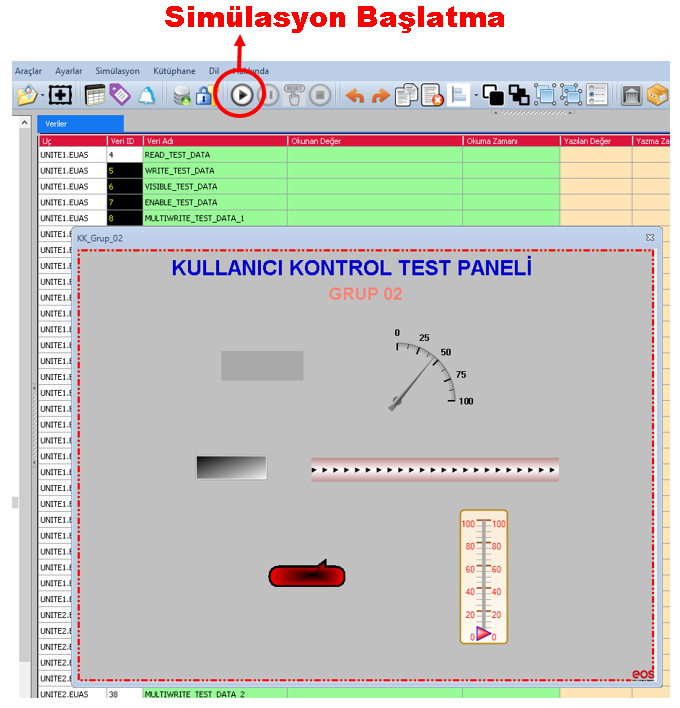
Starting procedure:
During simulation, the SCADA page can be observed operating in a way similar to the real RUNTIME environment.
| Test Area | Description |
|---|---|
| Data Changes | Monitoring tag values as they change over time and observing their effects on the screen. |
| Indicators and Charts | Displaying simulated values in charts, indicators, and other visual components. |
| Status Information | Checking status information on SCADA screens according to changing data values. |
| Audio Features | Testing audio features available on SCADA pages. |
| Screen Behavior | Examining the general behavior of prepared SCADA pages in the RUNTIME environment. |
The operation of the simulation feature is associated with the open SCADA screens.
When there are no active open screens remaining, the simulation feature stops automatically.
CAUTION: An active SCADA screen must remain open for the simulation to continue. When all open SCADA screens are closed, the simulation is automatically terminated.
The Starting Simulation feature allows SCADA pages prepared in EOS SCADA Editor to be tested without requiring real field data.
During simulation, randomly selected initial values are assigned to SCADA tags by EOS SCADA Editor, and these values are then changed slowly. This creates data activity similar to real process data.
With this structure, the visual and audio behavior of SCADA pages in the RUNTIME environment can be tested, and the operating characteristics of screens can be checked during development.
To start the simulation, simply open the SCADA page to be tested and click the START SIMULATION button on the quick access button bar. When no active open screen remains, the simulation stops automatically.
Free Software Download Center
Software for industrial data collection, monitoring, and analysis.

Technical Support
Software documentation, sample code, and practical technical information.
You can contact us regarding EOS software, technical documentation, or industrial data communication.