
Free Software Download Center
Software for industrial data
collection, monitoring, and analysis.
DATA LIST • SCADA DATA • RUNTIME • SIMULATION • READ • WRITE • COMMAND CONTROL
EOS SCADA Editor provides quick access to the data list defined in the SCADA system. The Data List is an important utility for examining data during development, testing, simulation, and Runtime operation.
During EOS SCADA Runtime, the Data List allows users to monitor data read from devices and data written to devices, together with their read and write times. More detailed information about a data point can also be viewed by hovering the mouse pointer over it and waiting for the information tooltip to appear.


Within EOS SCADA Editor, the quick access button bar can be used to quickly access the data defined in the SCADA system.
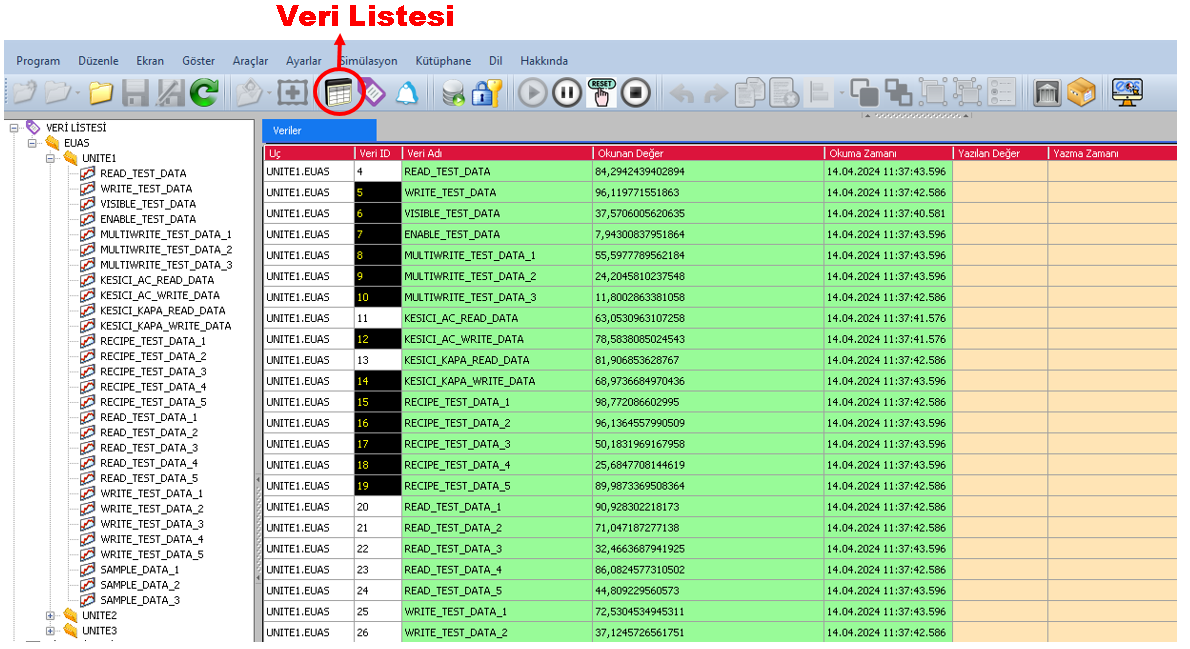
Click the DATA LIST button on the quick access button bar to access the list of data defined in the system.
Information: The Data List is not only used to view data definitions. It can also be used to examine the operating status of the SCADA system, communication results, simulation values, and data write operations performed by the user.
Within EOS SCADA Editor, the Data List can be used to provide quick access to SCADA data defined in the project.
It is particularly useful during development and testing to review which data points have been defined and to check operations performed on the relevant data.
Basic usage:
While EOS SCADA Runtime is running, the Data List is a useful tool for monitoring data exchange between the system and field devices.
The Data List displays data read from devices and data written to devices. The corresponding read and write times can also be examined.
Important: During Runtime, the Data List makes it easier to follow not only current data values but also the timing of data exchange.
Data exchanges with devices during Runtime can be followed through the Data List. This makes it easier to examine both data received from devices and data sent to devices.
| Operation | Information Available | Purpose |
|---|---|---|
| Data Read | Data read from devices and the read time. | Checking data received from field devices. |
| Data Write | Data written to devices and the write time. | Checking values sent to the device and write operations. |
| Data Details | Detailed information displayed in the tooltip when the mouse pointer remains over the data. | Obtaining more detailed information about the relevant data. |
When the mouse pointer is placed over a data item in the Data List and remains there for a short time, a tooltip containing more detailed information about the relevant data may appear.
This feature makes detailed examination of the data in the list easier and helps users quickly check the status of a specific data point during Runtime.
Usage: Place the mouse pointer over the data and wait for the tooltip to appear. The detailed information provided about the data can help with checking the relevant SCADA function.
The Data List is particularly useful for checking the operation of user controls that send commands to devices.
When a command is sent to a device through a user control, being able to monitor the resulting write operation in the Data List helps verify the value sent and the time at which the write operation occurred.
CAUTION: When testing user controls that send commands, it is important to verify not only that the control operates on the screen, but also that the relevant command is correctly written to the device and that the write operation is actually completed.
The Data List is also useful, particularly during data simulation activities.
When the simulation feature is used, specific simulation values can be assigned to SCADA data. The Data List can be used to check these values and to see which values have been assigned to which data points.
Important: Using the Data List during simulation makes it easier to verify the data being tested and the assigned simulation values.
| Usage Area | Description |
|---|---|
| Data Viewing | Quick access to data defined in the SCADA system. |
| Runtime Monitoring | Monitoring data read from devices and data written to devices. |
| Time Verification | Examining data read and write times. |
| Data Details | Obtaining detailed information through the tooltip by hovering over data. |
| Command Control | Checking commands sent through user controls and the corresponding write operations. |
| Simulation | Checking values assigned to data during simulation. |
| Testing and Commissioning | Testing SCADA screens, user controls, and data communication. |
Data List Viewing is an important utility function for examining SCADA data in EOS SCADA Editor and Runtime environments.
During Runtime, viewing data read from devices and data written to devices, tracking their read and write times, and obtaining detailed information through the tooltip by hovering over data make it easier to examine the operating status of the system.
Especially when testing user controls that send commands, the Data List is highly useful for checking sent values, write operations, and the associated time information.
In addition, checking simulation values assigned during data simulation helps development and testing activities be carried out more reliably.
Free Software Download Center
Software for industrial data
collection, monitoring, and analysis.

Technical Support
Software documentation, sample code, and
practical technical information.
You can contact us regarding EOS software, technical documentation, or industrial data communication.