
Free Software Download Center
Software for industrial data collection, monitoring, and analysis.
LIVE TREND • LIVE SCADA PAGES • REAL-TIME MONITORING
The EOS SCADA Chart Panel can be transformed into a real-time chart screen using the LIVE TREND feature. Users can monitor selected SCADA data on live trends and use this feature to create live data SCADA pages tailored to operational requirements.
The Chart Panel can be used as a live chart screen by using the LIVE TREND option. Selected SCADA data can be monitored on the chart in real time within the specified time range.
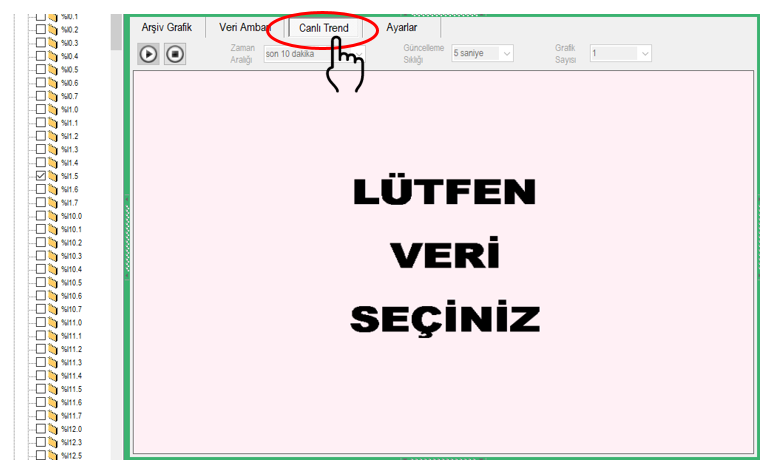
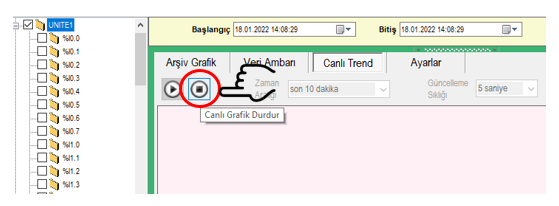
To create a live trend chart, follow the steps below:
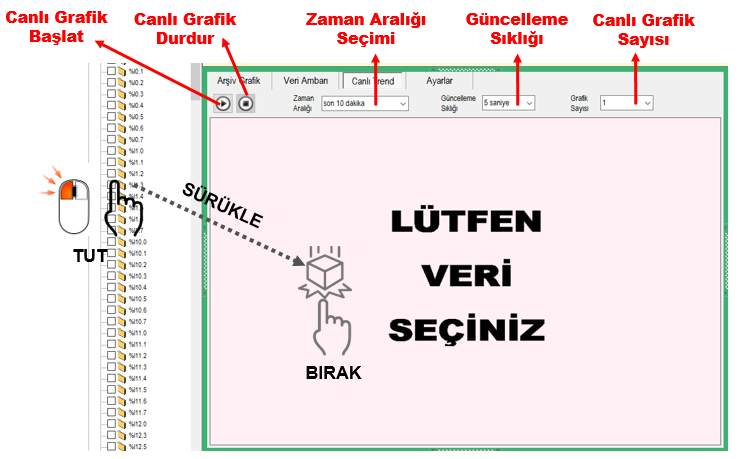
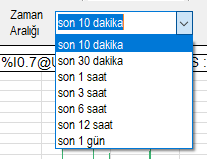 The time range displayed on the live chart screen can be determined by
selecting one of the following options:
The time range displayed on the live chart screen can be determined by
selecting one of the following options:
| Option | Description |
|---|---|
| Last 10 minutes | Monitoring short-term and rapid changes |
| Last 30 minutes | Monitoring short-term trends |
| Last 1 hour | Monitoring hourly operational changes |
| Last 3 hours | Analyzing longer-term trends |
| Last 6 hours | Monitoring medium-term operational behavior |
| Last 12 hours | Monitoring extended trends |
| Last 1 day | Monitoring daily changes and long-term trends |
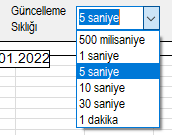 The refresh frequency of live chart data displayed on the screen can be
determined by selecting one of the following options:
The refresh frequency of live chart data displayed on the screen can be
determined by selecting one of the following options:
| Update Frequency | Description |
|---|---|
| 500 milliseconds | Monitoring very rapid data changes |
| 1 second | Fast real-time monitoring |
| 5 seconds | General operational monitoring |
| 10 seconds | Medium-frequency trend monitoring |
| 30 seconds | Less frequent trend updates |
| 1 minute | Monitoring with a low update frequency requirement over longer periods |
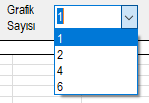 The number of live charts displayed simultaneously in the Chart Panel can be
selected as 1, 2, 4, or 6. This structure allows multiple
data groups to be monitored simultaneously in separate chart areas on the same screen.
The number of live charts displayed simultaneously in the Chart Panel can be
selected as 1, 2, 4, or 6. This structure allows multiple
data groups to be monitored simultaneously in separate chart areas on the same screen.
| Number of Charts | Usage |
|---|---|
| 1 | Detailed monitoring of a single data group |
| 2 | Comparison of two data groups |
| 4 | Monitoring multiple operational parameters together |
| 6 | Monitoring multiple data groups on the same screen |
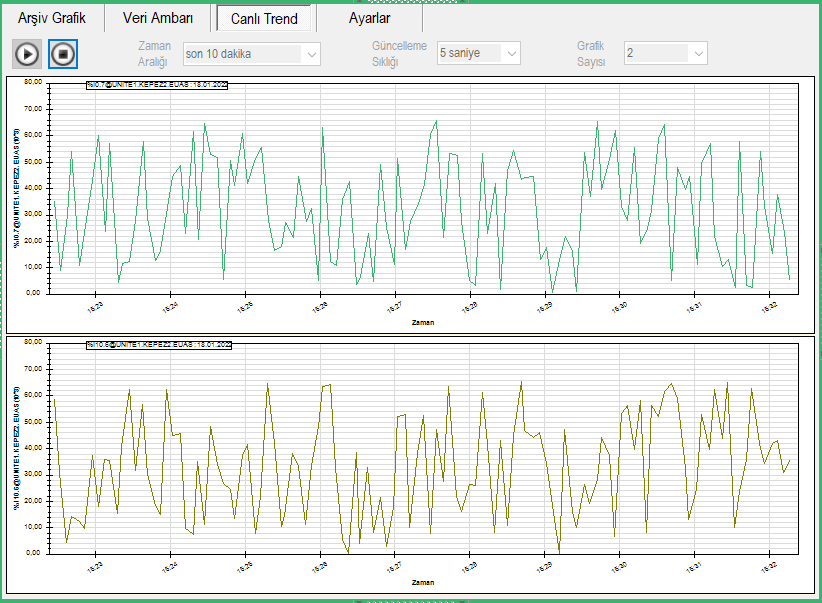
The data settings of existing live trend charts can be changed when required. To perform this operation, the live chart is first stopped and then the relevant chart is edited.
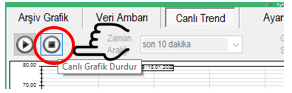
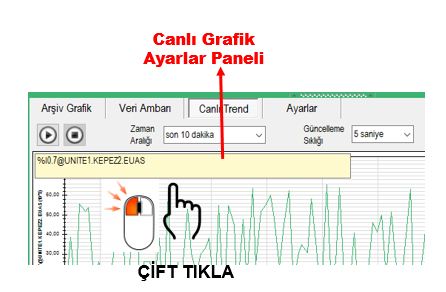
The Live Chart Settings Status Menu is used to add or remove data from the selected live chart and to modify the existing data configuration. The menu is opened by right-clicking on the chart.
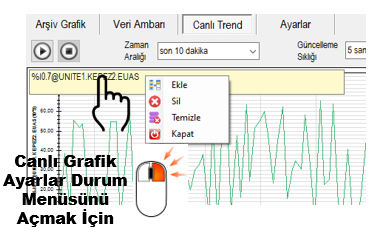
Data displayed in the live chart can be reorganized through the Status Menu. New data can be added or existing data can be removed as required.
All data displayed on the live chart can be cleared with a single operation. This removes the current data selections and allows the chart to be reconfigured.
After adding, removing, or clearing all data, the live chart options can be reconfigured. This allows the data group monitored by the live chart to be redefined.
The Live Chart feature provides broader functionality in the EOS SCADA system than simply monitoring a single trend chart. Users can select different SCADA data and arrange them in one or more live chart areas to create live data SCADA pages according to operational requirements.
This structure allows real-time trends of active power, voltage, current, level, flow, temperature, or similar process values to be monitored on the same screen and enables different operational parameters to be evaluated together.
| Operation | Primary Function |
|---|---|
| STOP LIVE CHART | Switching the chart to editing mode |
| Data selection | Moving the SCADA data to be monitored into the chart area |
| START LIVE CHART | Enabling real-time trend monitoring |
| Time range | Determining the period displayed on the chart |
| Update frequency | Determining the refresh period of live data |
| Number of charts | Determining the number of live charts displayed simultaneously |
| Status Menu | Reorganizing live chart data |
Free Software Download Center
Software for industrial data collection, monitoring, and analysis.

Technical Support
Software documentation, sample code, and practical technical information.
You can contact us regarding EOS software, technical documentation, or industrial data communication.