
Free Software Download Center
Software for industrial data collection, monitoring, and analysis.
DATA SELECTION • HISTORICAL CHART • ZOOMING • POINT VALUES • SAVING • PRINTING
The EOS SCADA Chart Panel enables graphical analysis of process data collected and archived in the SCADA system for a specified date and time range. Users can select one or more SCADA data series to create historical charts and perform detailed analysis on the chart.
The Chart Panel provides data selection, chart refresh, zooming into specific areas, returning to previous view levels, displaying point values, saving charts in different file formats, and printing, all within a single working environment.
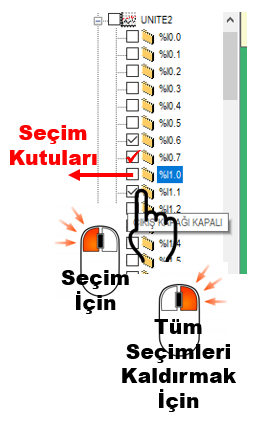 The first step in creating a historical chart is to determine the SCADA data
to be examined on the chart. The tree menu located on the
left side of the EOS Chart Panel allows the SCADA data available in the
system to be displayed and selected hierarchically.
The first step in creating a historical chart is to determine the SCADA data
to be examined on the chart. The tree menu located on the
left side of the EOS Chart Panel allows the SCADA data available in the
system to be displayed and selected hierarchically.
Multiple data selection: Multiple SCADA data items can be selected simultaneously from the tree menu. This feature makes it easier to comparatively examine the behavior of multiple process variables over the same time period.
Date selection in chart operations determines which historical data period will be examined. The user can select the relevant day by clicking the desired date in the date selection pane on the right.
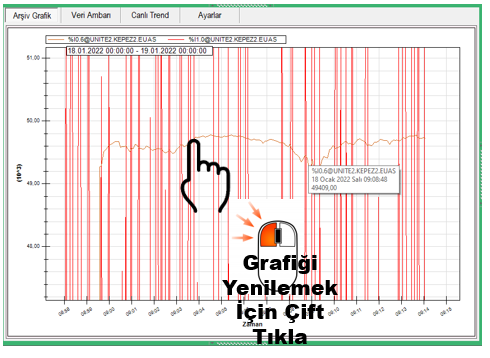
If a date has already been selected, the chart can be redrawn or updated by double-clicking the chart area with the left mouse button. This provides a practical way to reflect the selected data or date in the chart area.
Basic operation sequence:
Select data → Select date → Create/update the chart → Examine the chart
Chart refresh: If a date has already been selected while working in the chart area, double-click the chart area with the left mouse button to create a new chart view or refresh the existing chart.
After working with multiple data items, it may be necessary to remove the existing selections before preparing a new chart. In the EOS Chart Panel, this can be done using the status menu opened by right-clicking the tree menu.
This method provides a faster starting point, especially when many data items have been selected, instead of removing the selections one by one.
The zoom operation can be used to examine a specific time interval or a particular area of change in greater detail. The user can select the area to be examined on the chart using the left mouse button and enlarge it.
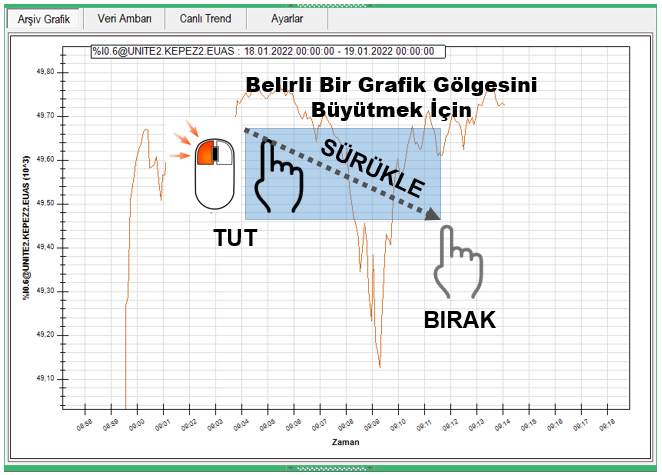
Zooming is particularly useful for examining short-term changes, sudden process movements, or closely spaced values in detail. When the chart is zoomed multiple times, each operation creates a new level of examination based on the previous view.
Analysis approach: The relevant time interval can first be identified on the overall chart. The selected area can then be zoomed in to examine process behavior in greater detail.
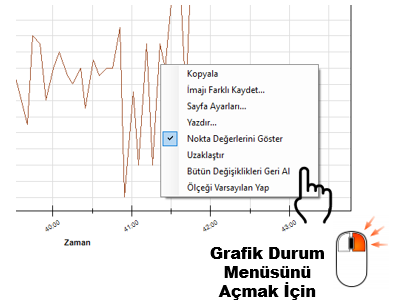
The Chart Status Menu opens when the user right-clicks the chart. This menu provides the main tools required to manage the chart view and obtain chart output.
Particularly when working with a zoomed chart, this menu can be used to return to the previous zoom level or remove all view changes and restore the chart to its initial state.
| Menu Option | Function |
|---|---|
| Copy | Copies the chart image to the clipboard as an image. |
| Save Image As | Allows the chart to be saved as a file in EMF, PNG, GIF, JPEG, TIFF, or BMP format. |
| Page Setup | Allows printer and page layout settings to be configured before printing the chart. |
| Sends the chart to the default printer for printing. | |
| Show Point Values | Displays the values of the corresponding chart points when the cursor is moved over the chart line. |
| Zoom Out | Returns the chart to the previous zoom level. |
| Undo All Changes | Removes all zoom operations and returns the chart to the view level at which it was originally created. |
| Reset Scale to Default | Restores the chart scale settings to their default values. |
After zooming in on the chart, there are two different options for restoring the previous view. These options allow the user to manage the view levels created during chart analysis in a controlled manner.
| Operation | Result |
|---|---|
| ZOOM OUT | Returns the chart to the previous zoom level. If multiple zoom operations have been performed, the levels can be reversed step by step. |
| UNDO ALL CHANGES | Removes all zoom operations and returns the chart to the original view level at which it was first created. |
Example: If two different zoom operations have been performed consecutively on the chart, selecting ZOOM OUT first returns the view from the second zoom level to the previous view. To remove all zoom operations in a single step, use UNDO ALL CHANGES.
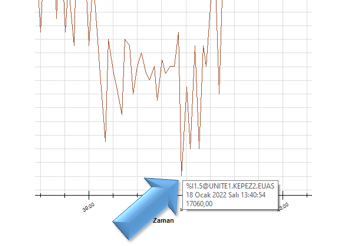 The Show Point Values option can be used to examine the
numerical value at a specific point on a data line in the chart.
The Show Point Values option can be used to examine the
numerical value at a specific point on a data line in the chart.
When this option is enabled, the values of the corresponding chart points are displayed as the cursor is moved over the chart line. This allows the user to examine not only the overall trend but also the numerical value represented by specific points on the chart.
Analysis convenience: Displaying point values is particularly useful when the process value at a specific point in time needs to be quickly checked directly from the chart.
The Chart Status Menu provides Copy and Save Image As options so that the generated chart image can be used in other applications or transferred to technical documentation.
| Operation | Description |
|---|---|
| Copy | Copies the chart image to the operating system clipboard in image format. The image can then be pasted into another application. |
| Save Image As | Allows the chart to be stored as a file. |
The Save Image As option allows the chart to be saved in EMF, PNG, GIF, JPEG, TIFF, or BMP format. The format can be selected according to the intended use of the chart and the image formats supported by the target application.
The chart can not only be saved digitally but can also be printed directly. For this purpose, the Page Setup and Print options in the Chart Status Menu are used.
Printing: The Print command sends the chart to the system's configured default printer. The Page Setup option allows the print layout to be prepared before the output is produced.
During chart analysis, changes can be made to the scale and view. The Reset Scale to Default option in the Chart Status Menu restores the chart scale settings to their default values.
This operation can be used particularly when the user wants to continue a new evaluation from the initial view after performing different chart analyses.
When examining historical SCADA data in the EOS Chart Panel, performing operations in a defined sequence makes the chart creation and analysis process more systematic.
Result: This workflow allows the user to perform different levels of chart analysis through the same panel, from examining the overall trend in the SCADA archive to checking the numerical value at a specific point in time.
Free Software Download Center
Software for industrial data collection, monitoring, and analysis.

Technical Support
Software documentation, sample code, and practical technical information.
You can contact us regarding EOS software, technical documentation, or industrial data communication.