
Free Software Download Center
Software for industrial data collection, monitoring, and analysis.
EVENT AND ALARM MONITORING • FILTERING • LIVE ALARM • ARCHIVE
Event and alarm archive records generated within EOS SCADA Runtime can be accessed quickly and efficiently through the Event Panel. Users can review recorded event and alarm archive data by filtering it according to date, event, and alarm properties.
In addition to reviewing events that occurred in the past, the Event Panel also enables automatic monitoring of newly generated alarms through its live alarm list feature.
Users can quickly access the event and alarm list recorded in the event and alarm archive by clicking the EVENT PANEL button on the quick access button bar.
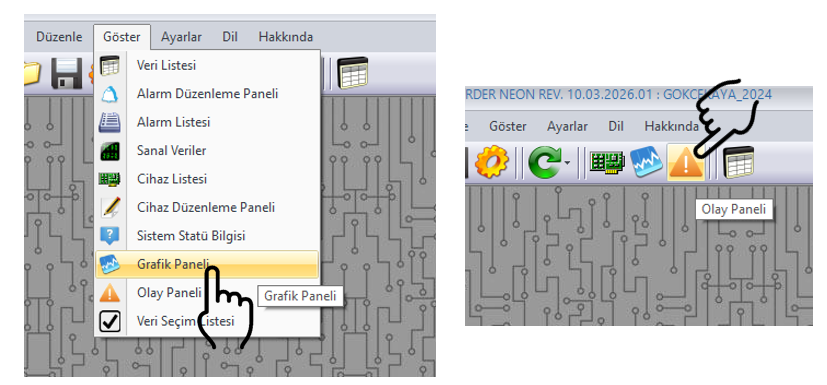
The Event Panel can also be accessed through the VIEW → EVENT PANEL menu path in the EOS SCADA Runtime main menu.
Quick Access Button Bar → EVENT PANEL
or
VIEW → EVENT PANEL
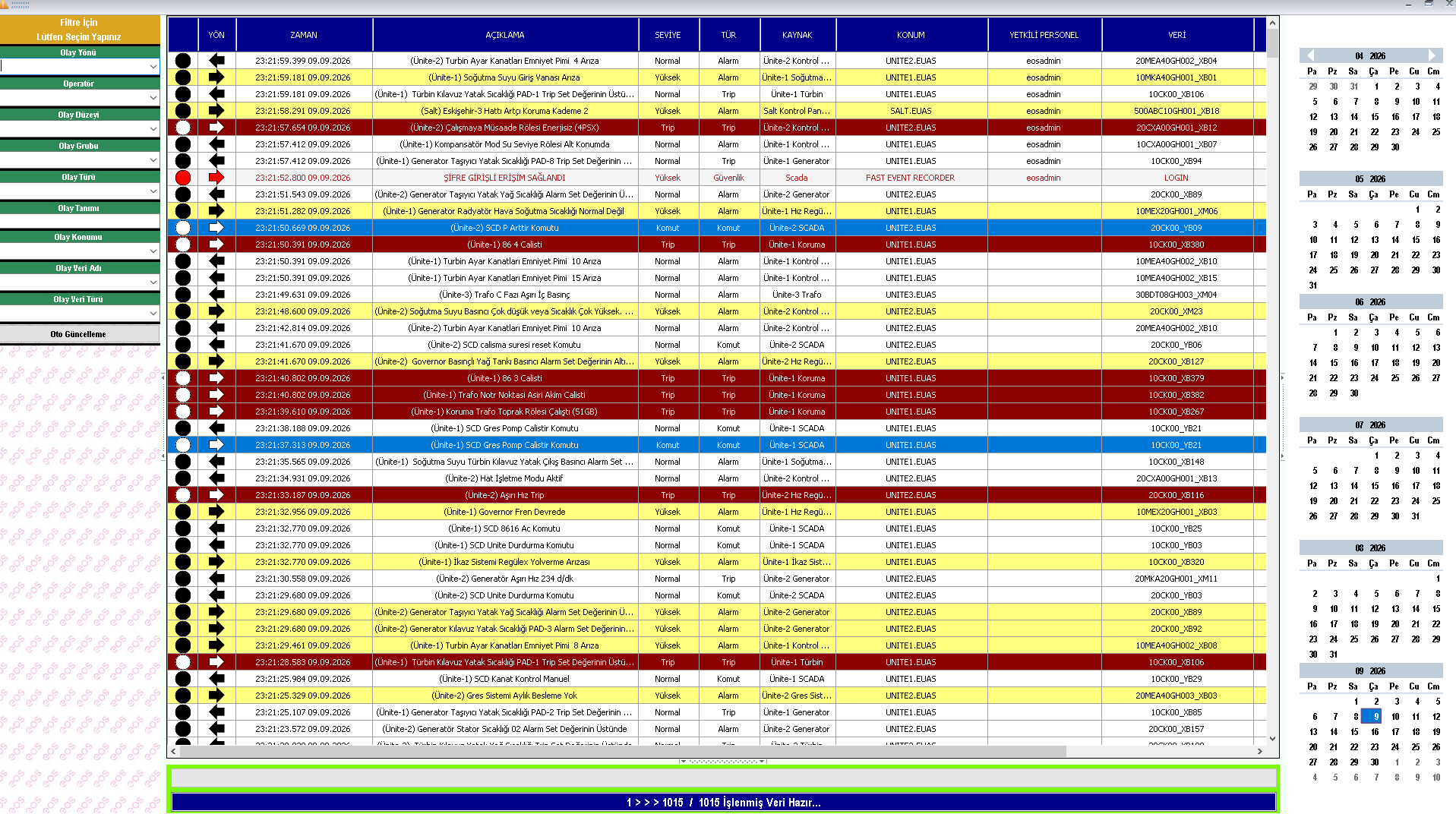
The Event Panel is designed as an integrated workspace for quickly reviewing events and alarms that have occurred. The panel consists of supporting sections that provide filtering, date selection, event/alarm listing, and operation status tracking.
| Section | Function |
|---|---|
| Filter Pane | Allows event and alarm records to be narrowed according to specified criteria. |
| Date Selection Pane | Allows the day or consecutive days to be selected for review. |
| Event/Alarm List | Displays records matching the selected date and filter criteria. |
| Progress Bar | Shows the progress of the operation while archive records are being prepared or listed. |
| Operation Message Box | Provides the user with status and operation messages regarding the performed operation. |
The user defines the filtering criteria, selects the date, and views the resulting records through the central event/alarm list. The progress bar and operation messages help the user track the status of the operation being performed.
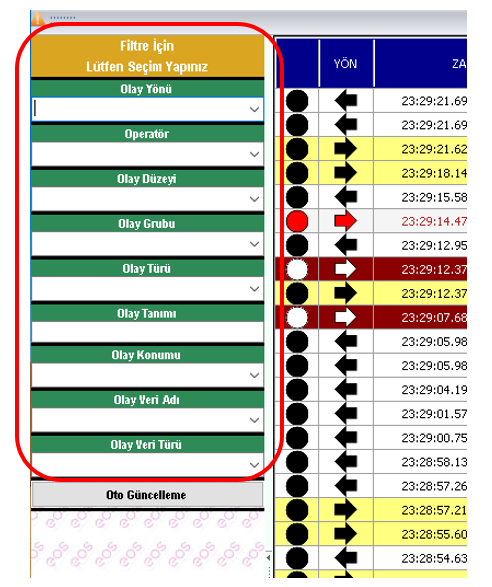
The filter pane added to the Event Panel allows listed events and alarms to be restricted according to different properties. This feature makes it easier to find the required records, especially in archives containing a large number of event records.
| Filter | Description |
|---|---|
| Event Direction | Allows records to be filtered according to the direction of the event. |
| Operator | Allows filtering according to the operator associated with the event or operation. |
| Event Level | Allows records to be restricted according to the level of the event or alarm. |
| Event Group | Allows records belonging to specific event groups to be selected. |
| Event Type | Allows records to be filtered according to the event type. |
| Event Description | Makes it easier to find the required records according to the event description. |
| Event Location | Allows filtering according to the location where the event occurred. |
| Event Data Name | Allows records to be restricted according to the data/Tag name associated with the event. |
| Event Data Type | Allows records to be filtered according to the data type associated with the event. |
The user can narrow the event/alarm list by selecting one or more of the required filter options. This makes it easier to review records for a specific event, alarm, operator, or data point in large archives.
Applied filters can be reset using the corresponding option in the status menu opened by right-clicking the event/alarm list.
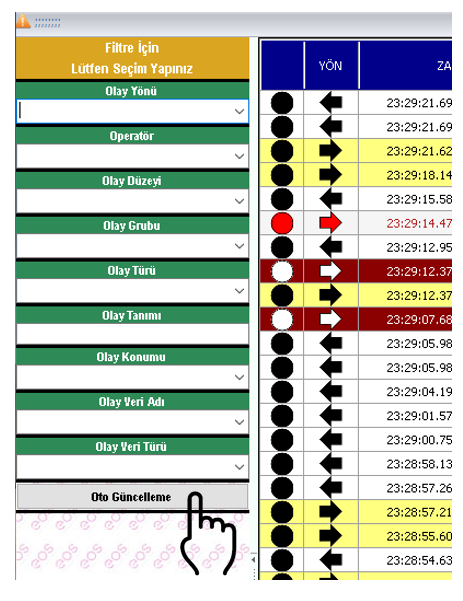 The live alarm list feature added to the Event Panel
allows users to automatically monitor the most recently generated
alarms. When the user clicks the Auto Update button,
automatic update mode is enabled.
The live alarm list feature added to the Event Panel
allows users to automatically monitor the most recently generated
alarms. When the user clicks the Auto Update button,
automatic update mode is enabled.
When automatic update mode is active, the latest alarm records are automatically reflected in the list. To exit this mode, the user can click the Auto Update button again.
The Auto Update feature provides a convenient way to continuously monitor newly generated alarms, particularly when the operator needs to follow new alarms without manually refreshing the list.
When Auto Update mode is not active, the user can view event and alarm records for individual days by clicking the calendar days in the date selection pane.
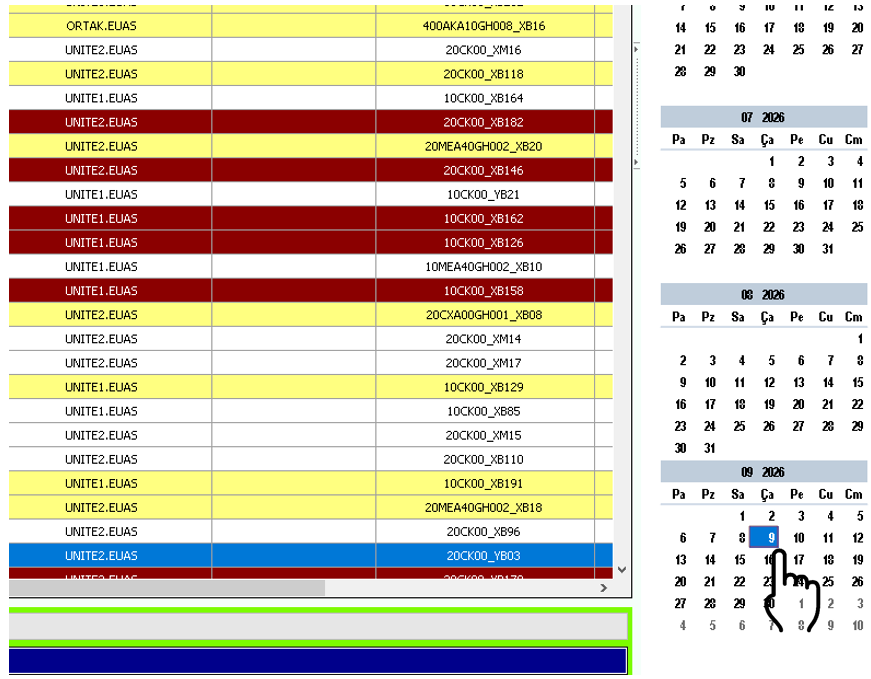
Consecutive days can also be selected together. The user can press and hold the right mouse button on the first day, drag the pointer to the last day, and release it to select all consecutive days in between.
Press and hold the right mouse button on the first day, drag the pointer to the last day, and release it. The event and alarm archives for the selected consecutive days can then be displayed together.
A large number of event and alarm records may be available as a result of the selected date or filter criteria. When the number of records is very high, the data is displayed to the user in blocks of 5,000 records.
This approach helps provide more controlled use of the event list, particularly in long-term archives and systems that generate a high volume of alarms. Users can review large archives in sections, making it easier to locate the records they need.
When the number of records in the archive exceeds 5,000, presenting the records in blocks of 5,000 allows large data lists to be viewed in a manageable manner.
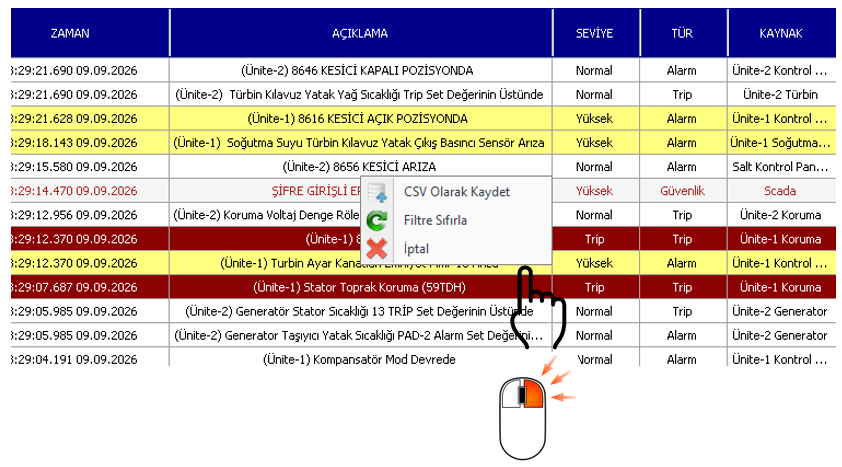 When the user right-clicks on the event/alarm list,
a status menu opens through which relevant operations can be performed.
This menu allows operations such as saving records as CSV and resetting
applied filters.
When the user right-clicks on the event/alarm list,
a status menu opens through which relevant operations can be performed.
This menu allows operations such as saving records as CSV and resetting
applied filters.
| Operation | Description |
|---|---|
| Save as CSV | Allows the records displayed in the event/alarm list to be saved in CSV format. |
| Reset Filters | Removes the applied filters and returns the event/alarm list to its general view. |
The user can first narrow the list using criteria such as Event Direction, Operator, Event Level, Event Group, Event Type, Event Description, Event Location, Event Data Name, or Event Data Type. The filtered list can then be saved as CSV using the status menu opened with a right-click.
The Event Panel can be used both to review events and alarms that occurred in the past from the archive and to monitor newly generated alarms live. The usage mode depends on whether the user enables Auto Update.
| Usage Mode | Operation |
|---|---|
| Live Alarm Monitoring | Auto Update is enabled and the latest alarms are monitored automatically. |
| Single-Day Archive Review | With Auto Update disabled, the relevant day is selected from the calendar and its records are displayed. |
| Multiple-Day Archive Review | Consecutive days are selected by dragging with the right mouse button, and records within the date range are displayed. |
| Filtered Review | Filters are applied according to event and alarm properties to list the required records. |
| Export to CSV | Records can be saved as CSV through the status menu opened by right-clicking the list. |
The Event Panel is an important operator tool in EOS SCADA Runtime that allows events and alarms to be monitored both from the archive and in real time. The panel combines functions such as date selection, detailed filtering, live alarm updates, and data export within a single workspace.
Users can access the panel through the VIEW → EVENT PANEL menu path or the EVENT PANEL button on the quick access button bar. When Auto Update is active, the latest alarms are automatically listed. When automatic updating is disabled, a single day or consecutive days can be selected through the calendar to review historical records.
The Event Direction, Operator, Event Level, Event Group, Event Type, Event Description, Event Location, Event Data Name, and Event Data Type filters make it easier to locate specific records within large archives. When the number of records is very high, presenting the data in blocks of 5,000 helps provide more controlled use of the list.
The Event Panel combines event and alarm archive viewing, detailed filtering, live alarm monitoring, date-based review, 5,000-record blocks, and CSV record saving, enabling effective monitoring of events and alarms occurring within EOS SCADA Runtime.
Free Software Download Center
Software for industrial data collection, monitoring, and analysis.

Technical Support
Software documentation, sample code, and practical technical information.
You can contact us regarding EOS software, technical documentation, or industrial data communication.